
HCL Connections Community Widget
The Huddo Ideas widget brings idea labs into an HCL Connections community. Community members can browse the community's labs, submit ideas and vote without leaving Connections.
Your administrator adds the widget to Connections once. See HCL Connections Widget Setup.
What the Widget Shows
Depending on its settings, the widget opens on either:
- Community Idea Labs - every lab that belongs to this community, with the same search, filters and New Idea Lab card as the main Idea Labs page
- One lab - a single lab, chosen by the community owner
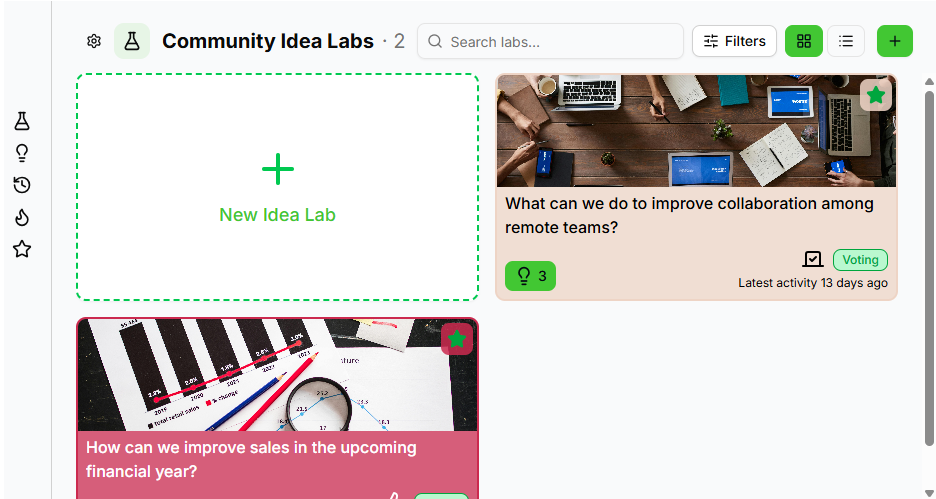
Choose What the Widget Shows
If you can customise the community, a Settings (gear) button appears at the top of the widget. The Widget settings dialog also opens automatically the first time the widget loads, so you can set it up straight away.
- Under Start page, choose:
- List all labs in this community
- Show a specific lab, then pick the lab from Lab
- Click
Save
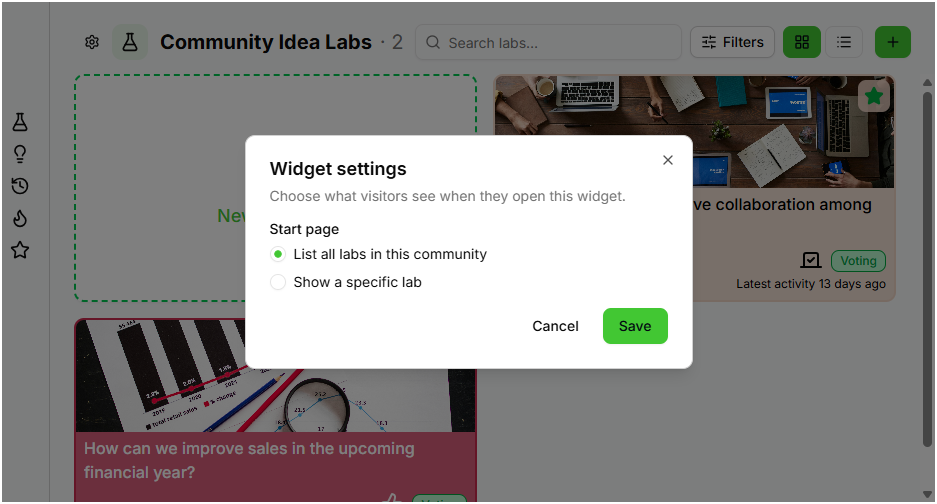
If the community has no labs yet, only the list option is available. To show a specific lab, first create a lab in the community.
Each widget on the community page keeps its own setting.
Create a Lab in a Community
- Open the community's Community Idea Labs page
- Click the New Idea Lab card
- Follow the lab wizard
The new lab belongs to the community and appears on its Community Idea Labs page. Huddo Ideas adds the community to the lab's members with the Owner role. See Members and Roles.
Drafts of community labs appear on that community's page, not on the main Idea Labs page.
Please contact us if you have any questions.