
Slash Commands
The slash menu is the quickest way to add anything to a page. Type / while
editing and pick a block: a table, an image, a callout, a diagram, a live
Huddo Boards card and much more.
Open the Menu
- Start editing the page
-
On a new line, type
/(or pressCtrl+/)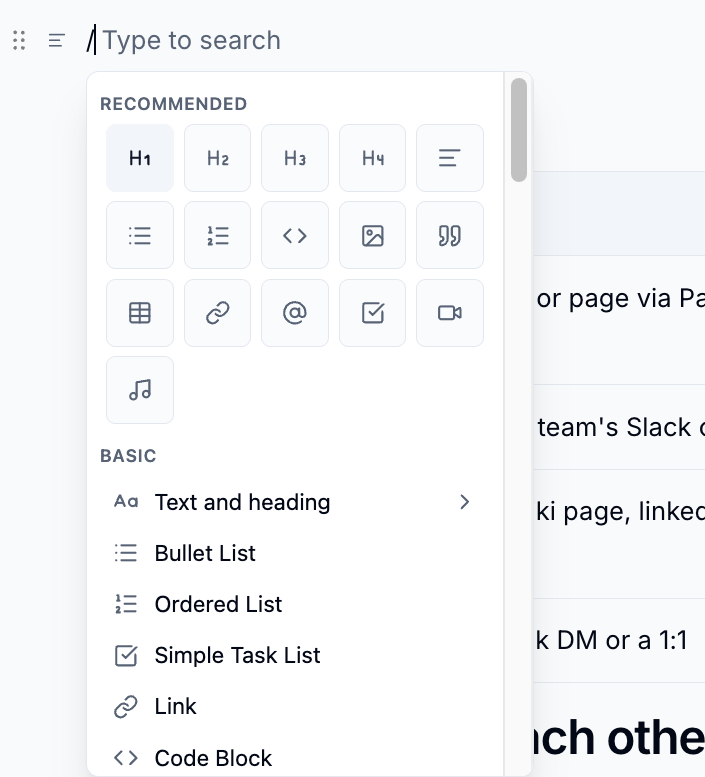
The menu opens with a Recommended grid of the most used blocks. Hover over a tile to see its name. Below the grid, every block is grouped into sections.
Find a Block
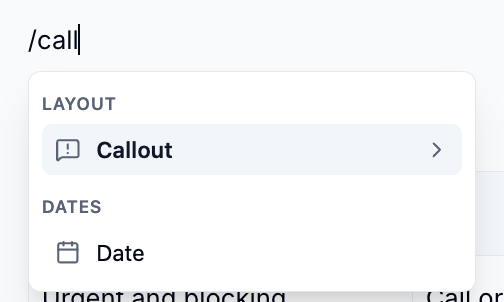
Keep typing after the / to filter the list. For example, /call finds
Callout.
| Key | What it does |
|---|---|
↑ ↓ |
Move through the items |
Tab / Shift+Tab |
Jump to the next or previous section |
Enter |
Insert the selected block. On an item with ›, open its options |
Esc |
Close the menu |
What You Can Add
| Section | Blocks |
|---|---|
| Basic | Text and heading (text, Heading 1–5), Bullet List, Ordered List, Simple Task List, Link, Code Block |
| Layout | Table, Table of Contents, Child pages, Columns (2–5), Callout (Info, Tip, Success, Warning, Danger), Tabs, Expand, Excerpt - Create, Excerpt - Include, Include Page, Page properties, Page properties report, Quote, Divider, Emoji, Status, Math, Inline math, Diagram (Mermaid), Diagram (draw.io) |
| Dates | Date, Today, Tomorrow, Yesterday |
| References | Footnote, Cite Existing Footnote |
| Media | Image, Gallery, Video, Audio |
| Mention | Mention - notify a person |
| Huddo Boards | Board, Timeline - embed a live board |
| Embed | YouTube, X, Instagram, Facebook, Vimeo, Loom, TikTok, Spotify, SoundCloud, Figma, CodePen, CodeSandbox, Replit, StackBlitz and Huddo Boards. Paste the link when asked |
Items marked › have their own options. For example, hover over Table to
pick a size, or over Callout to pick a style.
Property blocks
If the wiki has property blocks turned on (such as Decisions or Risks), they get their own Property blocks section, each with a matching report.
Availability
Diagram (draw.io) appears only where your administrator has enabled draw.io. The Huddo Boards blocks need Huddo Boards to be available to your organisation.
Tips
Paste a link instead
You don't always need the menu. Paste a link to a wiki page, a video or a supported site and Huddo Wikis turns it into a smart card. Click the card to switch between a card, an inline link or an embed.
Markdown works too
Type # for a heading, - for a bullet list or > for a quote. See Keyboard Shortcuts for the full list.
Please contact us if you have any questions.