
Voting and Workflow
The Voting and Workflow step of the lab wizard decides how people vote and how ideas move from submission to a decision. You set it when you create a lab, and lab owners can change it later from Edit lab details (the gear icon).
Voting Types
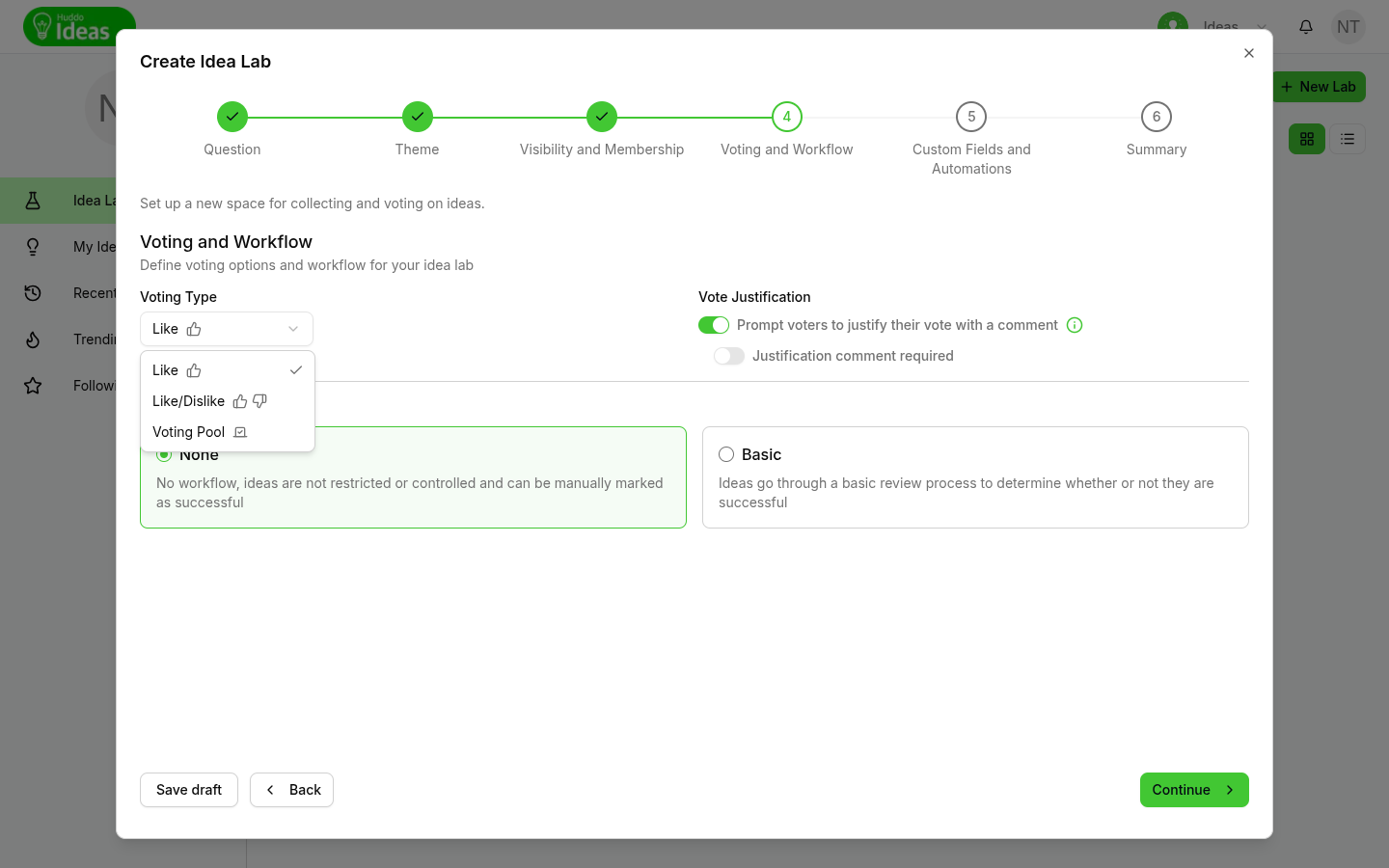
| Voting type | How it works | Good for |
|---|---|---|
| Like | Simple upvoting with the thumbs up button. One vote per person per idea | Quick, open brainstorms |
| Like/Dislike | People can upvote or downvote each idea | Questions where pushback matters |
| Voting Pool | Each voter is allocated a number of votes to spread across ideas, and can put several on one idea | Prioritising a budget or a shortlist |
If you choose Voting Pool, enter how many votes each voter gets in Voters are allocated … votes each (1 to 100, 20 by default). Voters see how many of their votes they've used. When they run out, they can't vote.
New labs use Like voting.
Vote Justification
To ask voters why they voted, switch on Prompt voters to justify their vote with a comment. The comment is added to the idea's discussion.
- Without Justification comment required, voters can click
Skip - With it, voters must write at least six characters before their vote counts
People aren't asked to justify votes on their own ideas.
Workflow
Choose one of two workflows:
| Workflow | What happens |
|---|---|
| None | Ideas aren't restricted or controlled. When you're ready, you move the lab to review, pick the ideas to promote, and complete the lab |
| Basic | Ideas go through a basic review process to decide whether or not they are successful. You can add a voting target, an idea limit and a deadline |
New labs have no workflow. How each one runs during review is described in Review and Complete a Lab.
Basic Workflow Options
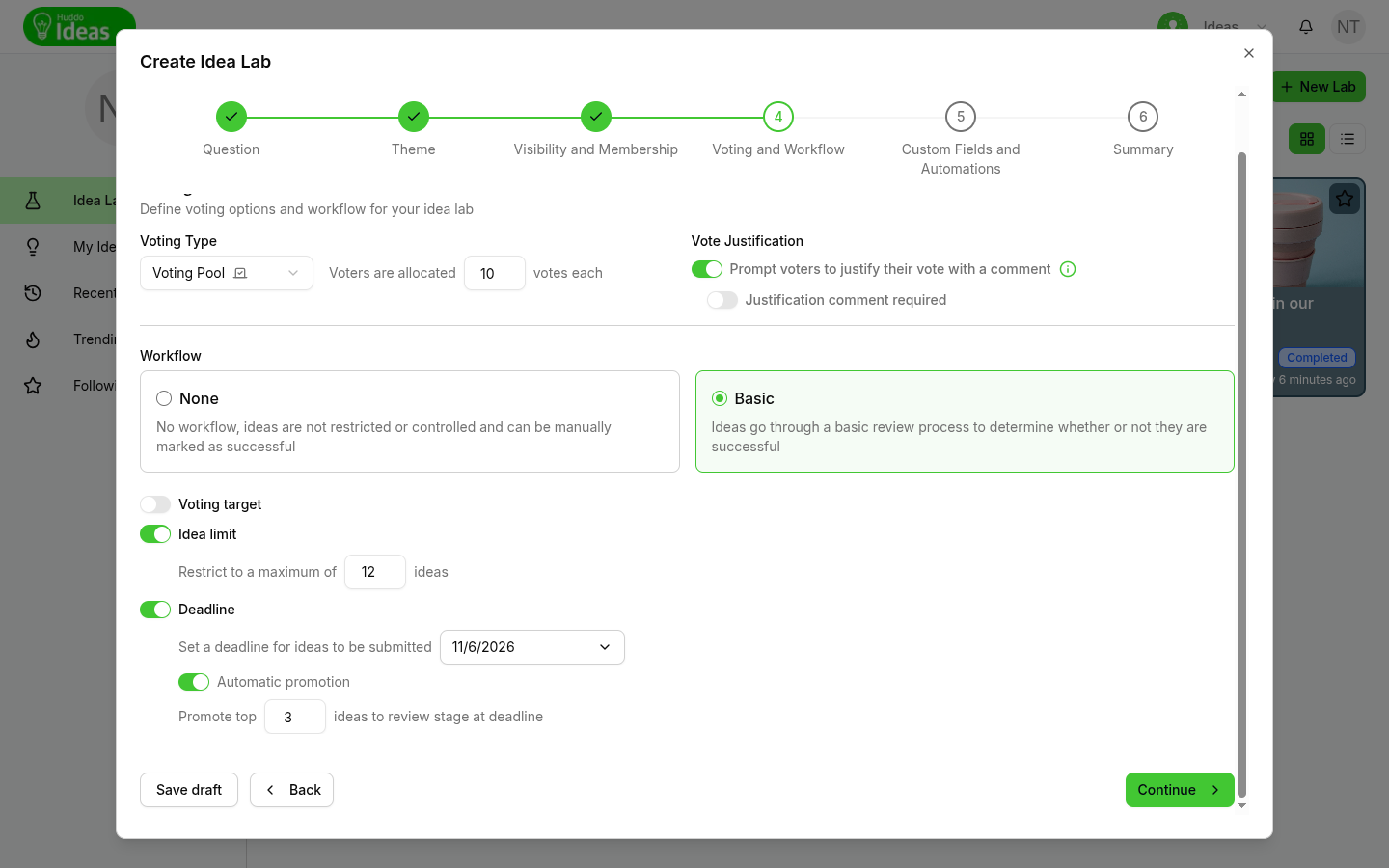
When you choose Basic, Voting target and Idea limit are switched on. Turn each option on or off with its switch.
Voting target - Promote an idea to review stage when it reaches … votes (20 by default). When an idea's votes reach the target, the idea moves to review automatically and Huddo Ideas notifies its author. Huddo Ideas does not accept votes that take an idea past the target. When an idea reaches half of the target, Huddo Ideas also notifies its author.
Idea limit - Restrict to a maximum of … ideas (10 by default). When the lab holds that many ideas, nobody can submit more.
Deadline - Set a deadline for ideas to be submitted. Nobody can submit new ideas after the deadline. When it passes, the lab moves to the review stage automatically.
Automatic promotion - available only when a deadline is set. Promote top … ideas to review stage at deadline (3 by default) moves the most-voted ideas to review when the lab moves to review.
Deadlines are checked once a day
Huddo Ideas checks for passed deadlines once a day, so a lab can stay in the voting stage for up to a day after its deadline. New ideas are blocked as soon as the deadline passes.
On the lab page, members can see the workflow at a glance: ideas submitted against the limit, the voting target, and the time left before the deadline.

Anonymity
The Privacy settings on the Visibility and Membership step affect voting:
- Anonymous Ideas - nobody can see who submitted an idea. The lab shows an anonymous icon, and authors are reminded that their identity will be hidden
- Anonymous Voting - nobody can see who voted. The idea's Voting Summary tab isn't shown
Anonymous voting turns off vote justification
A justification comment reveals who voted. For this reason, when you turn on Anonymous Voting, Vote Justification switches off and is disabled. To use vote justification, turn anonymous voting off again.
Please contact us if you have any questions.