
Following, My Ideas and Notifications
Keep track of the labs and ideas that matter to you. Follow them, check your own ideas in one place, and let Huddo Ideas tell you when something changes.
Follow a Lab or Idea
Click the star on a lab card, in a lab's header, on an idea card or on an idea page. The star fills in to show you are following. Click it again to unfollow.
- Following a lab adds it to your Following page and to the Following filter on the Idea Labs page
- Following an idea adds it to your Following page and the Following filter in its lab. You are also notified when its status changes, for example when it goes under review or is accepted
The Following Page
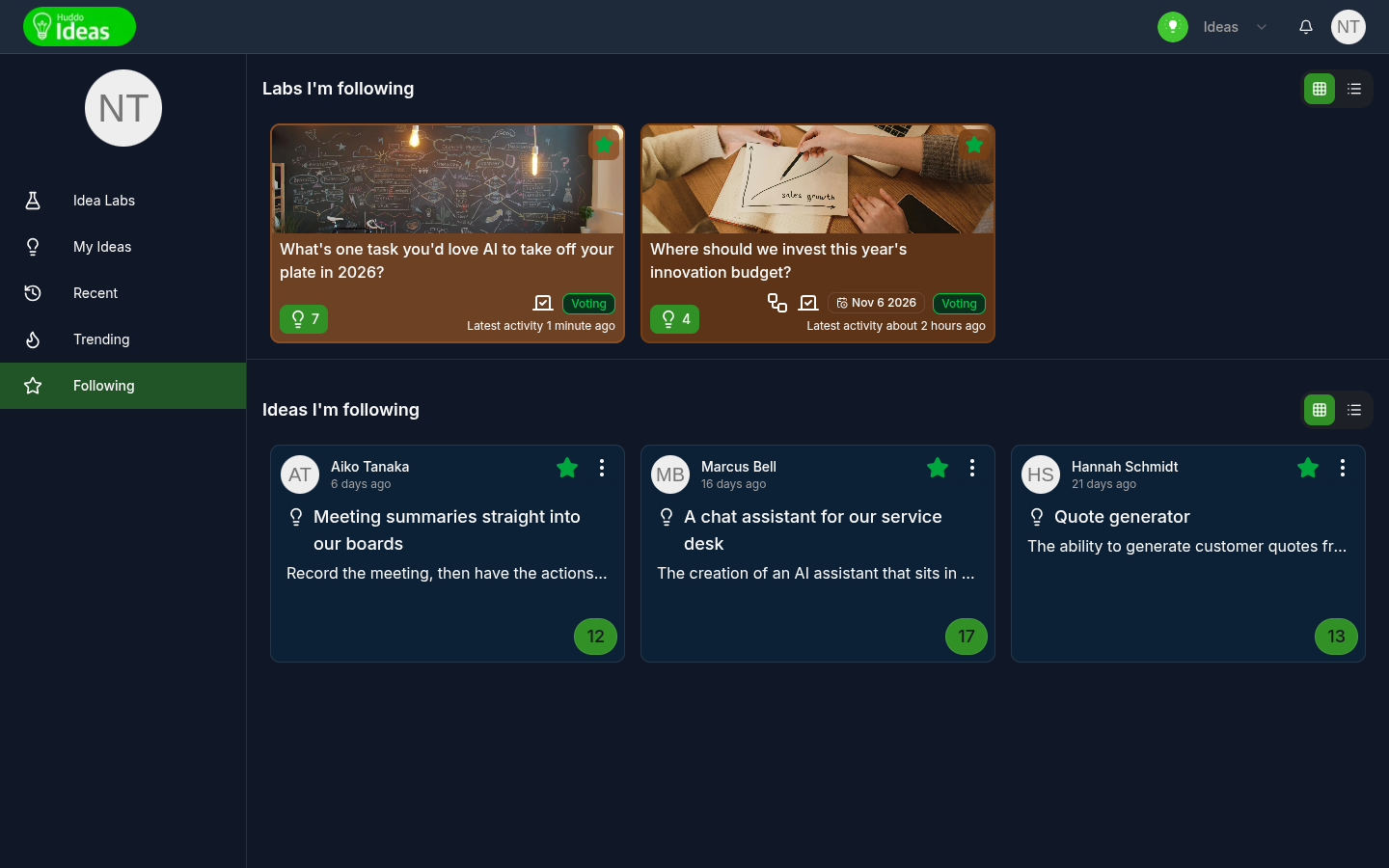
Click Following in the sidebar. The page has two sections: Labs I'm following and Ideas I'm following.
My Ideas
Click My Ideas in the sidebar to see every idea you have submitted, across all labs.
- Sort by - Recent, Highest votes, Trending or Status
- Filter - All, Successful, Under review or Following
- View - switch between cards and a list
The text beside the filters shows how many of your ideas you are looking at. Your drafts aren't listed here. Find them in their lab.
Recent
Click Recent in the sidebar to see ideas from all your labs, most recently active first. Activity means the idea was updated or voted on. Ideas are grouped into Activity in the last week, Activity in the last month and Older. Click a group's heading to open it.
Each card shows which lab the idea belongs to and when it was last active.
Trending
Click Trending in the sidebar to see the busiest labs, ranked by the number of new ideas and votes in the last 14 days. Each lab shows its most recently updated ideas. Click a lab's title bar to open it.
Share a Lab or Idea
To share an idea with a colleague:
- Open the idea
- Click the
⋮menu - Choose Share Idea
- Search for the person, then click
Request access
What happens next depends on the person's access:
- If they can already see the lab, they get a notification
- If they can't, Huddo Ideas asks the lab owners to give them access
To share a whole lab, click the people icon in the lab header. Then do the same in the Lab access dialog.
Lab owners see an Add button instead and can choose the person's role. The
person is added to the lab and notified straight away. See
Members and Roles.
Notifications
Huddo Ideas notifies you through the bell at the top of the page. You are notified when:
| Something happens to... | You are told when |
|---|---|
| Your ideas | It goes under review, is accepted or is not accepted |
| Your ideas | It reaches half of the lab's voting target |
| Your ideas | Someone comments on it |
| Ideas you follow | It goes under review, is accepted or is not accepted |
| You | Someone mentions you in an idea or a comment |
| You | Someone replies to or reacts to your comment |
| You | Someone shares a lab or an idea with you, or adds you to a lab |
| Labs you own | Someone submits a new idea |
| Labs you created, own or review | An idea goes under review |
| Labs you own or review | An idea is ready for review |
| Labs you own | Someone asks for a colleague to be given access |
To stop notifications from one idea's discussion, mute it. See Discussing Ideas.
Following a lab
Following a lab doesn't send you notifications. It keeps the lab one click away on your Following page. Follow individual ideas to hear about their progress.
Please contact us if you have any questions.