
Excerpts and Include Page
Write something once and use it everywhere. Excerpts and included pages show the same content on many pages, and they stay in sync - update the original and every copy updates with it.
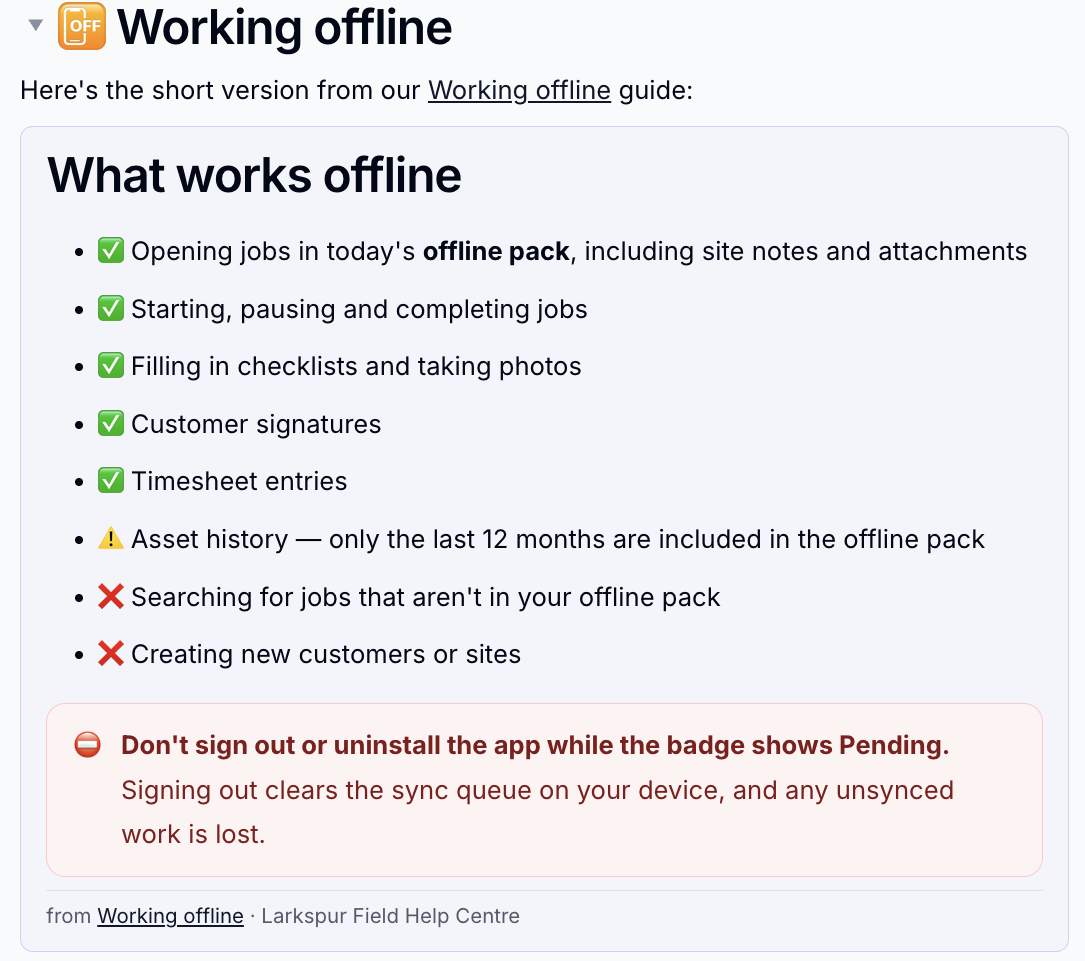
Two Ways to Reuse Content
| Excerpt | Include Page | |
|---|---|---|
| What you reuse | A named part of a page that you mark | A whole page, or one section of it |
| Set up on the source page | Yes - wrap the content in an excerpt | No - any page can be included |
| Best for | Snippets used in many places, such as contact details, warnings or support hours | Showing a full page or section in another context |
Create an Excerpt
- Open the source page for editing
- Click into the content you want to reuse
- Type
/excerptand choose Excerpt - Create - Give the excerpt a name, such as "contact-support", and press
Enter
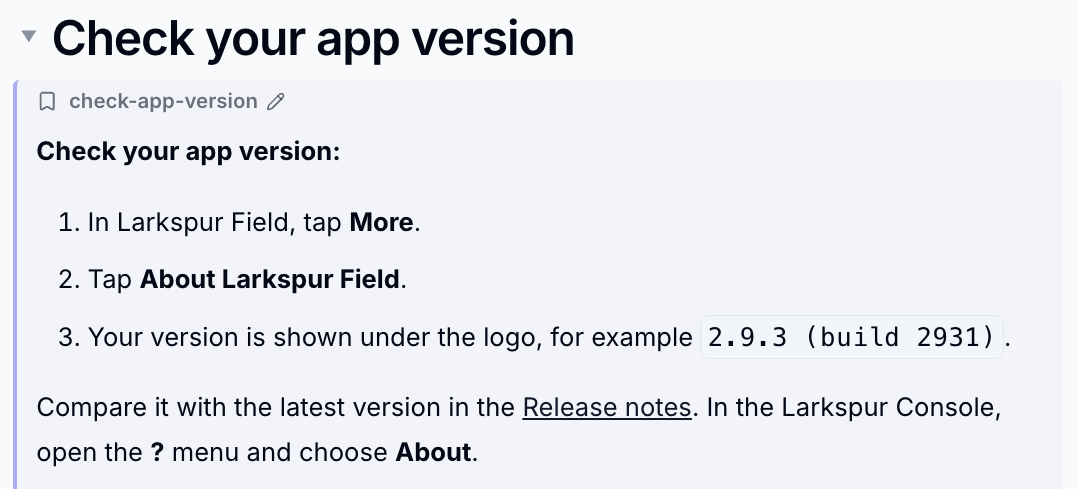
Readers see only the content; the excerpt frame appears just while editing.
Include an Excerpt
- On the page where you want it, type
/excerptand choose Excerpt - Include - Search for the excerpt by name, or narrow it down by wiki and page
- Pick the excerpt to insert it
Keep excerpt names stable
Includes find an excerpt by its name. If you rename or delete the excerpt on the source page, the pages that include it show that it is no longer available.
Include a Page or Section
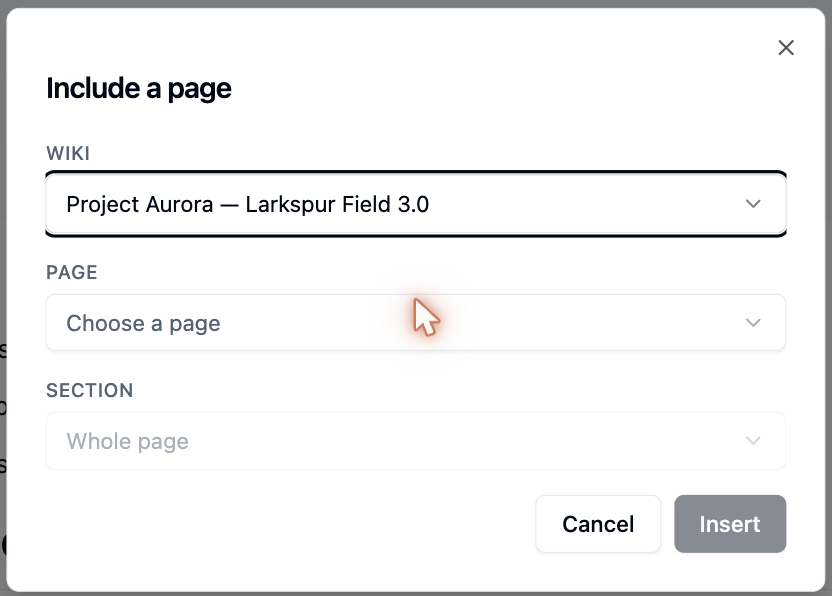
- Type
/include page - Choose the Wiki, then the Page
-
Under Section, keep Whole page or pick one heading - you get that heading and everything under it
-
Click
Insert
While editing, the include has its own tools:
- Edit source - open the original page in a new tab
- Show panel - frame the content and show where it comes from, or let it blend into the page
- Change - pick a different page or section
- Detach - replace the include with a copy that no longer follows the source
What Readers See
Includes always respect permissions. A reader who can't see the source page sees a "Restricted content" notice in its place, even if they can read the page it is included on.
To see which pages include the page you are on, open ⋮ (Page options) and
choose Included in.
Limits
Includes can be nested up to three levels deep, and a page can't include itself.
Please contact us if you have any questions.