
Page Properties and Reports
Page properties turn facts on a page - who owns it, which version it applies to, when it was last reviewed - into structured data. Reports then gather those facts from many pages into one live table that updates by itself.
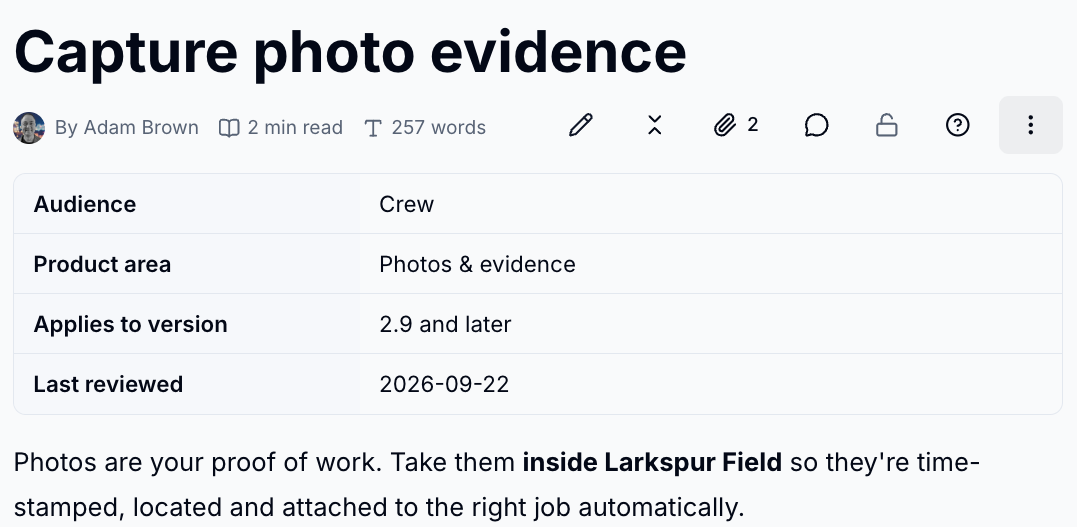
Add Page Properties
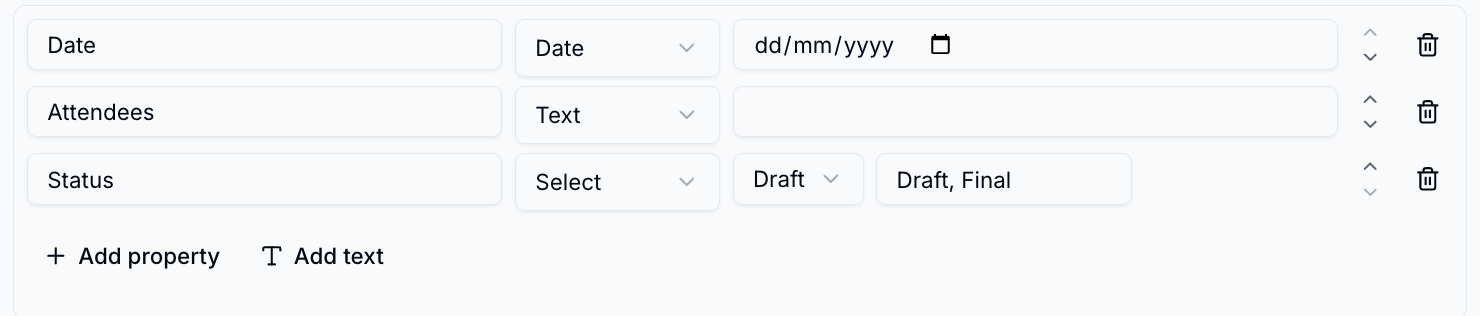
- While editing, type
/page properties -
For each row, enter a name, choose a type and fill in the value
-
Click
Add propertyfor another row, orAdd textfor a short note - Use the arrows to reorder rows, or the bin to remove one
| Type | Use it for |
|---|---|
| Text, Multi-line, Rich text | Words, from a short label to a few paragraphs |
| Number, Date, Yes/No | Values you want to sort or filter on |
| Select, Multi-select | A choice from a list you define |
| Status | A coloured status pill |
| Person | Someone in your organisation |
| Page link, Record link | Another page, or another record of the same kind |
| URL | A web address |
Property Blocks
Property blocks are ready-made sets of properties for common records, so every
risk, action or milestone captures the same details. Each one has its own /
command - for example /risk or /action.
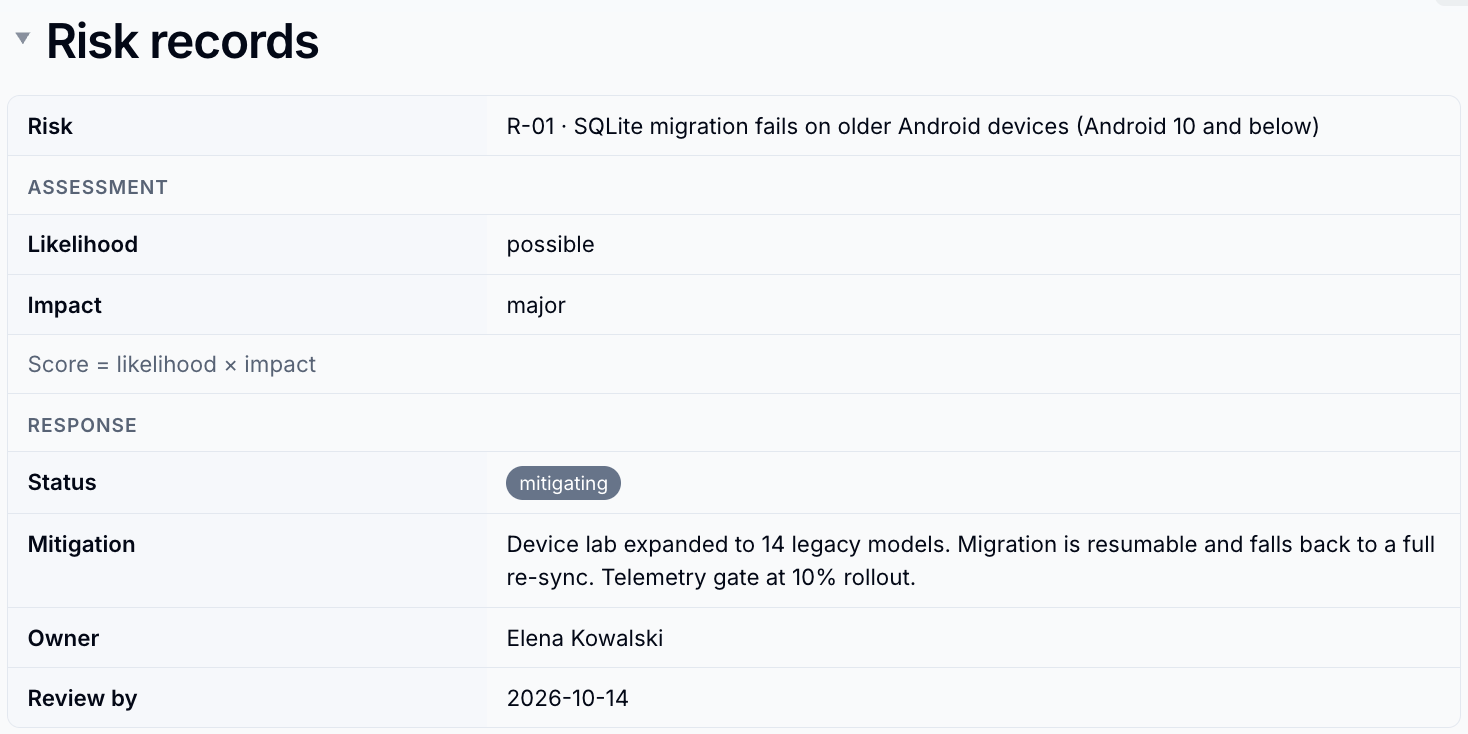
Huddo includes blocks for action items, risks, OKRs, milestones, glossary terms, FAQs, open questions and decisions, and your organisation can add its own in Template Studio.
Turn blocks on for a wiki
Page properties and Decisions are always available. Other blocks appear in the / menu once an Editor or Owner turns them on in Wiki settings → Property blocks.
Build a Report
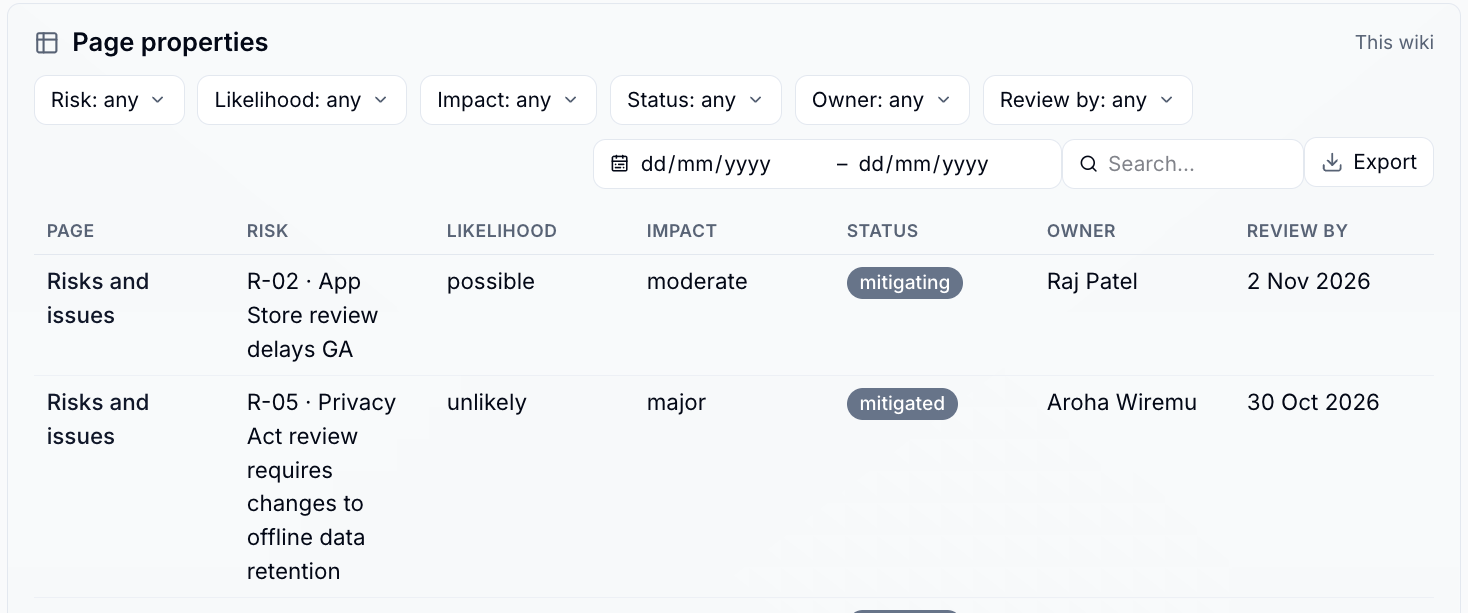
A report collects properties from many pages into one table.
- Type
/page properties report- or, for a property block, its report, such as/risk report - Choose the scope:
- This page
- This page + sub-pages
- This wiki
- Selected wikis
- Click Columns to choose which properties to show
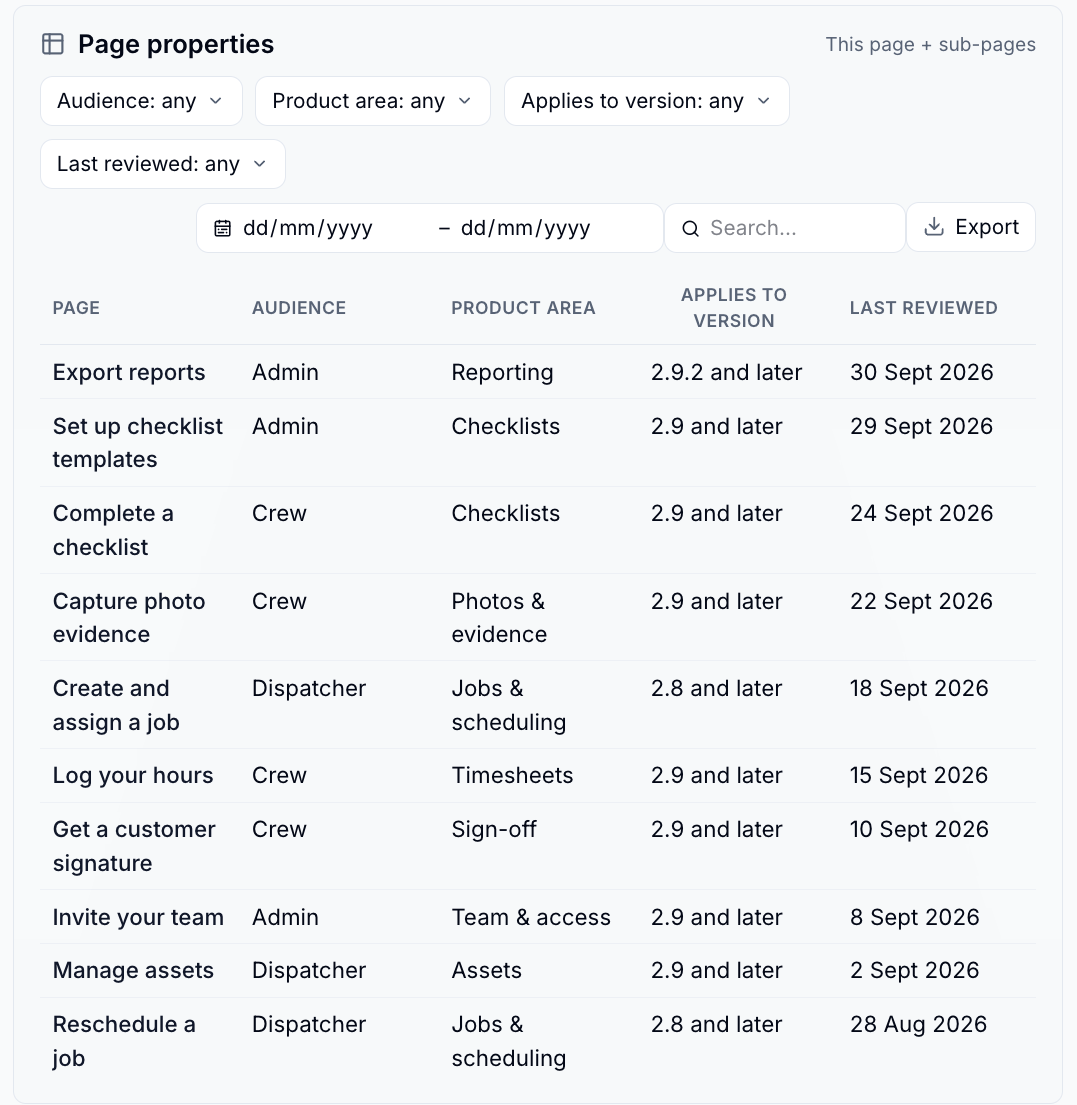
Readers can then:
- Filter on any column using the chips above the table
- Search the rows
- Filter by a date range when the report has a date column
- Click a column heading to sort
- Click
Exportto download a CSV or print to PDF
Reports respect permissions
A report only shows rows from pages the reader is allowed to see, so the same report can safely appear in front of different audiences.
Please contact us if you have any questions.