
Members and Permissions
Every wiki has its own list of members. Each member has a role that decides what they can do, and you can open a wiki to your whole organisation in one step.
Open the Members List
Click the people icon (Members) next to the wiki name at the top of any page.
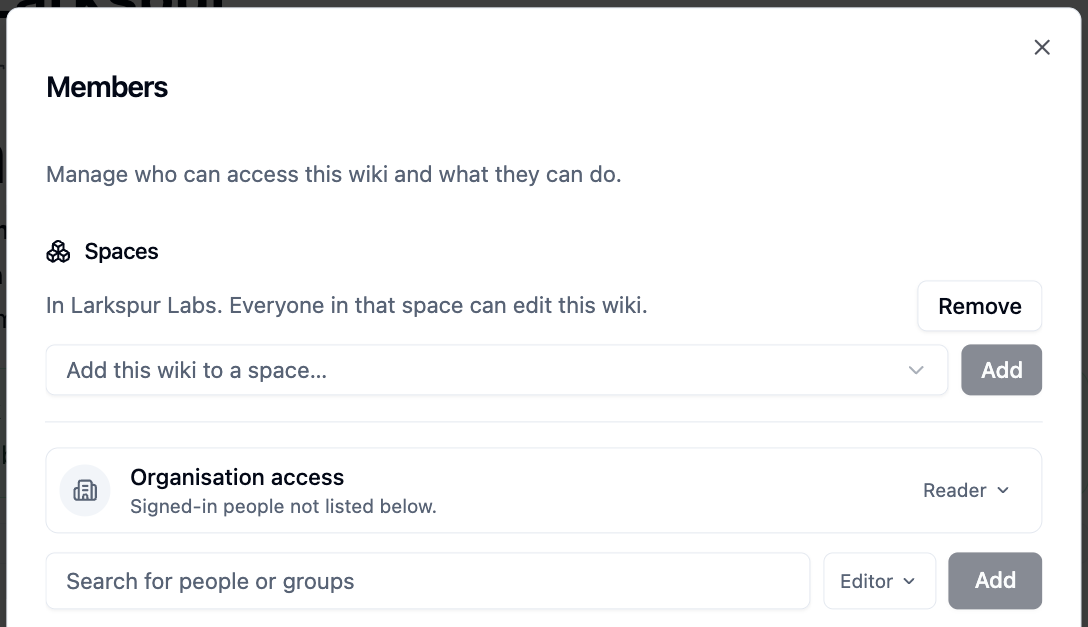
Anyone who can see the wiki can open the list. Only wiki owners can change it.
Roles
| What they can do | Reader | Editor | Owner |
|---|---|---|---|
| Read the wiki and its pages | ✓ | ✓ | ✓ |
| Comment on pages | ✓ | ✓ | ✓ |
| Create, edit, move and delete pages | ✓ | ✓ | |
| Change wiki settings | ✓ | ✓ | |
| Add and remove members, change roles | ✓ | ||
| Restrict individual pages | ✓ | ||
| Set up page verification | ✓ | ||
| Delete the wiki | ✓ |
Owners can always see and edit every page, even pages that have been restricted.
Add People or Groups
- Open the members list
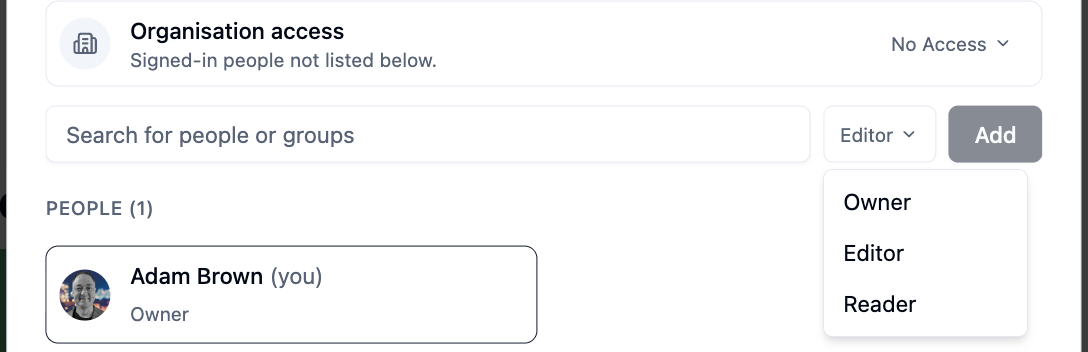
- Type a name in Search for people or groups and pick a match
-
Choose a role. New members default to Editor
-
Click
Add
The people you add get a notification that the wiki has been shared with them.
To change someone's role, pick a new role on their card. To remove them, click
the bin icon and confirm with Remove.
Open the Wiki to Your Organisation
The Organisation access row covers everyone who is signed in to your organisation but not listed below it. Set it to:
- Reader - everyone can find and read the wiki
- Editor - everyone can also edit
- No Access - only listed members can access it
Add a Wiki to a Space
If you own a space, the members list also shows a Spaces section. Pick a
space from Add this wiki to a space… and click Add. Everyone in that space
gets the Editor role on the wiki. To let space members read but not edit,
change the space's role to Reader in the members list. A wiki can belong to
several spaces.
Tips
A Reader role always wins
If you add someone directly as a Reader, they stay read-only, even if a group they belong to has Editor or Owner access.
Guests
People from a guest organisation always have read-only access, whatever role they are given.
You can't change your own access
Your own card is marked (you) and can't be edited. Ask another owner if you need to change your role.
Please contact us if you have any questions.