
Import Documents
Already have the content somewhere else? Bring it in. Huddo Wikis turns Word documents, Markdown, web pages, spreadsheets and Notion or Confluence exports into wiki pages - formatting, tables and images included.
Import a File
-
Click
+next to Pages in the page list and choose Import file…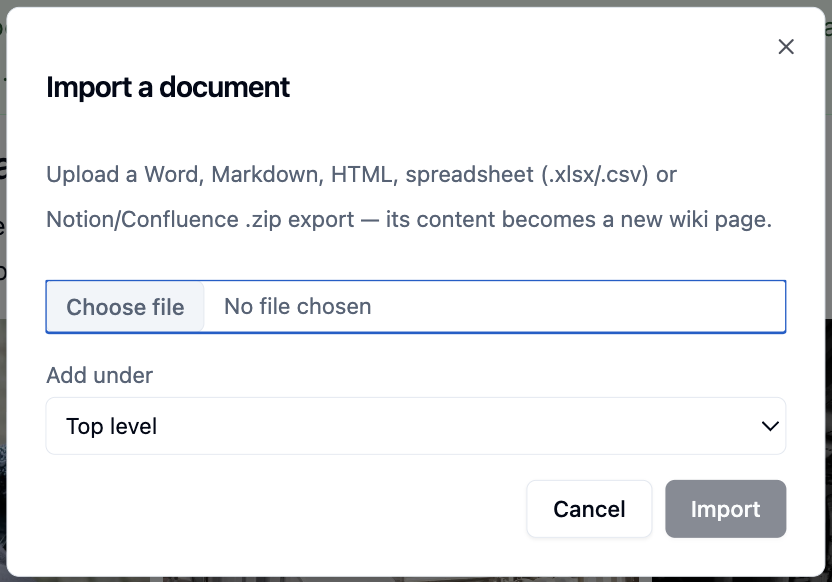
-
Choose a file (up to 25 MB)
- Under Add under, choose where the new page goes - Top level, or under an existing page
- Click
Import
The new page opens when the import finishes. The page is named after the file, so rename it if you need to.
You need to be an Editor or Owner of the wiki to import.
Imported pages are live straight away
Imported pages are published as soon as they are created, not saved as drafts. Check the result before you share it.
What Comes Across
| File | What you get |
|---|---|
Word (.docx) |
Headings, paragraphs, bold and italic, links, lists, tables, quotes and images. A Word table of contents becomes a live table of contents |
Markdown (.md) |
Headings, lists, task lists, tables, code blocks and links |
Web page (.html) |
The page content, with scripts and forms removed |
Spreadsheet (.xlsx, .csv) |
One table per sheet, with the first row as the header. Formulas become their values |
Notion or Confluence export (.zip) |
A page for every document in the export, nested the same way, with links between them updated |
If anything couldn't be brought across exactly, a message tells you how many items were simplified.
Not imported
Word comments, tracked changes, footnotes, equations, text boxes and SmartArt aren't imported. Older .doc files aren't supported - save them as .docx first.
Tips for a Clean Import
Images in Markdown and HTML
A single Markdown or HTML file can only bring across images that are embedded in the file itself. To keep images that sit in separate files, zip the document together with its images and import the zip.
Notion exports
If Notion gives you a zip inside a zip, unzip the outer one first and import the inner zip.
Copy and paste works too
For a quick snippet, copy from Word, Google Docs or a Markdown file and paste straight into a page you are editing. Formatting is cleaned up for you. Images in a Word paste aren't copied, so use Import file… when you need them.
Limits
- 25 MB per file
- Up to 1,000 pages from one zip
- Up to 300 images per HTML page or Markdown file
To move a whole wiki from another Huddo site, use a wiki archive instead.
Please contact us if you have any questions.