
Create and Manage a Space
Anyone in your organisation can create a space. You become its owner, and you can invite people and add wikis as soon as it is ready.
Create a Space
- Click Spaces in the sidebar, then click
New space -
Details - enter a Name and, if you like, a Description. Click
Continue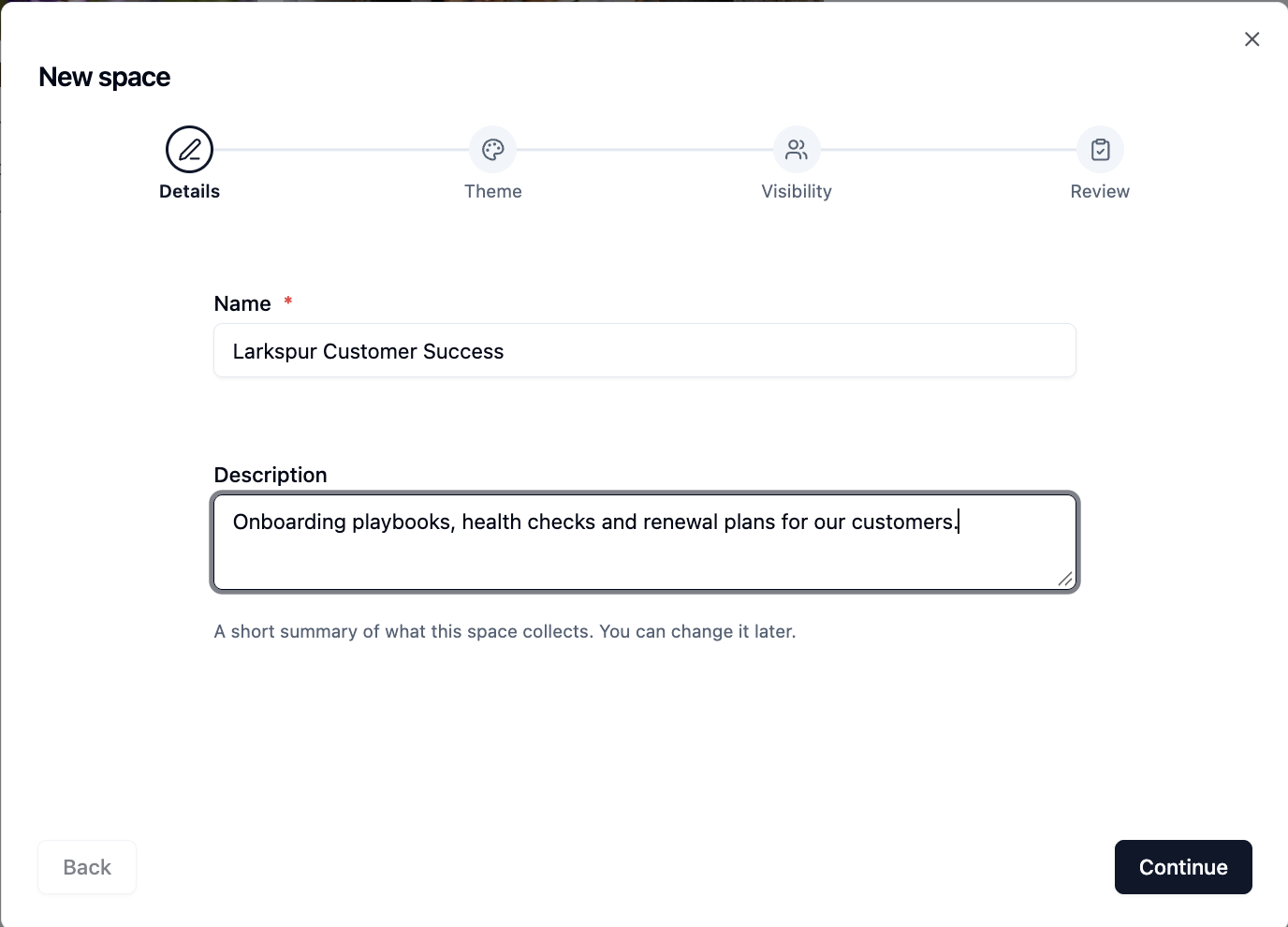
-
Theme - upload or search for a banner image and pick a colour theme taken from it. This step is optional. Click
Continue -
Visibility - choose who can find and join the space. Click
Continue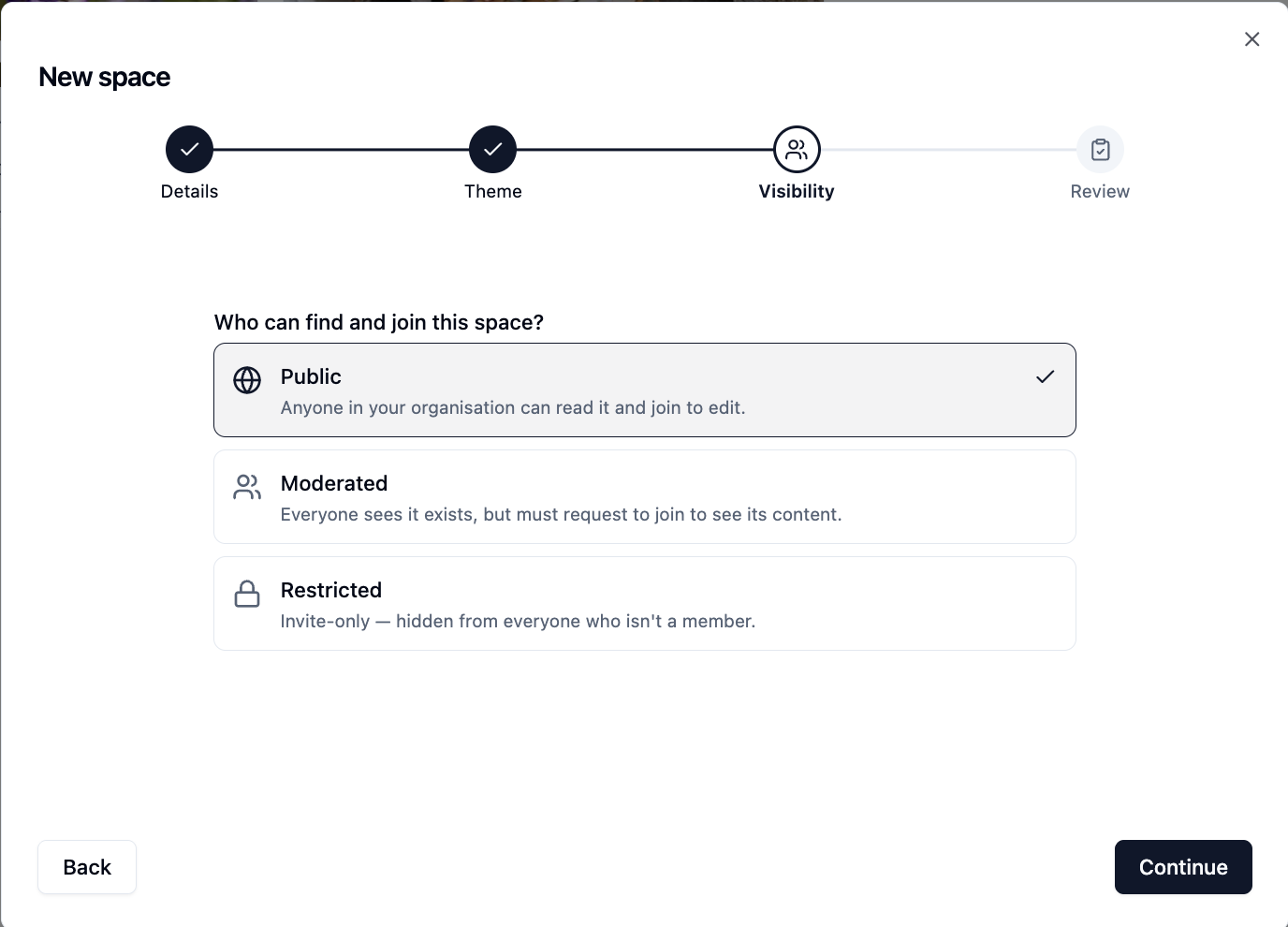
-
Review - check the details. Click the pencil beside any of them to go back and change it
- Click
Create space
Your new space opens with a short guide - Create your first wiki, Give it a look and Invite people - to help you set it up.
Pick a good name
The space's web address is made from its name when you create it, and doesn't change if you rename the space later.
Space Settings
Click Space options at the top of the space and choose Space settings.
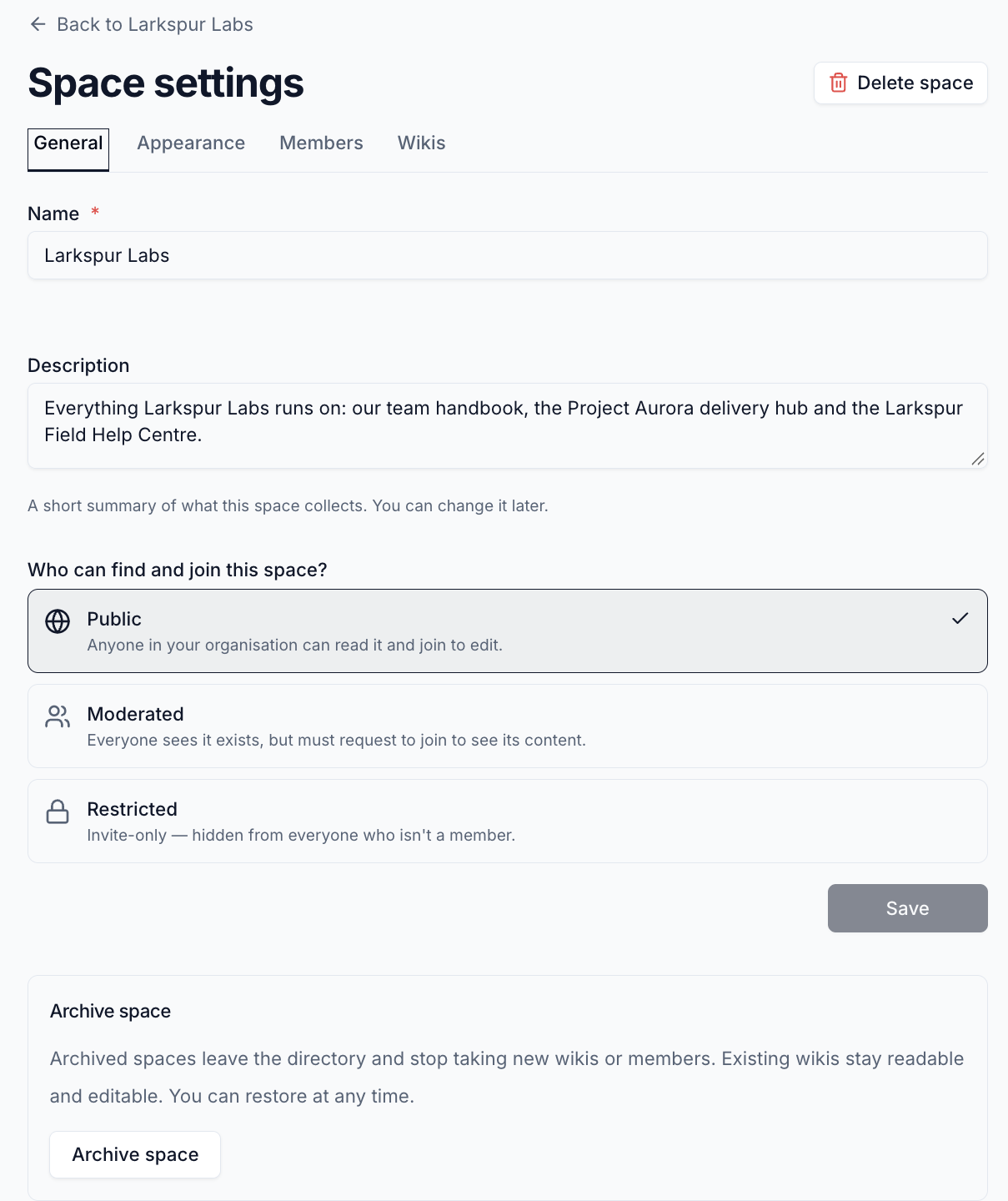
| Tab | What it holds |
|---|---|
| General | Name, description, visibility, and archiving |
| Appearance | Banner image and colour theme |
| Members | Who is in the space and their roles, and requests to join |
| Wikis | The wikis in the space. See Add Wikis to a Space |
Only owners can change settings. Everyone in the space can see the Members tab.
Change Who Can Join
Choose a different visibility on the General tab and click Save, or use
the drop-down beside Organisation access on the Members tab. You are asked
to confirm, because the change applies to every wiki in the space.
Manage Members
- Open Space settings and click Members
- Search for a person, choose Editor or Owner, and click
Add - To change someone's role, use the drop-down on their tile. To remove them,
click the
X
Requests to Join
When someone asks to join a Moderated space, owners are notified and a requests button appears at the top of the space. Click it, then use the menu beside each person to Approve or Decline. Approved people join as Editors.
Archive a Space
Archive a space when the work is finished but you want to keep it.
- Open Space settings on the General tab
- Click
Archive space, thenArchive
An archived space leaves the directory and can't take new wikis or members, and
its dashboard can't be changed. Its wikis aren't touched - they stay readable
and editable. To bring it back, click Restore space on the space or in
Space settings.
Delete a Space
- Open Space settings
- Click
Delete space, thenDelete
Deleting a space is permanent
The space, its dashboard and its feed are removed, and can't be restored. The wikis aren't deleted - they are taken out of the space. People who could only reach them through the space lose access, so check each wiki's members first.
Please contact us if you have any questions.