
Wikis on Mobile
Huddo Wikis works in the web browser on your phone or tablet - there is nothing to install. Pages adjust to fit the screen, and you can read, comment and edit on the go.
Reading a Page
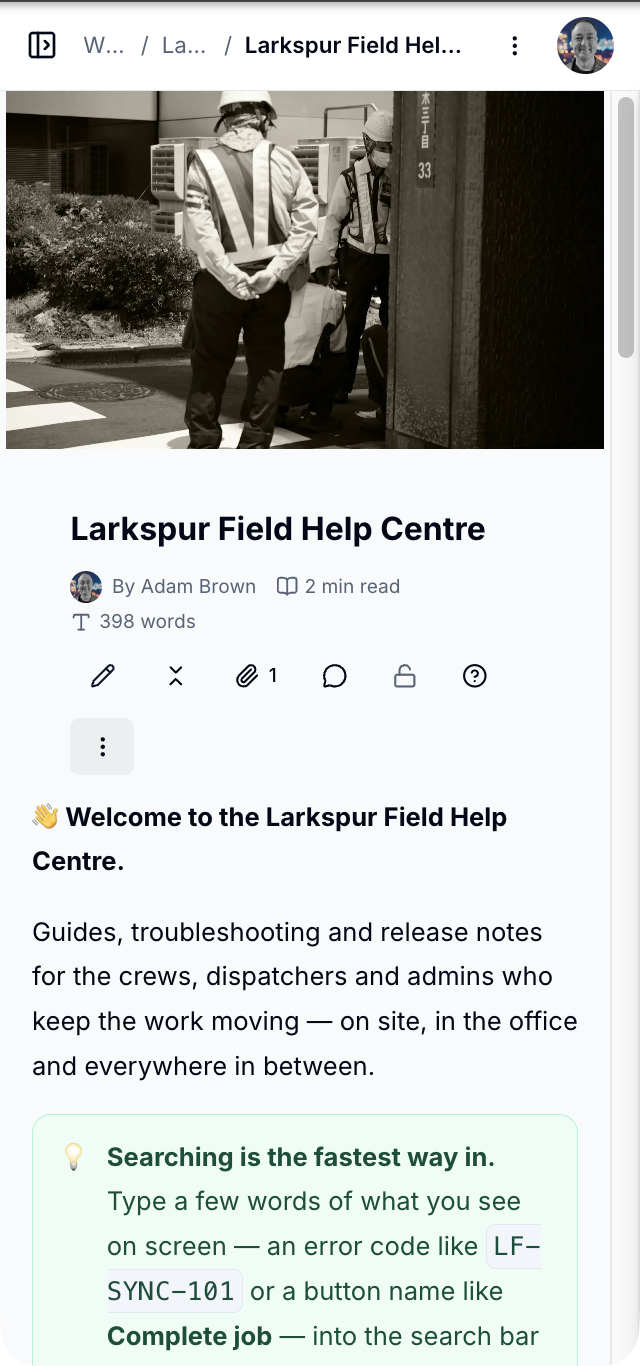
- Tap the Open page list icon at the top left to slide out the pages. Tap a page to open it
- Tap Table of contents to jump to a heading on a long page
- Files and comments open full screen. Tap
Xto close them
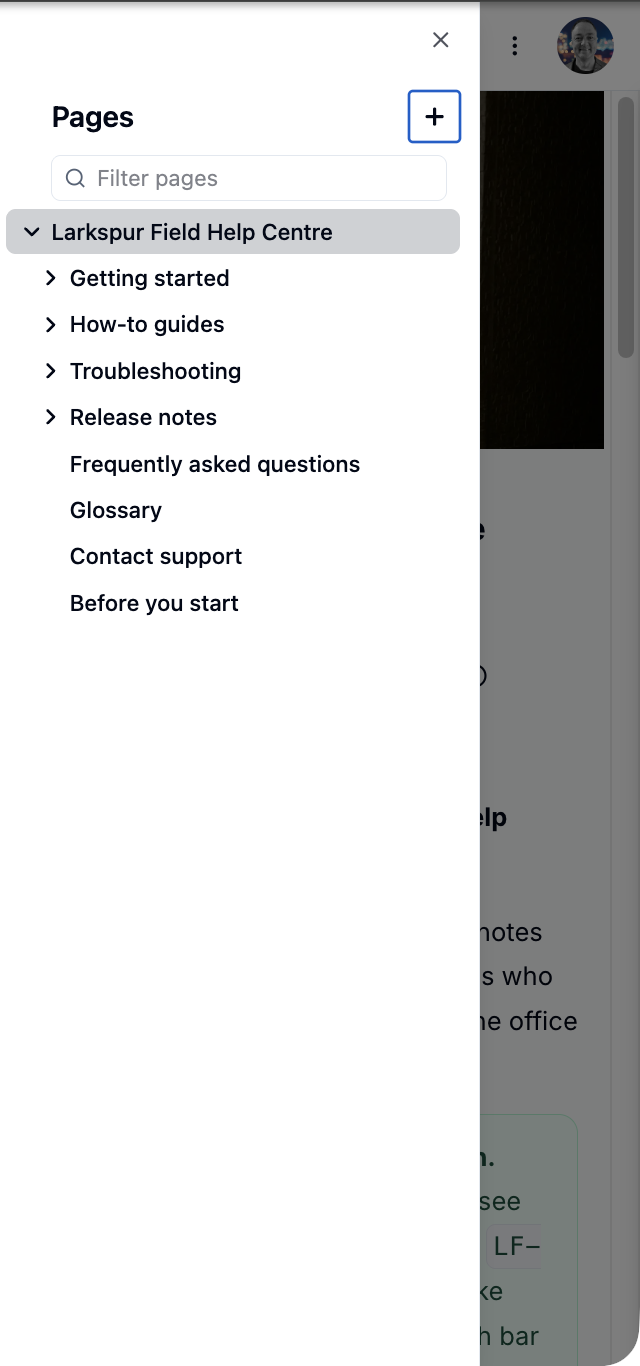
What Moves on a Small Screen
| On a computer | On a phone |
|---|---|
| Page list beside the page | Open page list icon |
| Icons next to the wiki name for settings, analytics and reviews | The Wiki actions (⋮) menu |
| Sidebar on the home page | The menu icon at the top left |
| Dialogs in the middle of the screen | Panels that slide up from the bottom |
Editing
Tap the pencil to edit, just as on a computer. Buttons are larger on touch screens so they are easier to tap. Blocks can't be dragged on a touch screen, so to move one, open its block menu and choose Move to….
Bigger jobs
Restructuring a page with columns, tables or whiteboards is easier with more room. Save those for a tablet or computer.
Things to Know
- Search - the search box at the top is only shown on wider screens. On a phone, use Filter pages in the page list, or Search wikis on the home page
- Notifications - the bell is shown on wider screens. You still get notification emails
- Favourites - the star on a card shows when you hover over it, so it can be hard to find on a touch screen. Use a computer to star new favourites
Please contact us if you have any questions.