
Licensing
Everyone who uses Huddo Wikis or Huddo Ideas needs a licence seat for that app in your organisation. This page is for organisation administrators.
For the licence key itself, set when you install, see Licence Key for HCL Connections or Kubernetes.
Apps and Licences
| App | Licence needed |
|---|---|
| Wikis | A Wikis seat (huddo.wikis) |
| Ideas | An Ideas seat (huddo.ideas) |
| Spaces | A Wikis seat, as spaces hold wikis |
| Links | A seat for any one of Wikis, Ideas, Boards Premium or Boards Lite |
A licence belongs to an organisation. If someone belongs to more than one organisation, they can only use an app in the organisations where they hold a seat for it.
Licence Types
Most licences are auto-assigned: people take a seat the first time they open the app, first come, first served, until every seat is taken. Nobody needs to assign them.
A few organisations have a named licence instead, where an administrator chooses who gets each seat. See Managing Seats.
Links
Links checks for a seat in this order: Wikis, Ideas, Boards Premium, Boards Lite. So someone who only opens Links takes a Wikis seat if one is free.
What Unlicensed People See
Someone without a seat who opens the app sees License required in place of it, and can't open any of its content until they're given a seat.
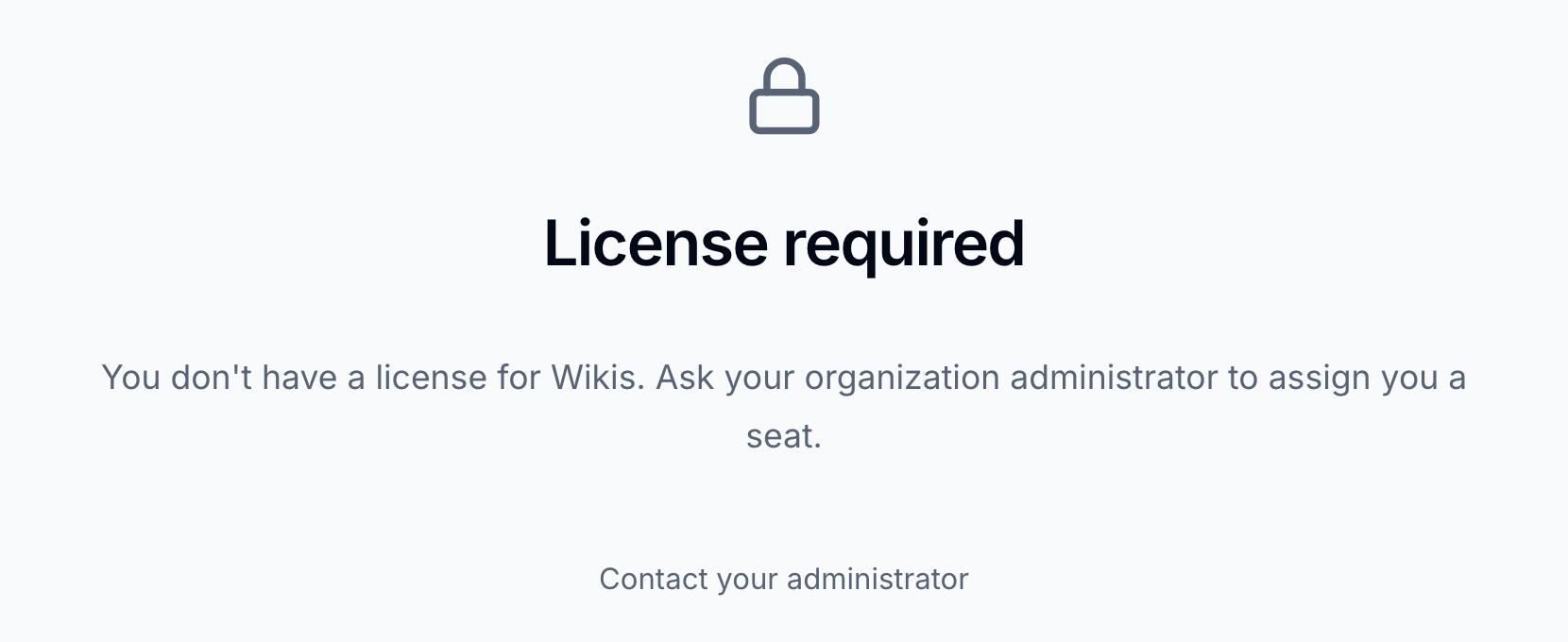
For an administrator, this usually means one of:
- Every seat on the licence is taken. Contact us to add seats
- Your licence key does not include the app
- On a named licence, the person has not been given a seat
Managing Seats
- Open the Huddo home page,
https://[HUDDO_URL], and click Admin. It is listed for organisation administrators only - In Huddo Admin, click Licences
Each licence shows its type (Auto-assigned or Named), how many seats are used, and its expiry.
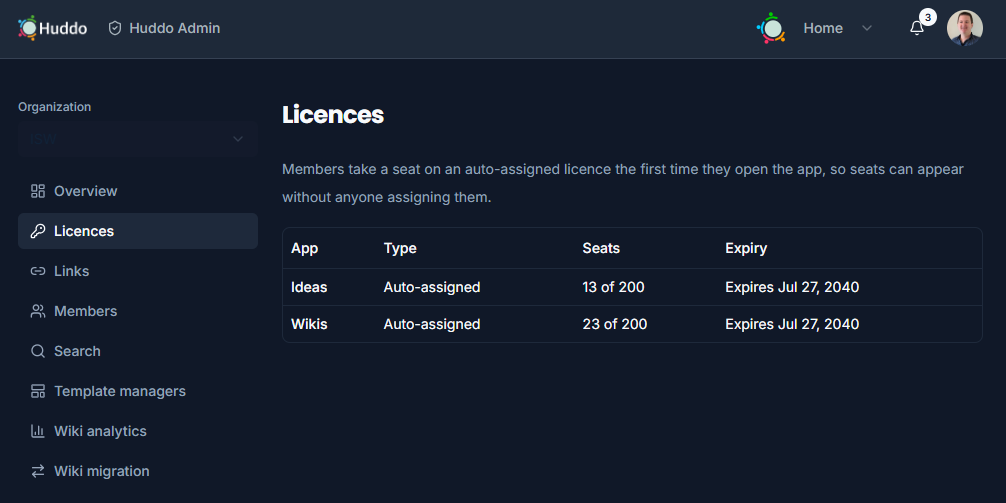
Click a licence to see who holds a seat, and since when.
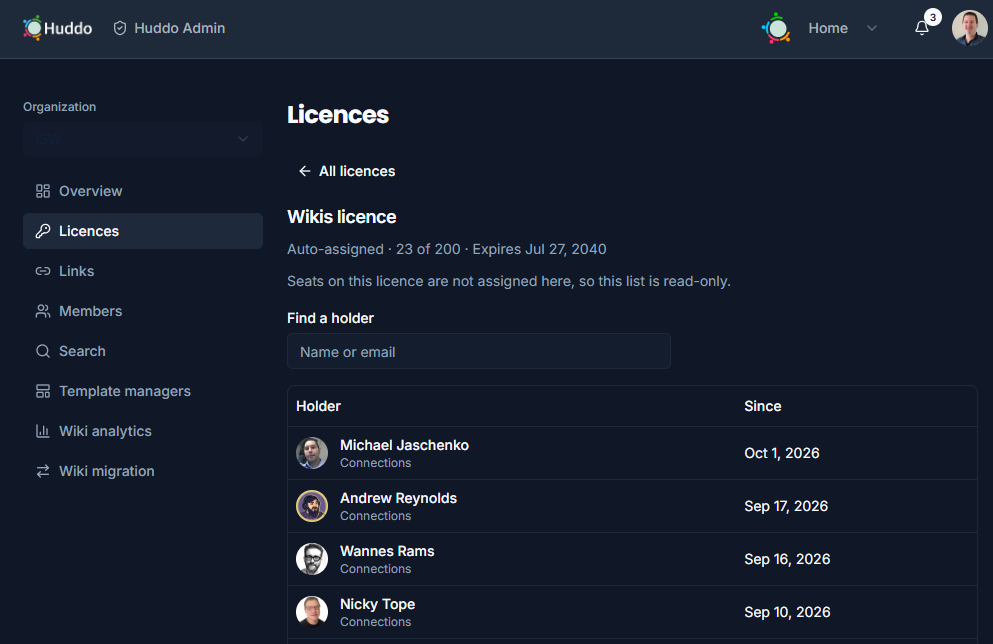
Seats can only be assigned and unassigned by hand on named Wikis and Ideas licences. The seat lists of auto-assigned and Boards licences, and of an expired licence, are read-only.
Assign a seat
On a named licence:
- Under Give someone a seat, search by name or email
- Pick the person. People who have not signed in to Huddo yet are listed under Not signed in yet
If every seat is taken, unassign someone first.
Unassign a seat
- Find the person under Seats. Use Find a holder to search by name or email
- Click Unassign, then confirm
They lose access to the app straight away, including anything they own in it, until they are given a seat again.
Changes take effect straight away. Nobody needs to restart anything or sign out. If someone already has the app open, they may need to reload the page.
Please contact us if you have any questions.