
Create and Organise Pages
Pages are the heart of a wiki. You can create them from scratch, from a template or from an existing document, and arrange them in a tree that suits how your team thinks.
Create a Page
- Click
+next to Pages at the top of the page list. To create a sub-page instead, hover over a page in the tree and click the+beside it -
Choose how to start:
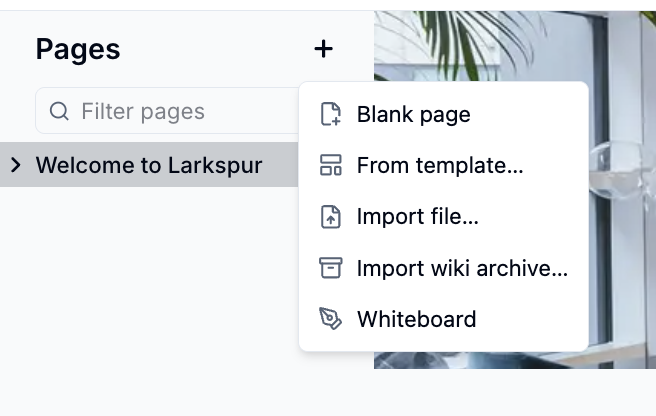
Option What it does Blank page Opens an empty page in the editor From template… Starts from one of the wiki's page templates (shown when the wiki has templates turned on) Import file… Turns a Word, Markdown, HTML, Excel or CSV file, or a Notion or Confluence export, into pages Import wiki archive… Adds the pages from a Huddo wiki archive ( .huddowiki.zip)Whiteboard Adds a whiteboard you can draw on together -
Give the page a title and start writing. See Editing a Page
Drafts
A new page is a draft, shown in italics with a Draft badge, until it has a title or some content. Drafts left untouched for 48 hours are removed automatically.
Organise the Page Tree
Drag pages to reorder them:
- Hover over a page in the tree to show its grip handle
- Drag the page up or down to move it
- Drag it sideways to nest it under, or lift it out of, another page
A page's sub-pages move with it. Pages can be nested up to five levels deep.
The Page Menu
Click ⋮ (Page options) at the right of the page header for everything else
you can do with a page.
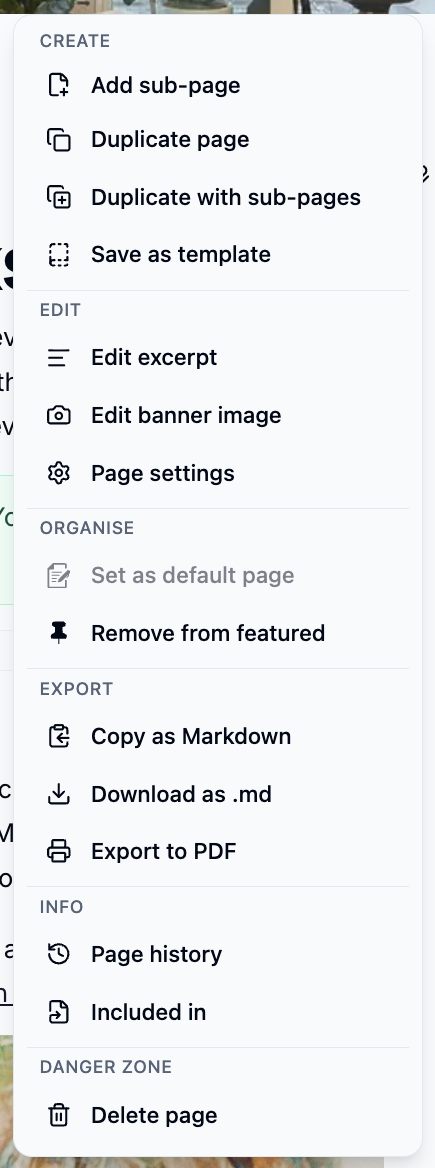
| Section | Options |
|---|---|
| Create | Add sub-page, Duplicate page, Duplicate with sub-pages, Save as template |
| Edit | Add excerpt, Edit banner image, Page settings |
| Organise | Set as default page (the page the wiki opens on), Set as featured or Remove from featured |
| Export | Copy as Markdown, Download as .md, Export to PDF |
| Info | Page history, Included in |
| Danger zone | Delete page |
Readers see only the Export and Info sections.
Rename a Page
Click the page title and type a new one, then press Enter. The page keeps its
original web address, so existing links keep working.
Delete a Page
- Open the page menu and click Delete page
- Read the summary, then confirm
Deleting is permanent
Deleting a page also deletes all of its sub-pages, comments and history. It can't be undone. Pages that include the deleted page will show that it is no longer available.
Please contact us if you have any questions.