
Members and Roles
Every idea lab has its own list of members. Each member has a role that decides what they can do, and you can open a lab to your whole organisation in one step.
Who Can Create a Lab
Anyone with a Huddo Ideas licence can create a lab. The person who creates it becomes its Owner. See Create an Idea Lab.
Roles
| What they can do | Reader | Contributor | Reviewer | Owner |
|---|---|---|---|---|
| See the lab and its ideas | ✓ | ✓ | ✓ | ✓ |
| Vote on ideas | ✓ | ✓ | ✓ | |
| Submit ideas | ✓ | ✓ | ||
| Approve or reject ideas, move the lab between stages, complete the lab | ✓ | ✓ | ||
| Promote an individual idea from its menu | ✓ | |||
| Edit or delete any idea | ✓ | |||
| Edit lab details, custom fields and automations | ✓ | |||
| Add and remove members, change roles | ✓ | |||
| Delete the lab | ✓ |
The person who submitted an idea can always edit or delete it, whatever their role, until the lab is completed.
Reviewers don't submit ideas
A Reviewer can vote and review, but can't submit ideas of their own. If someone needs to do both, give them the Contributor role as well, for example through a group.
Open the Members List
Click the people icon (Manage lab members) next to the lab's buttons. The Lab access dialog opens.
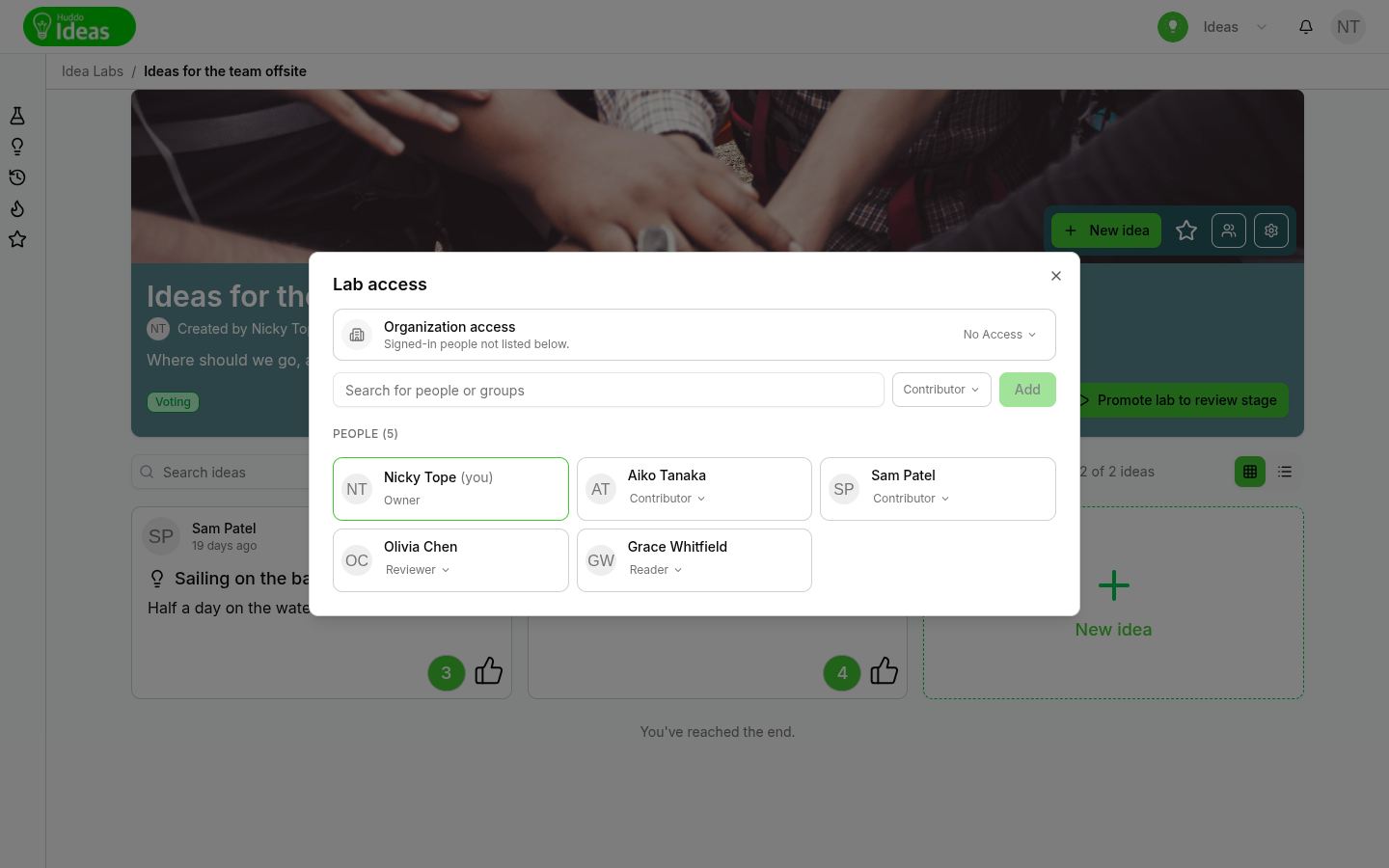
Anyone who can see the lab can open the list. Only lab owners can change it.
Add People or Groups
- Open the members list
- Type a name in Search for people or groups
- Pick a match
- Choose a role: Owner, Contributor, Reviewer or Reader. New members default to Contributor
- Click
Add
People you add get a notification that the lab has been shared with them.
To change someone's role, pick a new role on their card. To remove them, click
the bin icon (Remove member), then confirm with Remove.
You can't change your own access
Your own card is marked (you) and can't be edited. If you need to change your role, ask another owner.
Open the Lab to Your Organisation
The Organisation access row covers everyone who is signed in to your organisation but not listed below it. Set it to:
- Contributor - everyone can submit ideas and vote
- Reader - everyone can see the lab and its ideas
- No Access - only listed members can access it
The Reviewer role can't be given to the whole organisation. Reviewing is a job for named people, so add reviewers individually or as a group.
Private and Organisation Labs
When you create a lab, the Visibility and Membership step asks Who can contribute ideas to the lab?
- Anyone within (your organisation) organisation - adds Organisation access with the Contributor role
- Private - leaves organisation access off, so only the people and groups you add can take part
- Public - shareable through a web address. Public idea labs are coming soon
After the lab is created, use the Organisation access row in the members list to open or close it.
Share a Lab or an Idea
Members who aren't owners can still point other people at a lab:
- To share the lab, open the members list. To share one idea, open the
idea's menu (⋮), then click
Share Idea - Search for a person, then click
Request access
What happens next depends on the person:
| If the person… | Then |
|---|---|
| Already has access | They get a notification with a link |
| Doesn't have access | Huddo Ideas notifies the lab's owners and asks them to add the person |
An owner who receives an access request can click the notification to go
straight to the lab's members list. When an owner shares an idea, they choose a
role, then click Add. The person gets access to the lab straight away.
Draft ideas
Ideas that are still drafts can't be shared.
Labs in a Community
When you create a lab from an HCL Connections community, Huddo Ideas adds the community to the lab's members with the Owner role. As a result, the community's members can manage the lab. You can change the community's role on the Visibility and Membership step, or later in the members list. See HCL Connections Community Widget.
Tips
A Reader role always wins
If you add someone directly as a Reader, they can't submit ideas, vote or manage the lab, even if a group they belong to has a higher role.
Guests
People from a guest organisation always have read-only access, whatever role they are given.
Please contact us if you have any questions.