
Create a Template
Found a page layout that works? Turn it into a template so the whole team can use it. You can save a page as a template from any wiki you can edit, or build one from scratch in Template Studio.
Save a Page as a Template
- Open the page and click
⋮(Page options) -
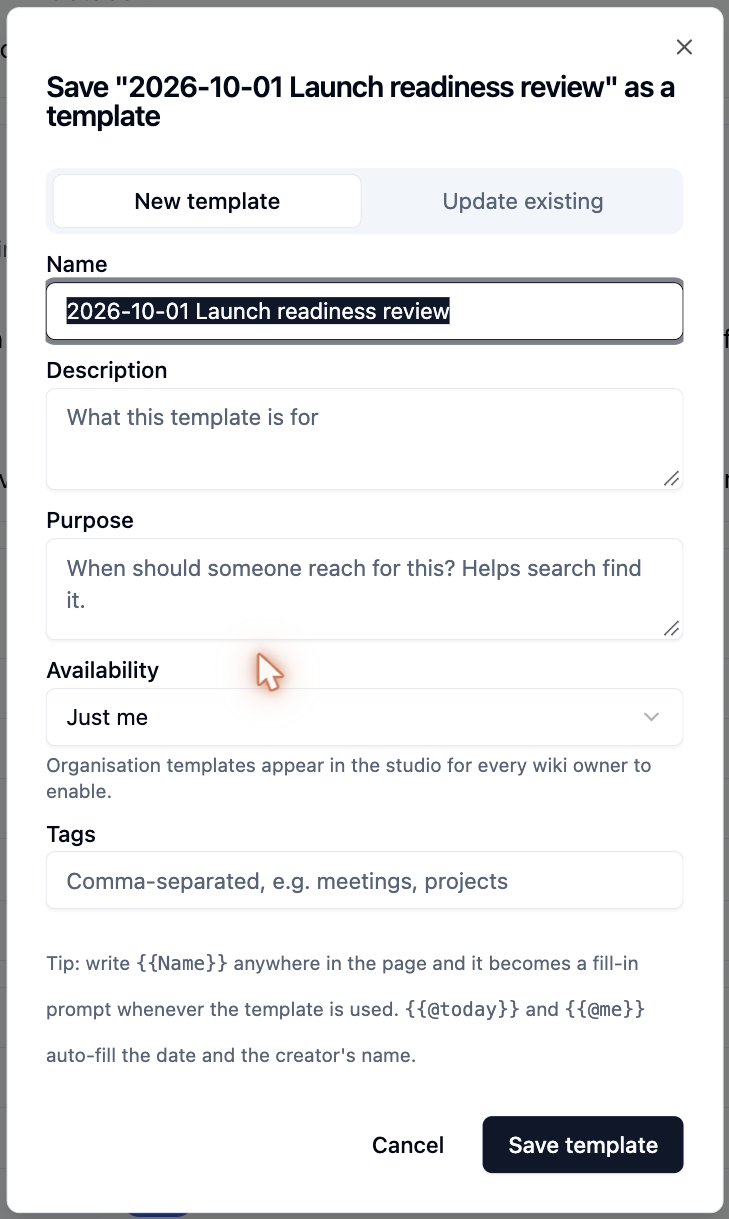
Choose Save as template
-
Fill in the details:
Field What to enter Name The template's name. Defaults to the page title Description What the template is for Purpose When someone should reach for it. This helps search find it Availability Just me, or the whole organisation (Template Managers only) Tags Comma-separated words to help people filter templates -
Click
Save template
The template takes a snapshot of the page as it is now. Later changes to the page don't change the template.
Update an existing template
Choose Update existing at the top of the dialog to replace the content of a template you already made with this page. Its name, description and tags stay the same.
Add Fill-in Fields
Write {{Name}} anywhere in the page - for example {{Project}} or
{{Customer}} - and it becomes a fill-in prompt whenever someone uses the
template. Each different name becomes its own field.
Build a Template from Scratch
- Open Template Studio and click
New template - Enter a name, choose who can use it, and click
Create and edit - Write the template content in the editor, then click
Save template
Open the template and click Details to change its name, description, purpose or tags.
Who Can Publish Templates
Anyone can make templates for themselves in Template Studio. Saving a page as a template needs the Editor or Owner role on its wiki. Templates for the whole organisation can be published by organisation administrators and Template Managers - see Template Studio.
To make a template available in a wiki, an Editor or Owner turns it on in Wiki settings → Page templates.
Please contact us if you have any questions.