
Page History
Every time a page is saved, Huddo Wikis keeps a copy. Page history lets you see what changed, compare any two versions and bring back an older one.
Open Page History
- Open the page
- Click
⋮(Page options) and choose Page history
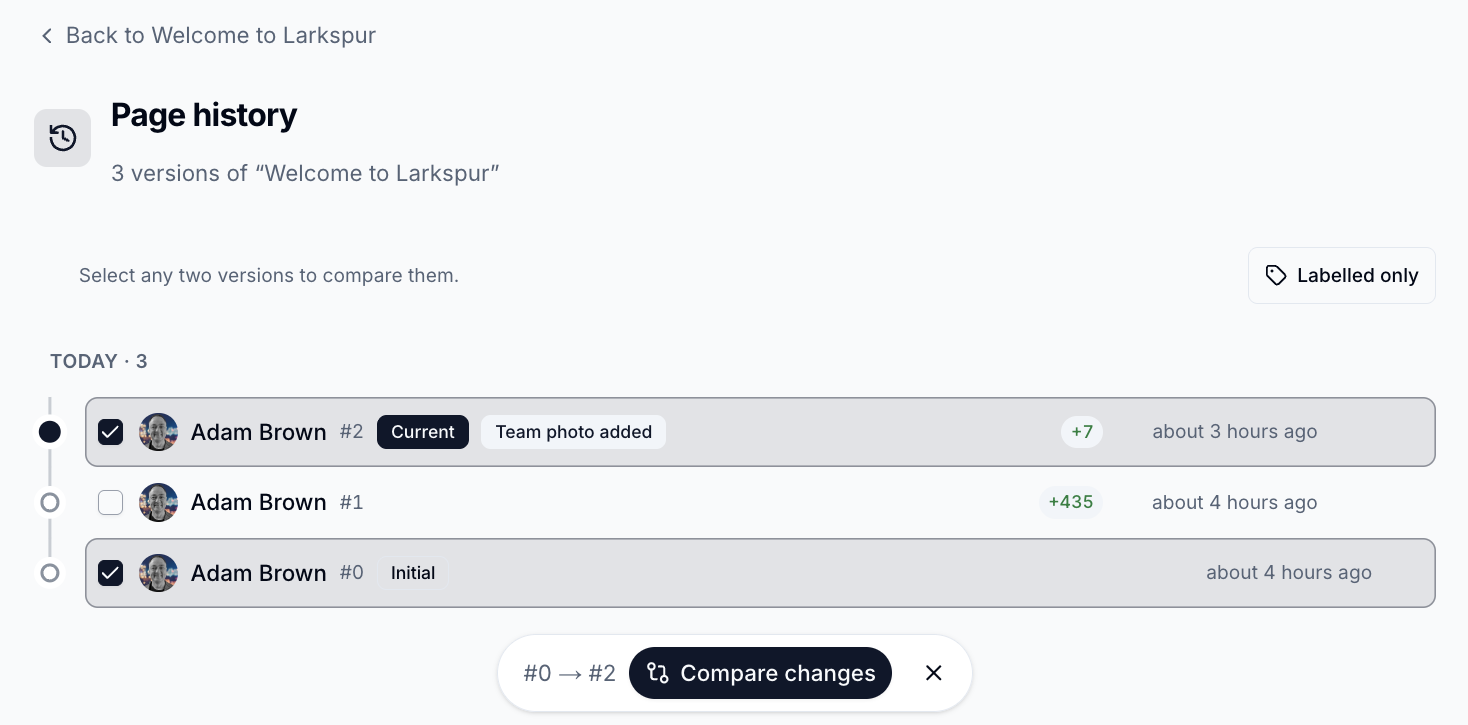
Versions are listed newest first and grouped by day. Each one shows who saved it, its number, how many words were added or removed, and when. The latest version is marked Current.
Label a Version
Give an important version a name, such as "Approved draft", so it is easy to find later.
- Hover over the version and click the pencil (Edit label)
- Enter a name of up to 60 characters and save
Turn on Labelled only to show just the labelled versions.
View an Older Version
Click a version to open it.
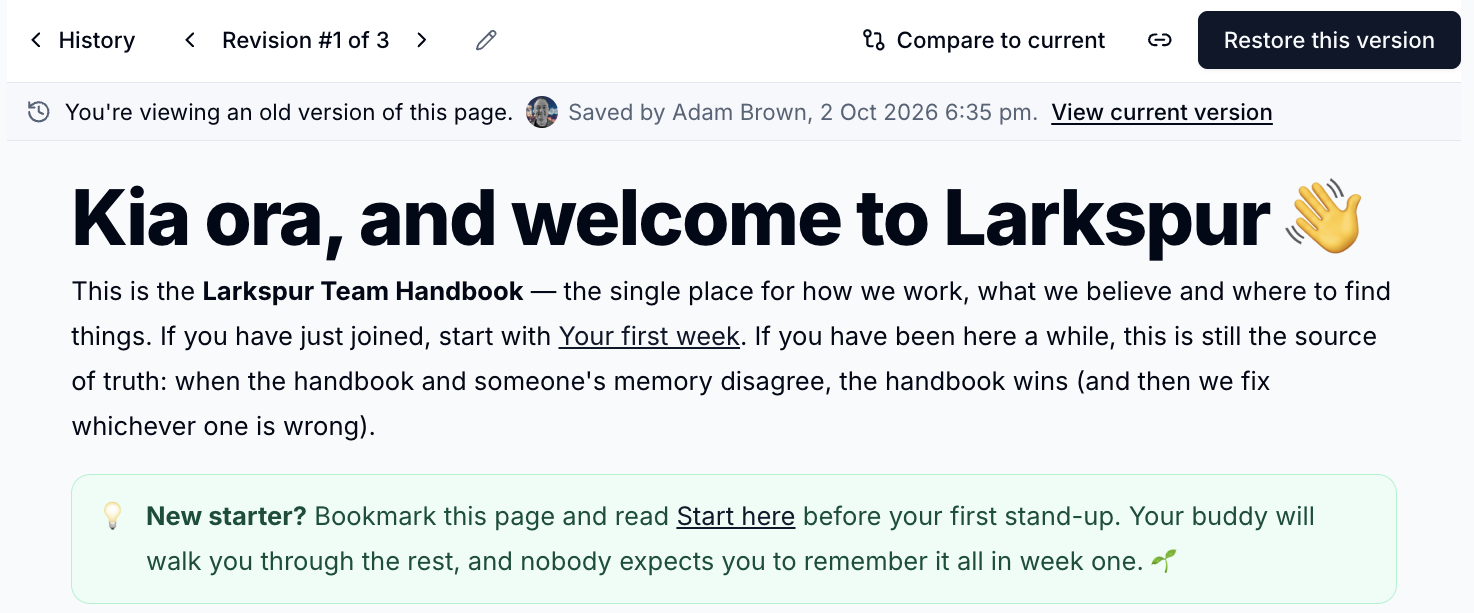
A banner shows who saved it and when. Use the arrows to step through versions, or click View current version to return to the live page.
Compare Versions
- In the history list, tick the boxes next to any two versions
- Click
Compare changes

- Choose Inline or Side by side
- Use the arrows, or press
nandp, to jump to the next or previous change - Click Show unchanged to see the parts that are the same
- Click the link icon to copy a link to this comparison
To compare a version with the one before it, hover over it and click View changes.
Restore a Version
- Open the version you want
- Click
Restore this version - Check the summary and click
Restore
Nothing is lost: restoring saves the old content as a new version, so the full history is kept. Only Editors and Owners can restore.
Check nobody is editing
If someone has the page open in the editor when you restore, their next save may overwrite your restore.
Please contact us if you have any questions.