
Approvals
For pages that must be right before anyone reads them - policies, procedures, customer-facing guides - approvals add a sign-off step. Editors keep working as usual, but readers only see a new version once the right people have approved it.
Turn On Approvals
Approvals build on verified pages, so turn those on first.
- Open Wiki settings → Verification
- Switch on Require approval before changes go live
-
Set up the approval steps:
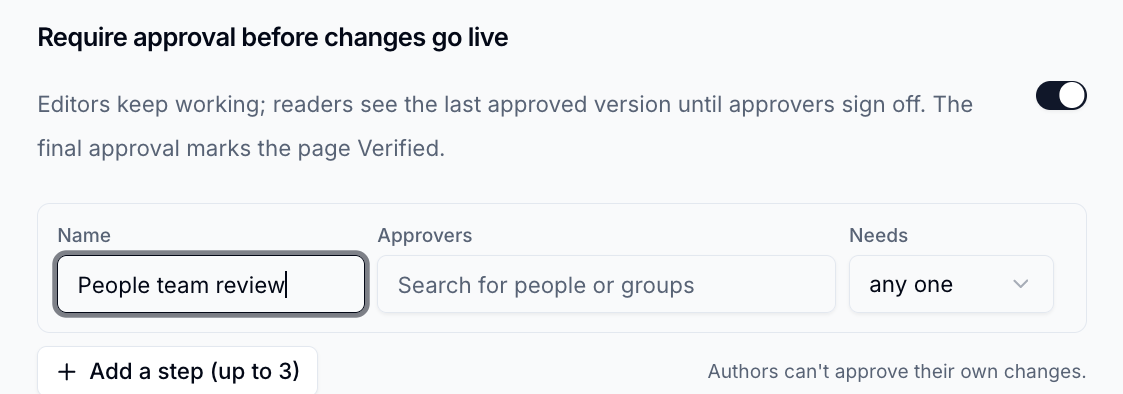
Field What to enter Name A short name for the step, such as "People team review" Approvers The people or groups who can approve this step Needs any one approver, or everyone listed -
Click
Add a step (up to 3)for another step. Steps happen in order - Click
Save
Authors can't approve their own changes
Make sure each step names someone other than the people who usually write the pages.
What Readers See
While a change is waiting for approval, readers keep seeing the last approved version. Editors see the latest version, with a banner explaining that readers still see the approved one.
A page that has never been approved shows its latest version to everyone until its first approval.
Submit Changes for Approval
- Edit the page and save as usual
- Click
Submit for approvalin the page header - Optionally, say what changed
- Click
Submit
The approvers for the first step are notified.
Editing cancels the request
If anyone saves the page again while it is waiting for approval, the request is cancelled and needs to be submitted again from the first step.
Approve or Request Changes
Approvers get a notification with a link straight to the request, and the request also appears on the Reviews page.
- Open the page and click
Review - Read the changes, shown inline or side by side
- Click
Approve, or write a comment and clickRequest changes
When the last step approves, the new version goes live and the page is marked Verified. If changes are requested, the author sees the comment and can edit and resubmit.
Publish Without Waiting
Wiki owners can publish a page straight away when needed. Click the badge and choose Publish and verify…. The approvers are told that it was published.
The person who submitted a request can cancel it from the badge at any time.
Please contact us if you have any questions.