
Callouts, Tabs and Expand
Layout blocks help readers find what matters. Callouts flag important information, tabs and expand blocks tuck detail away until it is needed, and navigation blocks keep long pages and big wikis easy to move around.
Callouts
A callout is a coloured box that makes a point stand out.
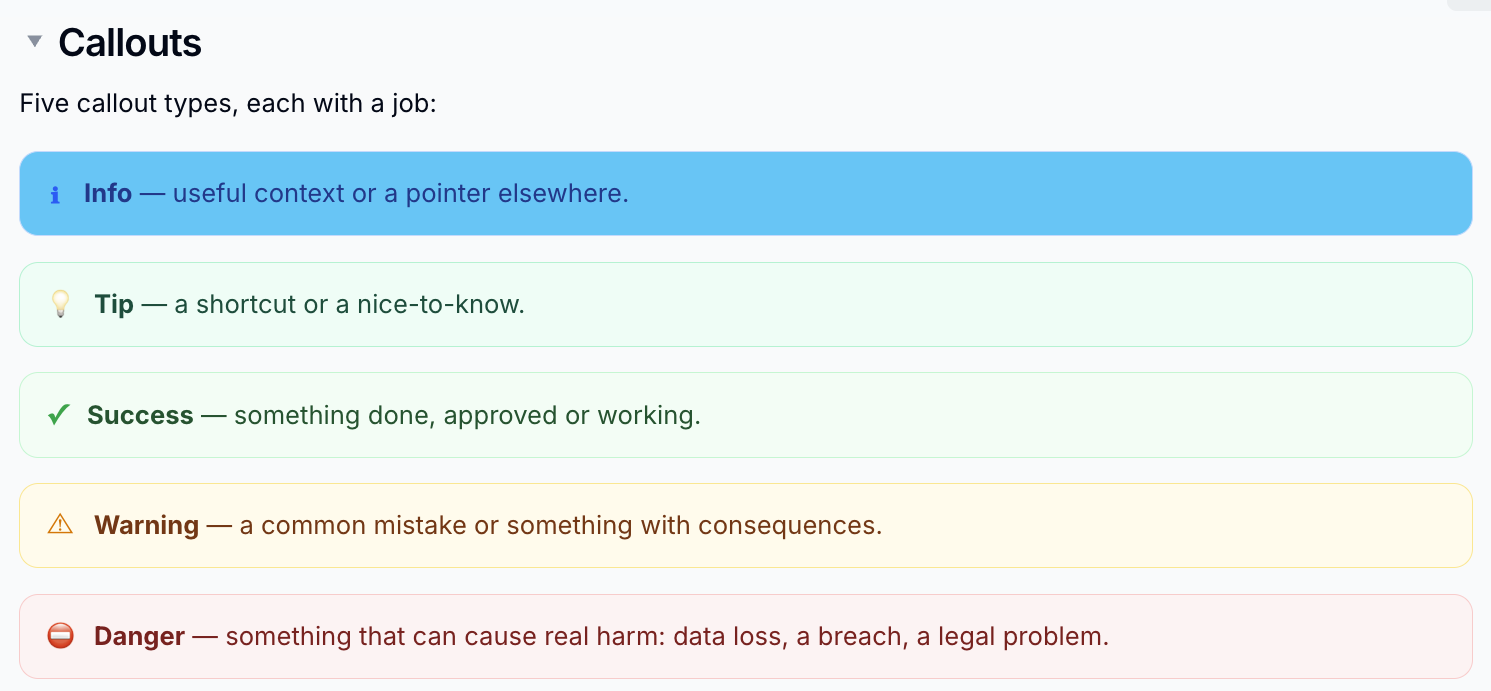
- Type
/callout - Choose Info, Tip, Success, Warning or Danger
The callout wraps the current line, so you can also turn existing text into a callout. To change the type later, click the callout's icon and pick another.
Tabs
Tabs show one panel at a time - ideal for instructions that differ by platform, team or role.
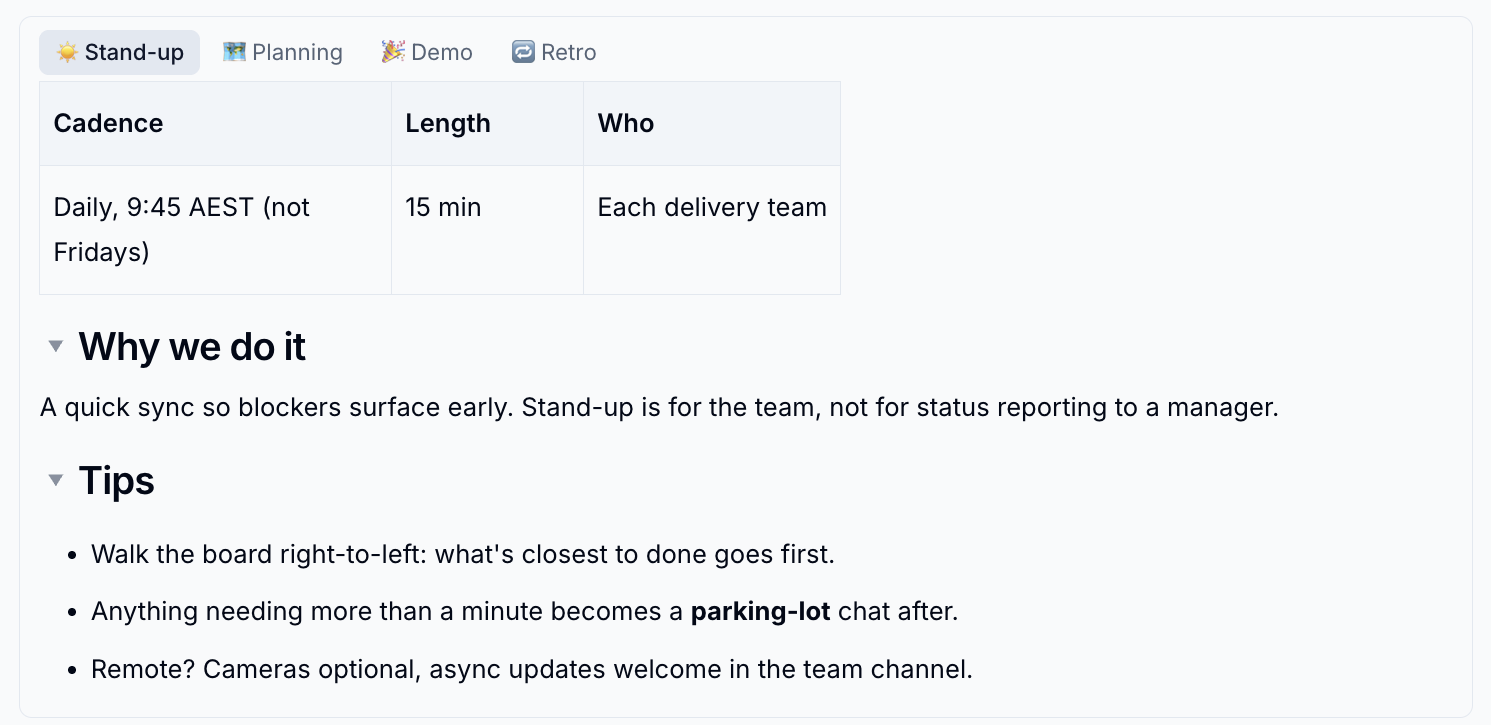
- Type
/tabs. You get three tabs to start with - Click
+to add another tab - Click the active tab to open its menu, where you can Rename it, add an icon, copy a link to it, duplicate it or delete it
- Drag a tab to reorder it
Link straight to a tab
Copy link in a tab's menu gives you a link that opens the page with that tab already selected.
Expand
An expand block shows a title and hides the details until the reader clicks. Use it for FAQs, long examples and "still stuck?" sections.
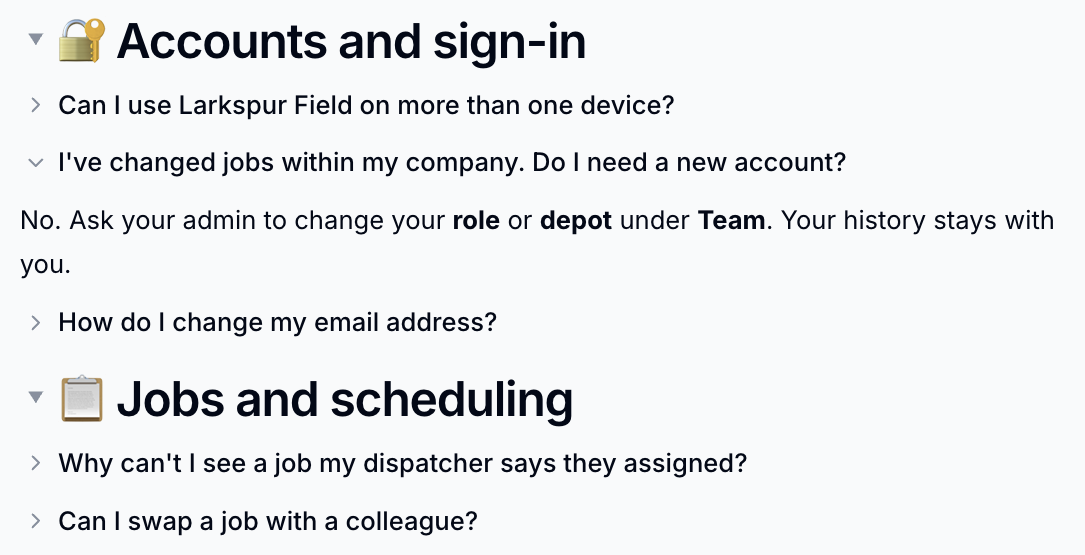
- Type
/expand - Give it a title, then add the hidden content underneath
Expand blocks start closed. To have one open when the page loads, open the block menu and choose Open by default.
Columns
Put blocks side by side with columns. Type /columns and choose two to five
columns, or drag one block next to another. See
Creating Columns with Drag and Drop.
Table of Contents
A table of contents lists the headings on the page and lets readers jump straight to a section.
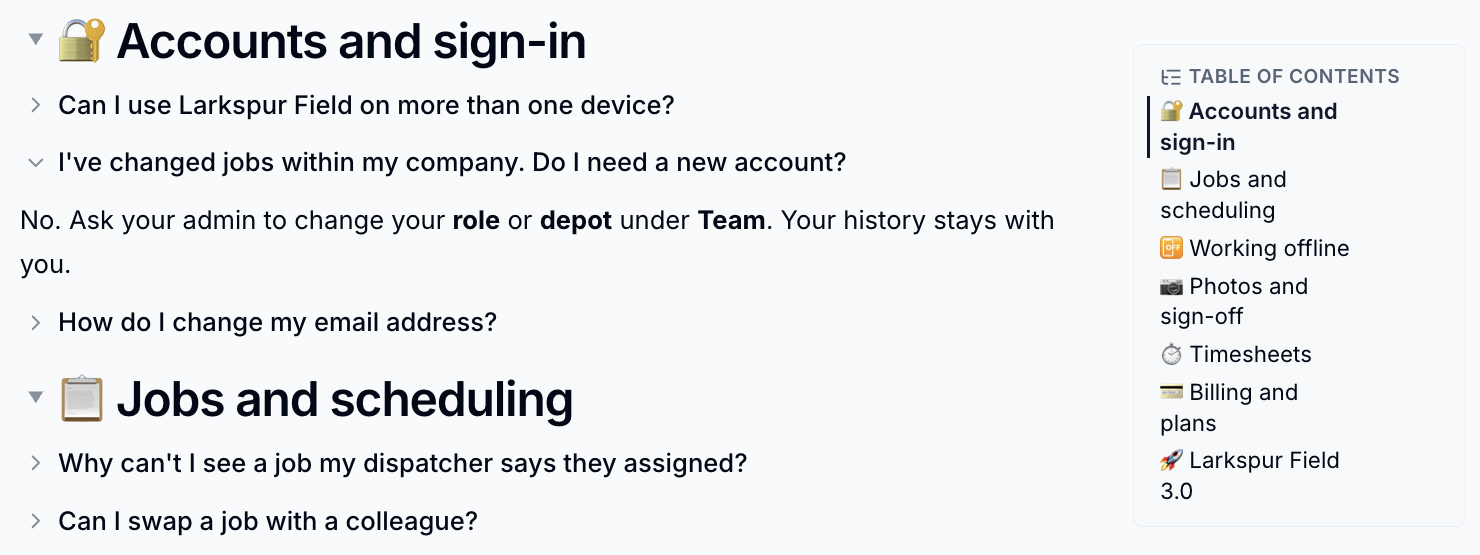
- Type
/table of contents - Choose where it appears: Pin to left sidebar, Inline in page or Pin to right sidebar
- Optionally choose which heading levels to include, and turn on heading numbers
It updates by itself as you add and change headings.
Child Pages
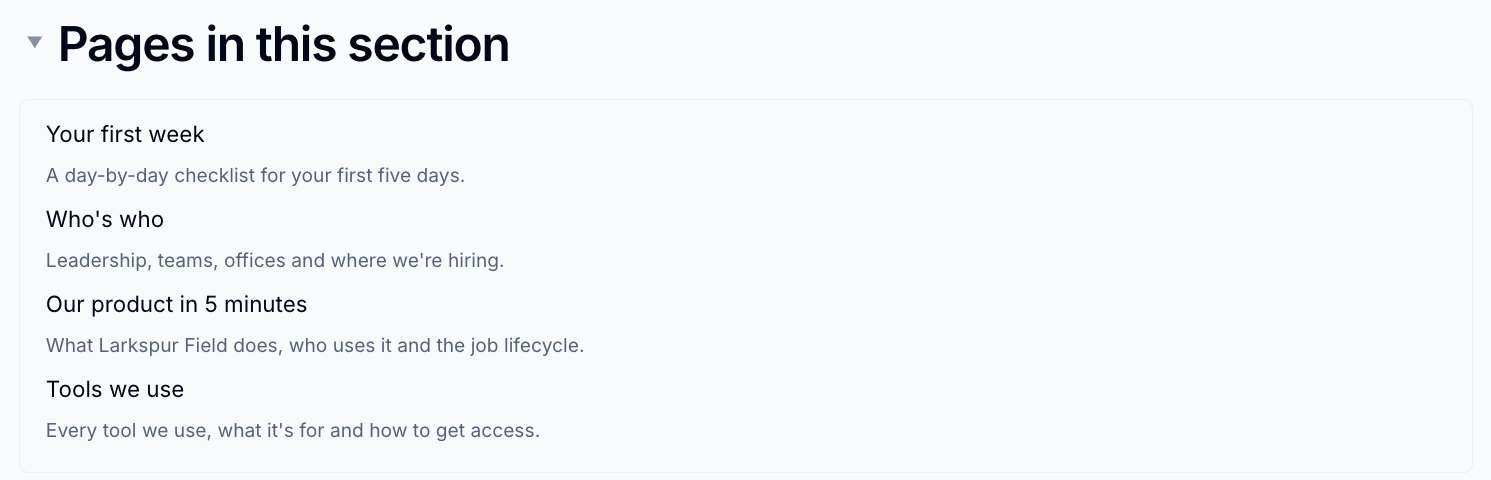
The Child pages block lists the pages beneath a page, so a section's front page always shows what's inside it.
- Type
/child pages - Click the gear icon to choose:
- Parent page - this page, or any other page
- Depth - how many levels to show (one to five)
- Sort - page order, title, recently modified or recently created
- Show excerpts - add each page's short summary under its title
The list stays up to date as pages are added, renamed and moved.
Please contact us if you have any questions.