
Wiki Settings
Wiki settings control how a whole wiki looks and works: its name and description, banner and colours, the templates and property blocks authors can use, and how pages are verified.
Click the pencil (Edit wiki settings) next to the wiki name to open them. On a phone, use the Wiki actions menu.
Tabs and Who Sees Them
| Tab | What it holds | Who can change it |
|---|---|---|
| General | Name, description, language and tags | Editors and Owners |
| Appearance | Banner image and colour theme | Editors and Owners |
| Property blocks | Which property blocks appear in the / menu |
Editors and Owners |
| Page templates | Which templates appear in From template… | Editors and Owners |
| Verification | Verified pages and approvals | Owners |
General
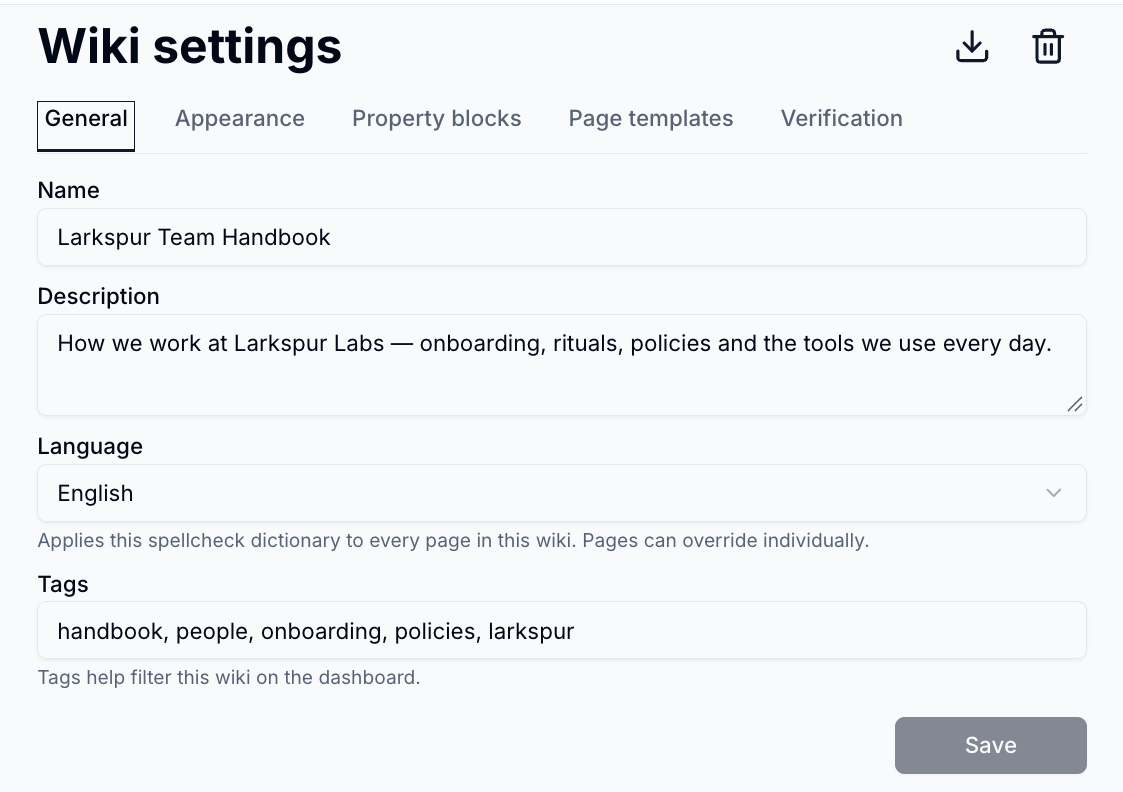
- Name and Description - how the wiki appears on the home page and in search
- Language - the spellcheck dictionary for every page. Pages can override it
- Tags - comma-separated words that help people filter wikis on the home page. Up to 10 tags of up to 30 characters each
Click Save when you are done.
Appearance
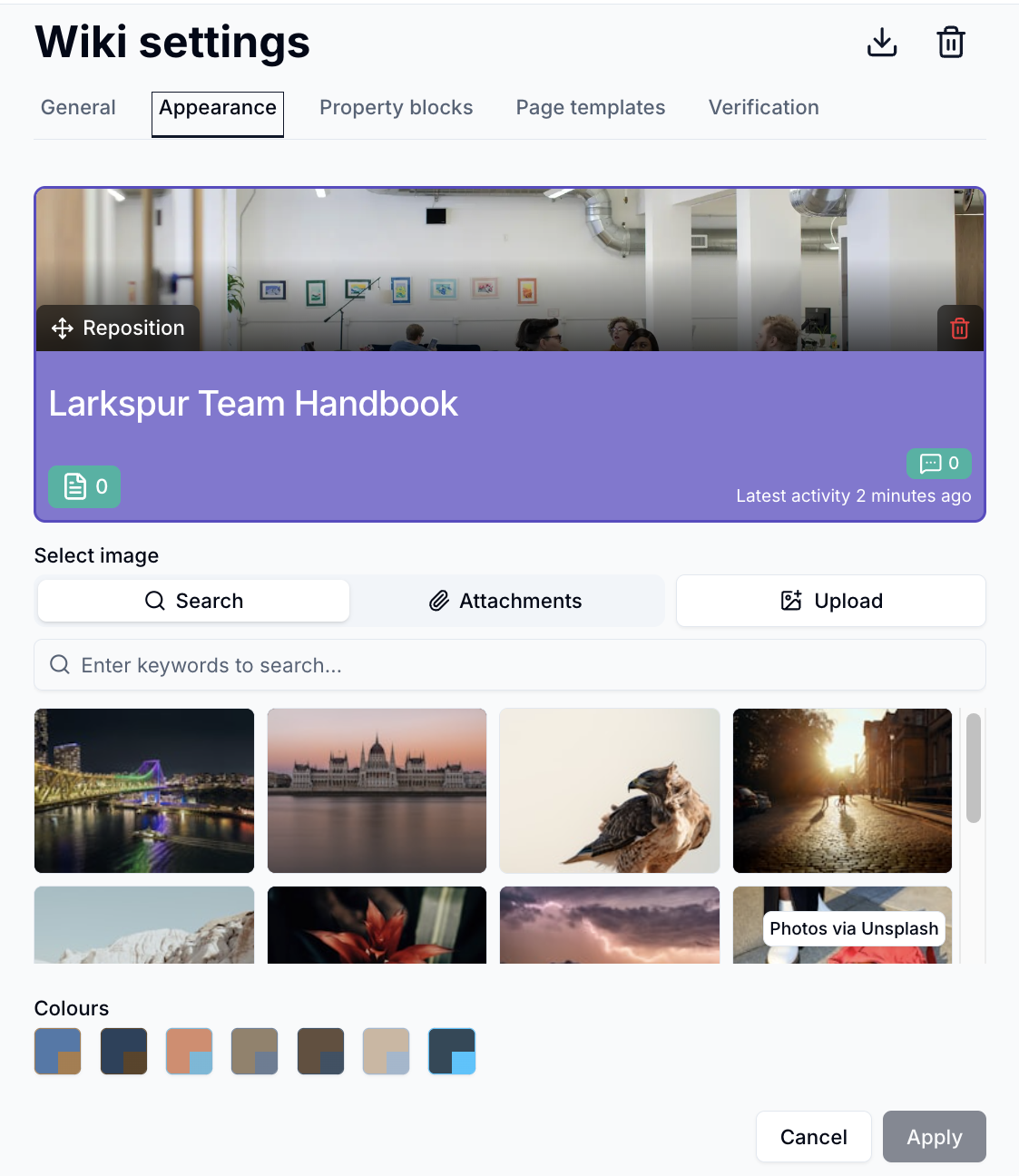
- Search for a banner image, pick an attachment or click
Upload - Drag the image to reposition it, and choose Contain or Stretch
- Pick a colour theme. The colours are taken from your banner
- Click
Apply
Page Templates and Property Blocks
Switch on the templates and property blocks you want authors to use in this wiki. Star a template to make it the default for new pages. Changes save straight away.
Export or Delete the Wiki
Two icons at the top right of Wiki settings:
- Export wiki archive (download) - saves the whole wiki as a file you can import elsewhere. See Wiki Archives
- Delete wiki (bin) - wiki owners only
Deleting a wiki is permanent
Deleting a wiki removes all of its pages, sub-pages, comments and history. It can't be undone. Export an archive first if you might need it again.
Please contact us if you have any questions.