
Editing a Page
Editing in Huddo Wikis happens right on the page. There is no separate form: click the pencil, type, and save. This guide covers the editing tools and how saving works.
Start Editing

- Open the page
- Click the pencil icon (Edit page) in the page header
You need to be an Editor or Owner of the wiki to see the pencil. Editing starts a session that others can join - see Collaborative Editing.
In edit mode the header shows your session tools, including Discard (the crossed circle) and Save (the dark disk icon).

Add Content
Click into the page and start typing. On an empty line, click + or type /
to insert a block such as a table, image or callout.

See Slash Commands for everything you can add.
You can also type Markdown as you go - for example ## for a heading or -
for a bullet list. See Keyboard Shortcuts for
the full list.
Format Text
Select some text to show the formatting toolbar.

From left to right you can:
- Change the block type (normal text, headings, lists, quote, code or callout)
- Make text bold, italic, underlined, struck through or code
- Change the Text colour or background
- Add a link
- Align or indent the block
- Add comment on the selected text
- Clear formatting
Move and Change Blocks
Hover to the left of any block to show its handles:
- Drag the grip dots to move the block. Drag it next to another block to create columns
- Click the block icon (Block options) to open the block menu
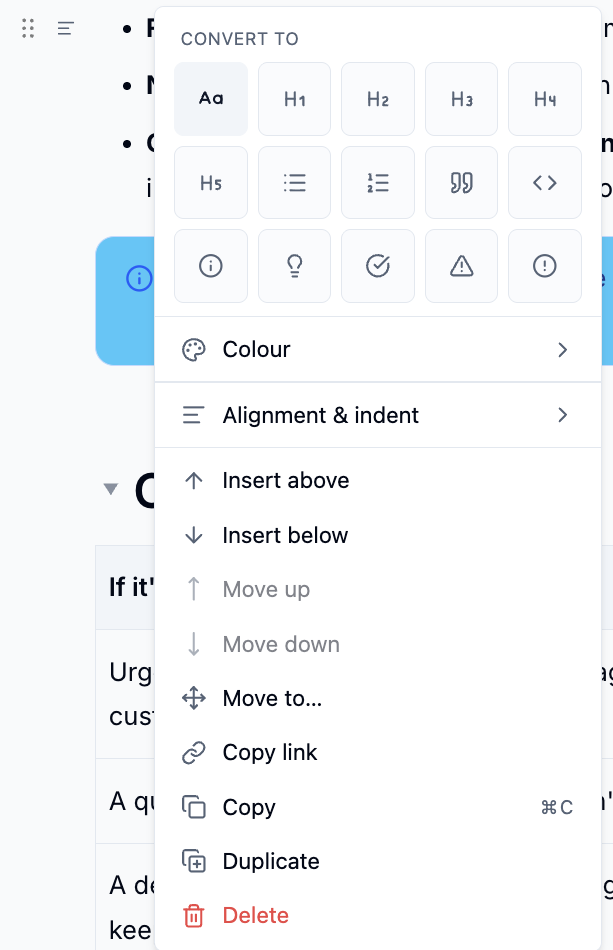
The block menu lets you convert the block, change its colour or alignment,
insert a block above or below, move, copy, duplicate or delete it. Press
Alt+Enter to open it from the keyboard.
Paste from Other Documents
Paste from Word or Google Docs and the formatting is cleaned up for you. Pasted Markdown is turned into headings, lists and tables. If you would rather keep the plain text, click Keep as plain text in the message that appears straight after pasting.
Find and Replace
Press Ctrl+F (Cmd+F on a Mac) to open Find in page.
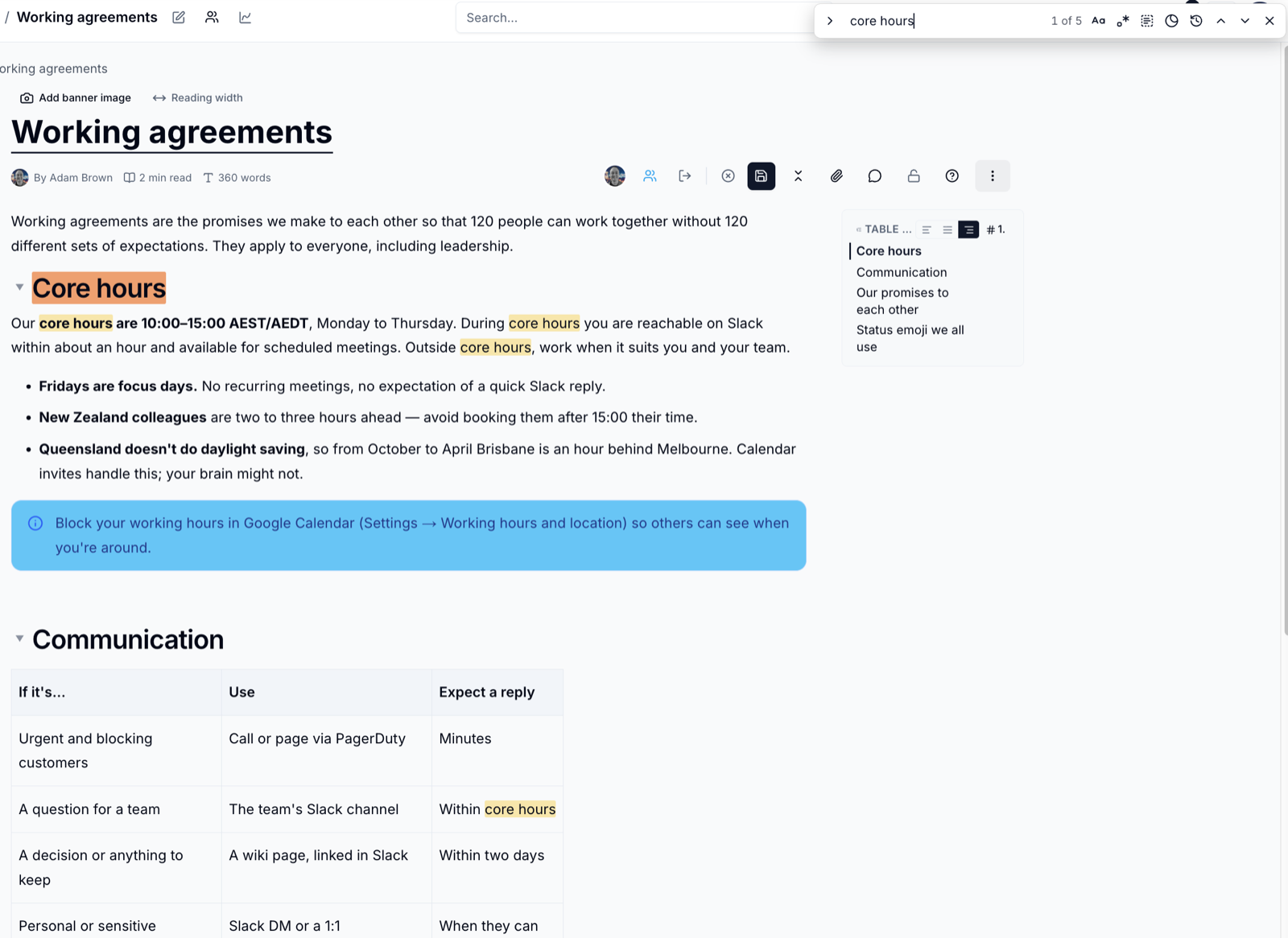
- Press
Enterfor the next match andShift+Enterfor the previous one - Use the buttons in the bar to match case, use a regular expression, search only the selected text, or dim everything that doesn't match
- In edit mode, click Show replace to replace one match or all of them
Find also works when you are reading a page; replace only works while editing.
Save Your Changes
Click the Save icon when you are done. Each save adds a version to the page history and returns you to reading the page.
Save before you leave
Pages are not saved automatically. If you click Discard, end the session or close the tab without saving, your changes are lost.
Title and banner save straight away
Changes to the page title and banner image are saved as soon as you make them, separately from Save.
Please contact us if you have any questions.