
Create a Wiki
A new wiki takes a few steps: give it a name, choose how it looks, decide who can see it and pick a starting point. Anyone with a Wikis licence can create a wiki, and you become its owner.
Start the Wizard
- Open the Wikis home page
- Click
New Wikiat the top right
The New Wiki wizard has six steps. Click Continue to move on, or click an
earlier step to go back.
1. Details
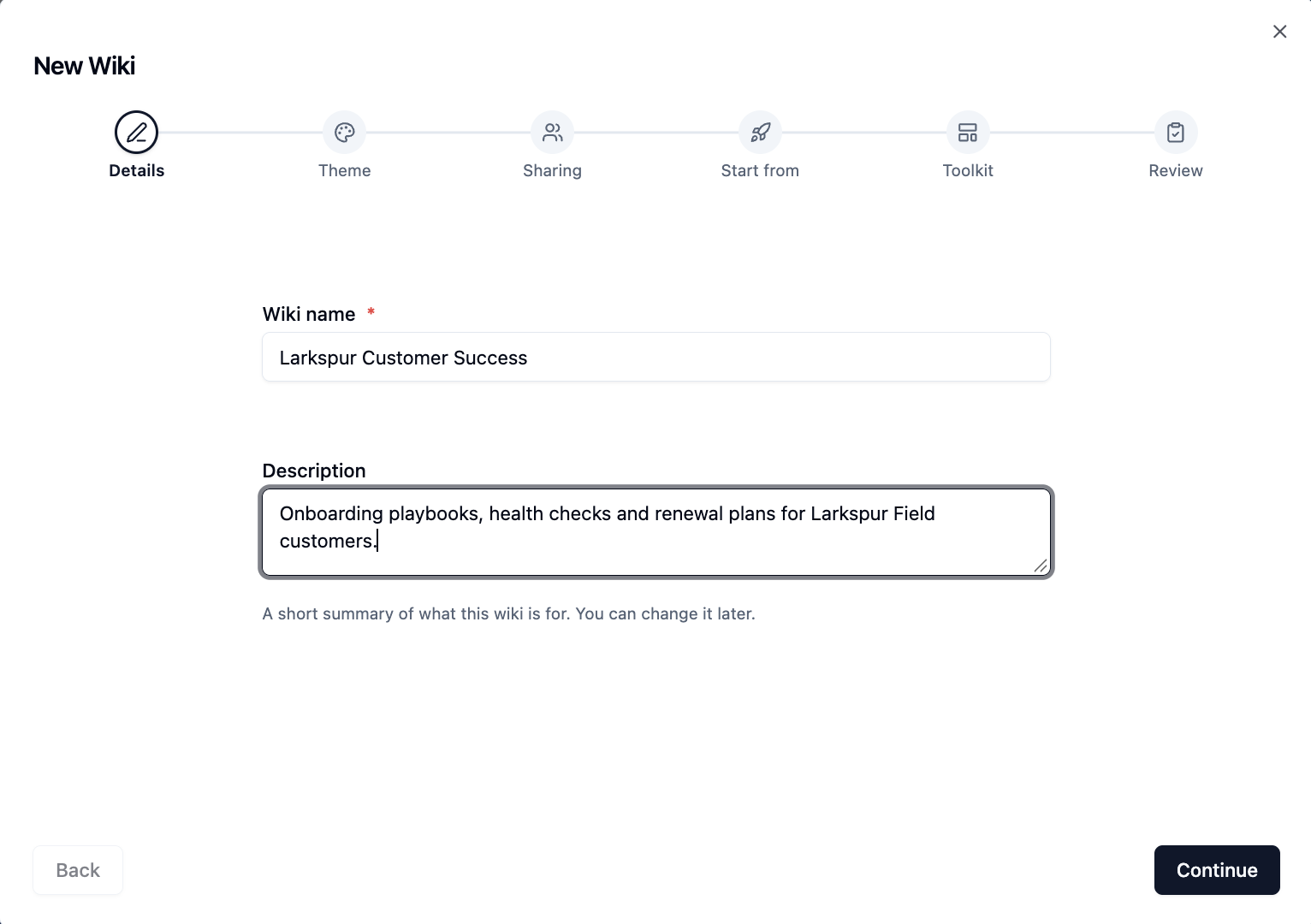
- Enter a Wiki name. This is required and also becomes the wiki's web address
- Optionally add a Description - a short summary of what the wiki is for
- Click
Continue
2. Theme

- Search for a banner image, or click
Uploadto use your own. You can also drop an image onto this step - Drag the image in the preview card to reposition it
- Pick a colour theme. The swatches are taken from your banner image
- Leave Also use this image as the first page's banner ticked if you want the first page to match
- Click
Continue
3. Sharing
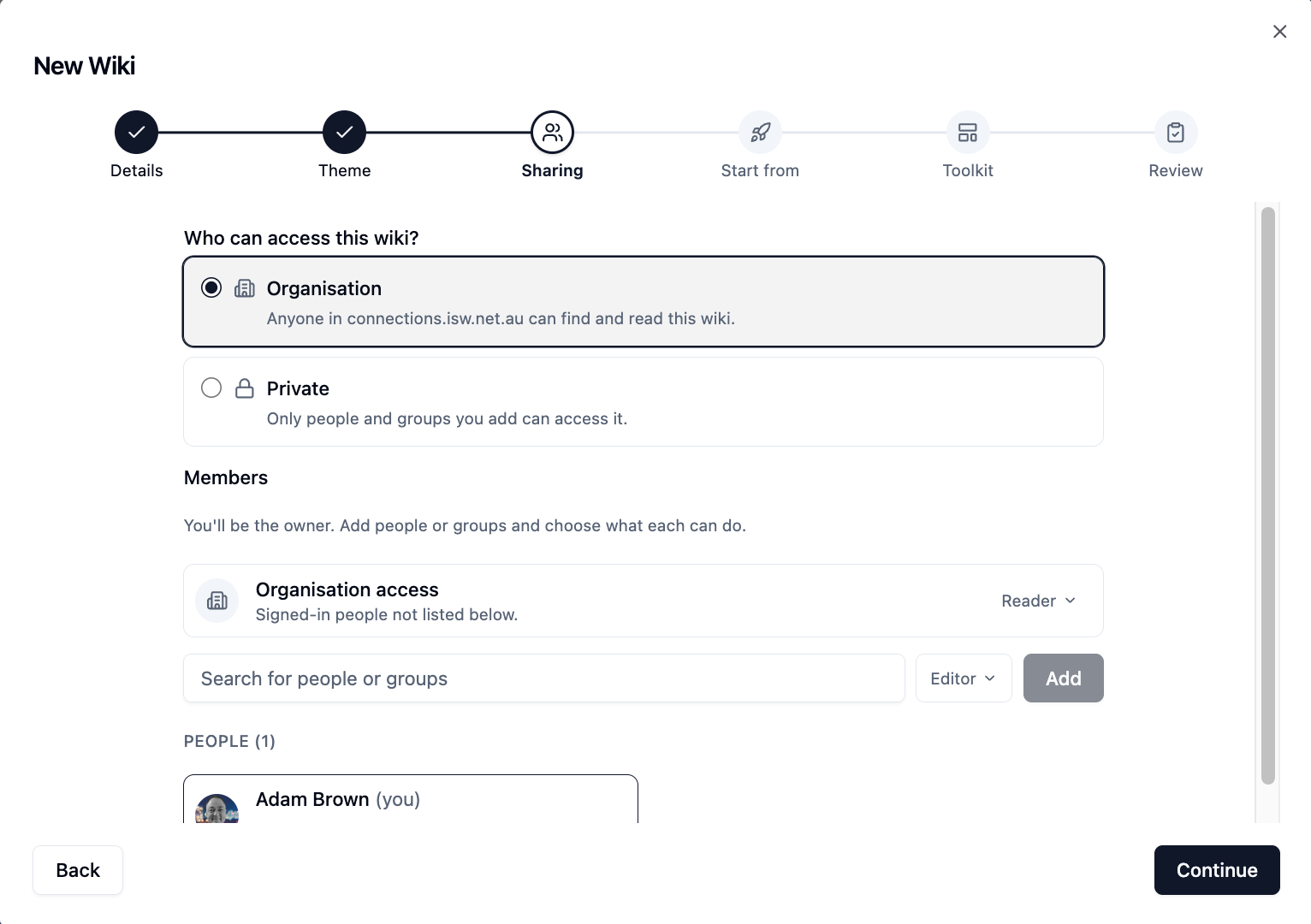
- Under Who can access this wiki? choose:
- Organisation - anyone in your organisation can find and read the wiki
- Private - only the people and groups you add can access it
- To add members now, search for people or groups, choose a role and click
Add - Click
Continue
You can change all of this later. See Members and Permissions.
4. Start From
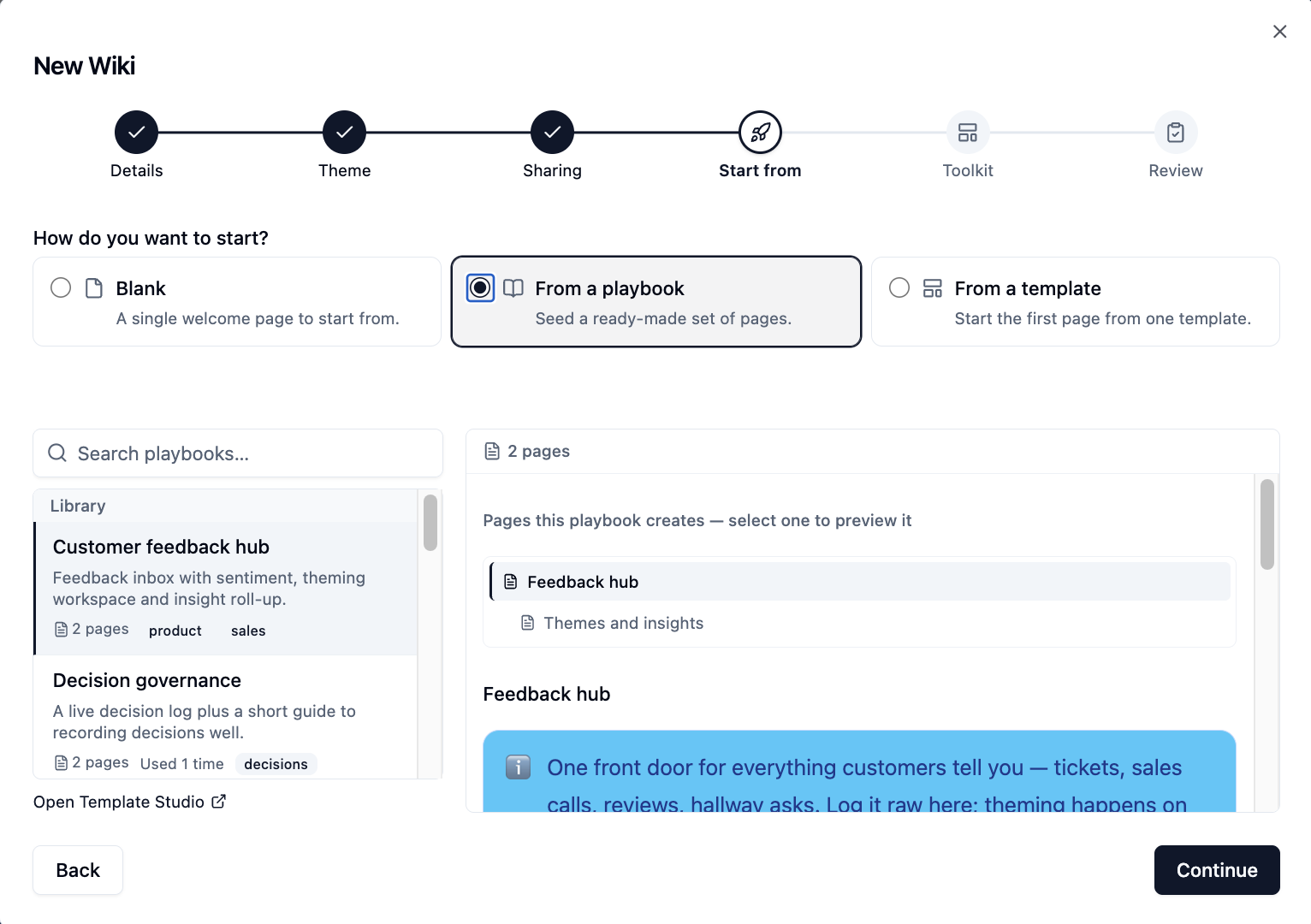
Choose how the wiki begins:
| Option | What you get |
|---|---|
| Blank | A single welcome page to start from |
| From a playbook | A ready-made set of pages, such as a knowledge base or project space |
| From a template | A first page built from one page template |
Select a playbook or template to preview the pages it creates. If it asks for details (such as a project name), fill them in here.
5. Toolkit
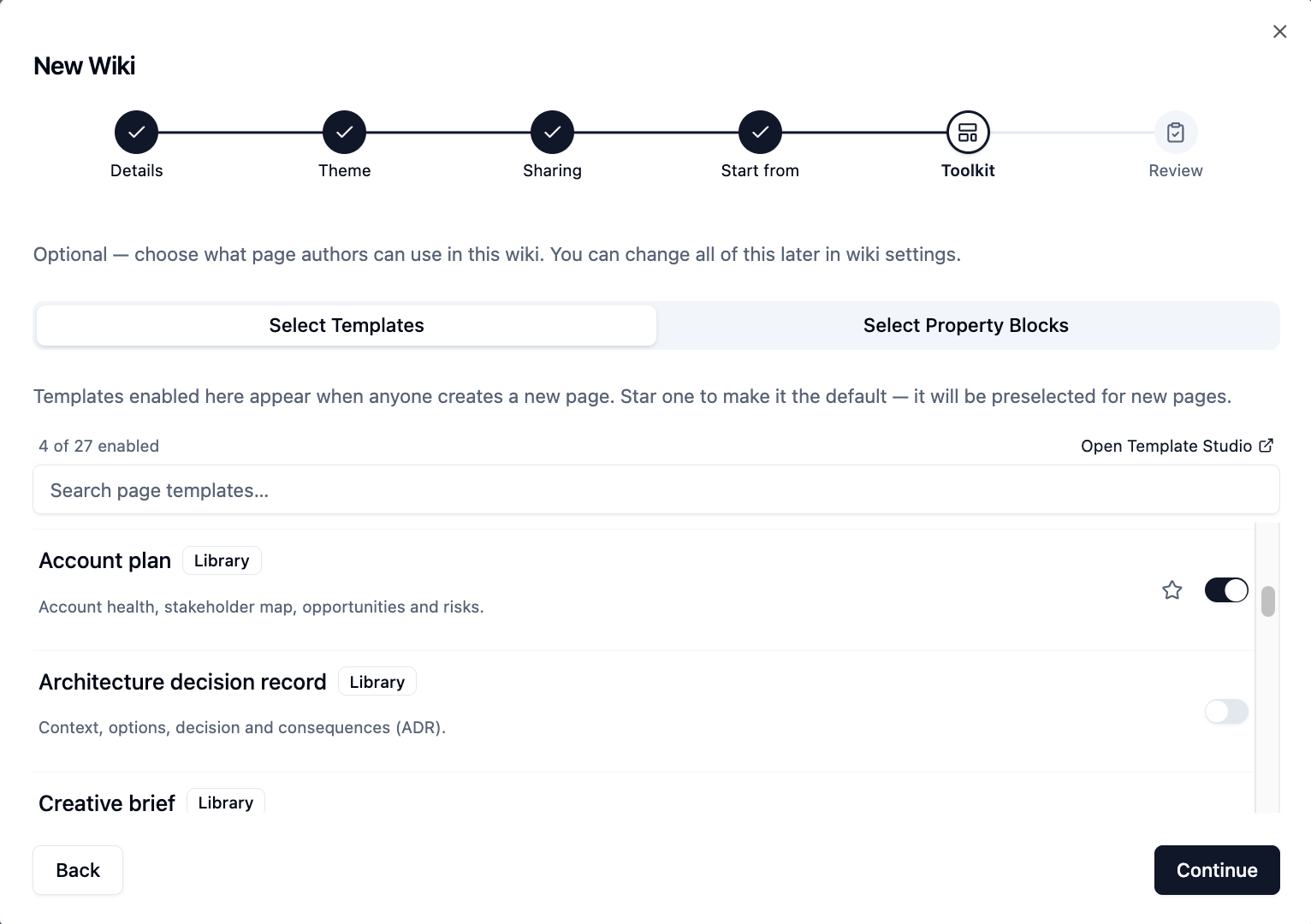
This step is optional. Choose what page authors can use in this wiki:
- Select Templates - turn on the page templates people can pick when they create a page. Star one to make it the default
- Select Property Blocks - turn on reusable blocks (such as decisions or
risks) that appear in the
/menu
6. Review
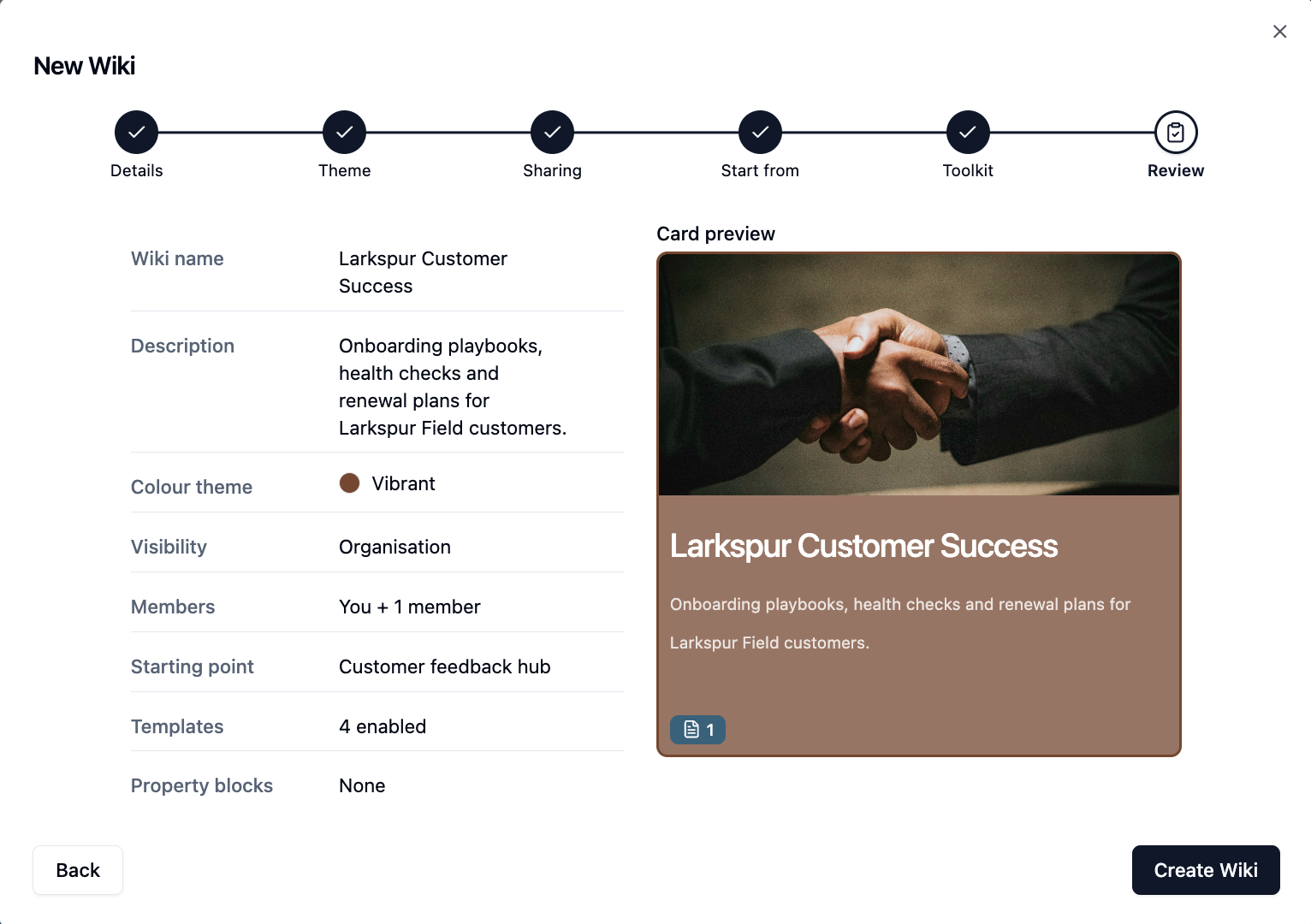
Check the summary and the card preview. Use the edit links to go back to any
step, then click Create Wiki. Your new wiki opens straight away.
Tips
Pick a distinctive name
The wiki name becomes its web address, so choose something clear and unique. You can rename the wiki later, but its address stays the same.
Change it later
Everything you chose in the wizard can be changed in Wiki settings - click the pencil icon next to the wiki name.
Please contact us if you have any questions.