
Formatting and Text
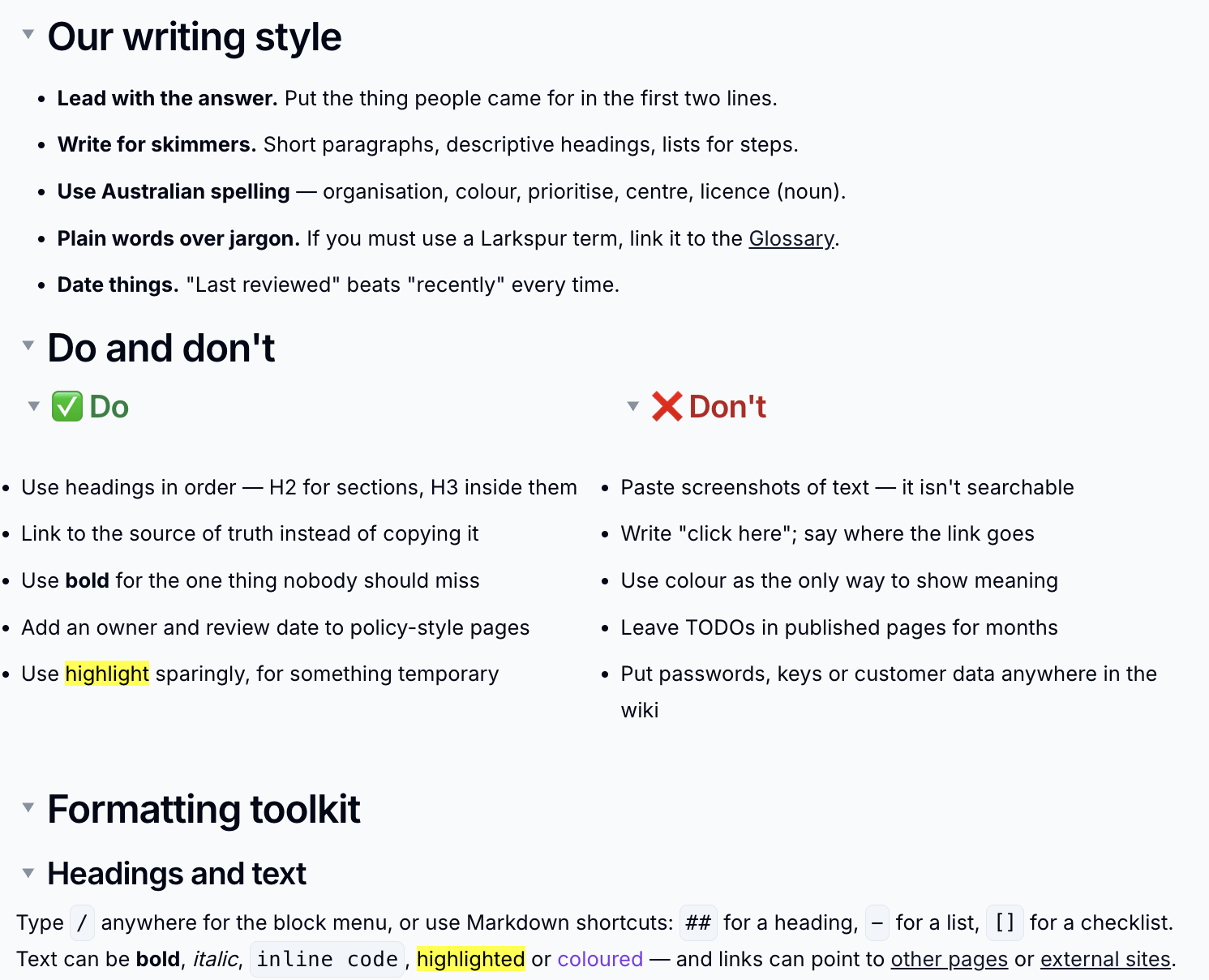
Good formatting makes a page easy to scan. This guide covers headings, lists, colour, code and links - the everyday building blocks of a well-written wiki page.
Headings
Use headings to break a page into sections. Huddo Wikis has five heading levels.
- Type
#to#####at the start of a line, or - Choose Text and heading in the slash menu, or
- Press
Ctrl+Alt+1to5(Cmd+Option+1to5on a Mac)
Every heading can be folded: click the arrow beside it to hide everything beneath it, down to the next heading of the same level. Readers can fold and unfold sections too, and Collapse all sections in the page header folds the whole page at once.
Headings build the table of contents
The table of contents and the PDF export both use your headings, so a clear heading structure pays off twice.
Lists
| List | Type this | Or press |
|---|---|---|
| Bullet list | - |
Ctrl+Shift+8 |
| Numbered list | 1. |
Ctrl+Shift+7 |
| Task list | [ ] |
- |
Press Tab to nest an item and Shift+Tab to bring it back out. Task list
items have a checkbox you can tick as work gets done.
Bold, Italic and More
Select text to show the formatting toolbar, or use the shortcuts:
| Style | Shortcut |
|---|---|
| Bold | Ctrl+B |
| Italic | Ctrl+I |
| Underline | Ctrl+U |
| ~~Strikethrough~~ | Ctrl+Shift+S |
Inline code |
Ctrl+E |
To remove all formatting from the selection, click Clear formatting at the end of the toolbar.
Colour and Highlight
- Select some text
-
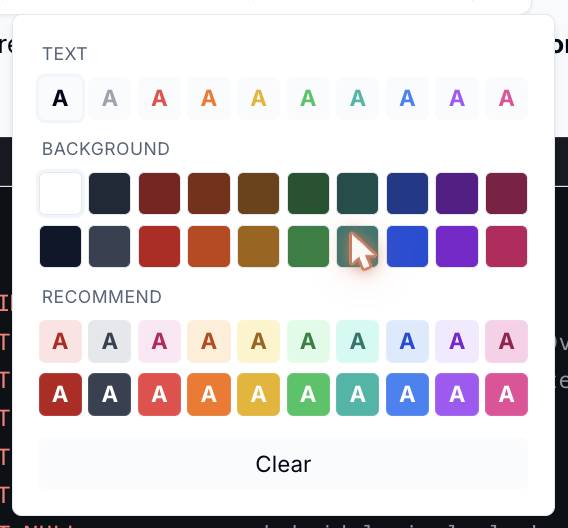
Click Text colour in the formatting toolbar
-
Choose a colour:
- Text - change the colour of the letters
- Background - highlight the text
- Recommend - ready-made text and background pairs that are easy to read
- Clear - remove the colour
To colour a whole block, use Colour in the block menu instead.
Use colour sparingly
A little colour draws the eye; a lot of it makes a page hard to read. Stick to the Recommend pairs for highlights so the text stays readable in light and dark mode.
Alignment and Indent
Use the alignment button in the formatting toolbar to align a paragraph or
heading left, centre or right, or to justify it. The same menu lets you indent
and outdent the block - or press Ctrl+] and Ctrl+[.
Quotes, Dividers and Code
- Quote - type
>or choose Quote in the slash menu - Divider - type
---or choose Divider - Code block - type
```or choose Code Block
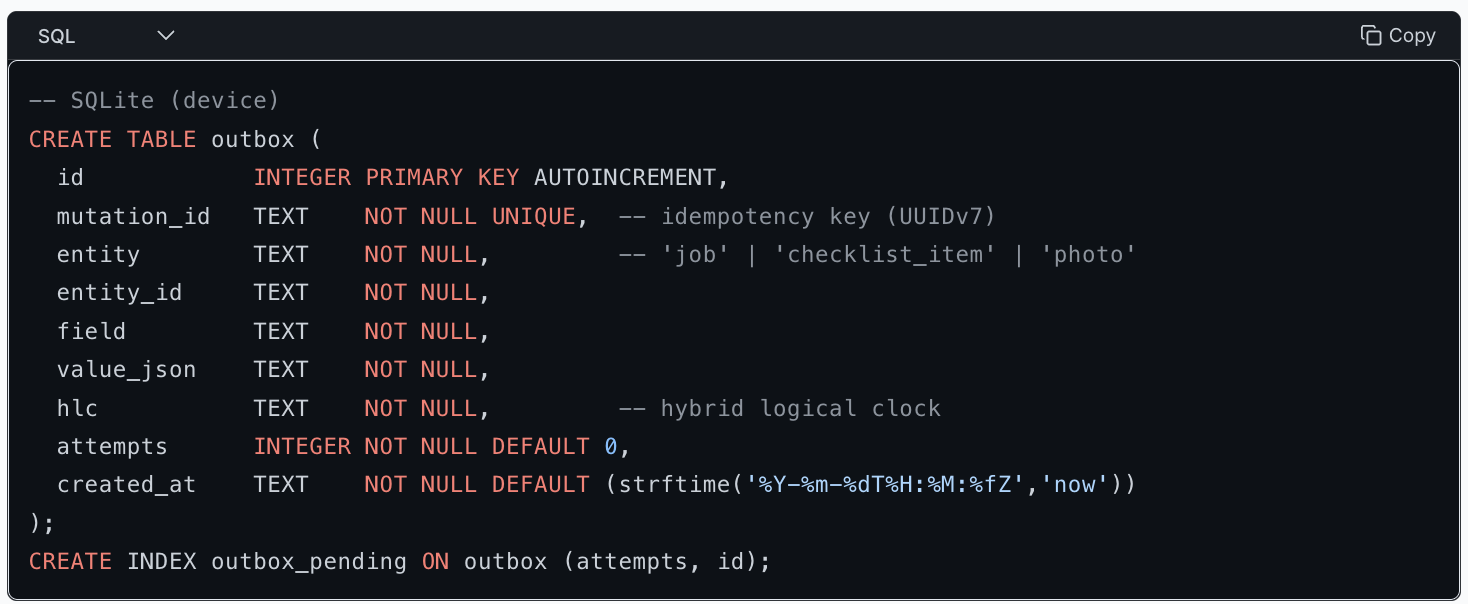
Pick the language from the list at the top of the code block to switch on colour highlighting. Everyone, including readers, can click Copy to copy the code.
Links
Press Ctrl+K, or select text and click the link button, to open Add link.
You can link to a web page, an existing wiki page, a brand-new page or a whole
wiki. See Links, Smart Cards and Embeds for more.
Emoji and Footnotes
- Emoji - choose Emoji in the slash menu and search for the one you want
- Footnotes - choose Footnote in the slash menu, or type
[^. Footnotes are numbered automatically and listed at the end of the page. Readers can hover over the number to read the note
Please contact us if you have any questions.