
Custom Fields
Custom fields are prompts that idea authors answer when they submit an idea, such as "What is the budget required?" or "What is the business value?". The answers sit alongside each idea and help voters and reviewers compare ideas fairly.
Lab owners add custom fields when they create a lab, or later from Edit lab details (the gear icon).
Add Custom Fields
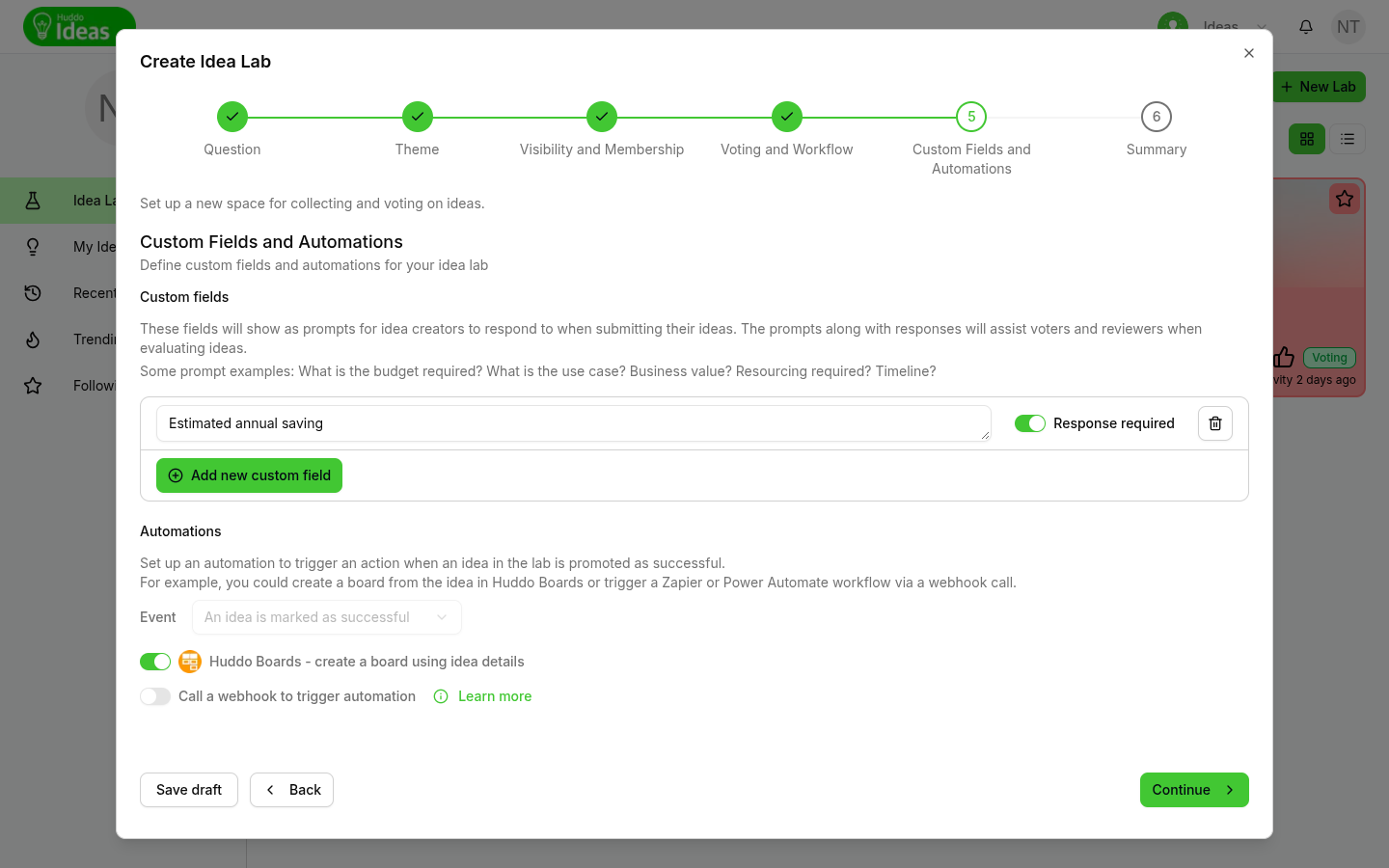
- Go to the Custom Fields and Automations step of the lab wizard
- Click
Add new custom field - Type the question in Enter a prompt
- If every idea must answer it, switch on Response required
- Add more fields the same way
- To remove a field, click its bin icon (Remove custom field)
- Click
Continue. If you're editing an existing lab, clickUpdate Labinstead
Some prompts that work well:
- What is the budget required?
- What is the use case?
- What is the business value?
- What resourcing is required?
- What is the timeline?
How Authors Answer
When someone submits an idea, the lab's prompts appear under Custom fields in the idea form. Required prompts are marked (required). The author can't submit the idea until they answer them.
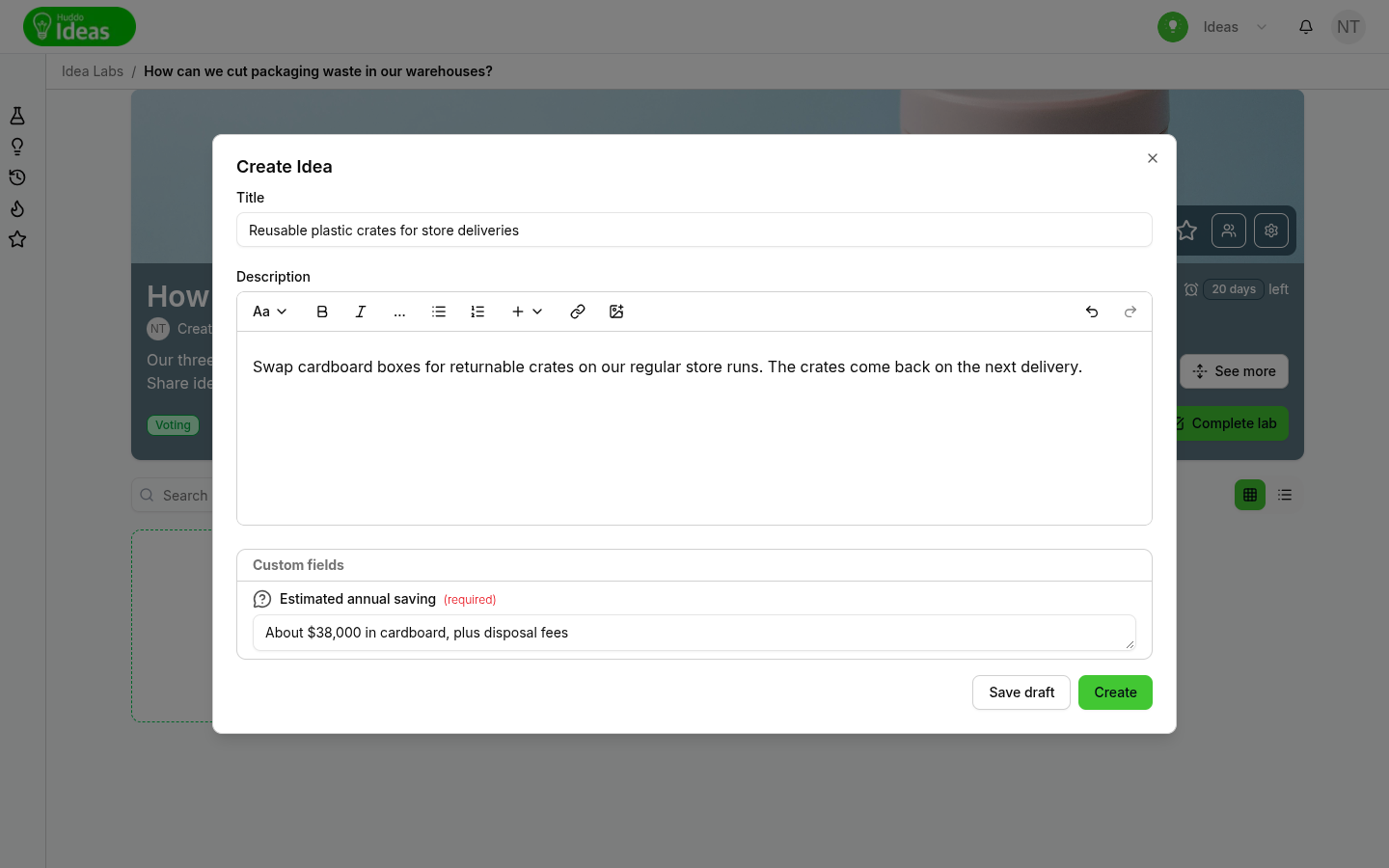
To change an answer later:
- Edit the idea
- Click the prompt under Custom field responses
- Type the new answer
- Click
Save
Prompts without an answer show Add response.
Where Answers Appear
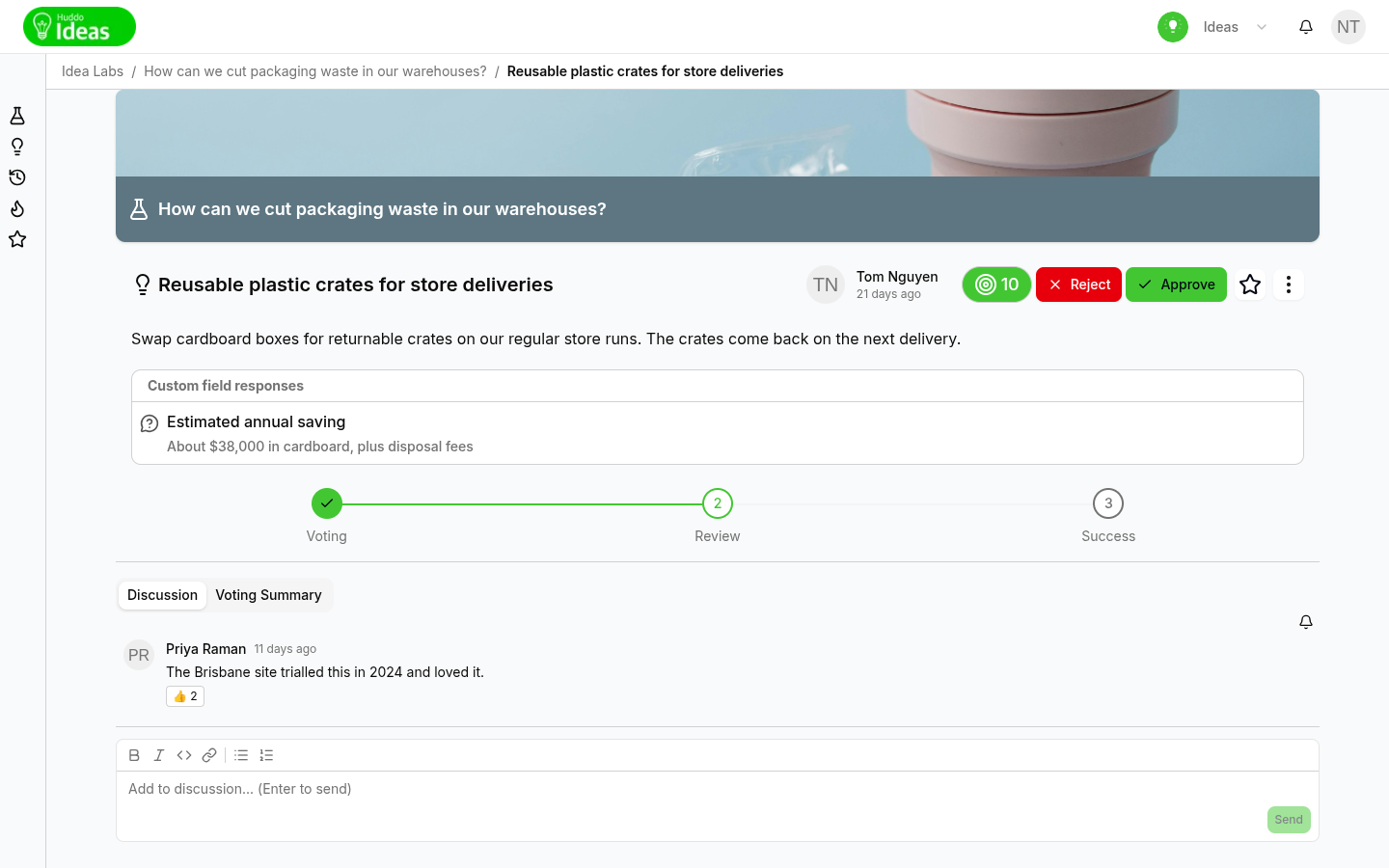
Answers appear on the idea's page, under Custom field responses. Only prompts that have an answer are shown.
Keep prompts short
Prompts are shown in full in the idea form and next to every answer, so a short, direct question works best.
Please contact us if you have any questions.