
Submit an Idea
Got an answer to a lab's question? Add it as an idea so others can vote on it and discuss it. You can submit ideas to any lab where you are an Owner or a Contributor, while the lab is in the Voting stage.
Create an Idea
- Open the lab
- Click
New ideaon the lab banner, or the New idea card at the end of the ideas - Enter a Title. You must fill this in
- Explain your idea in the Description. See Write a Good Description below
-
Answer any Custom fields the lab asks. Fields marked (required) must be answered before you can create the idea
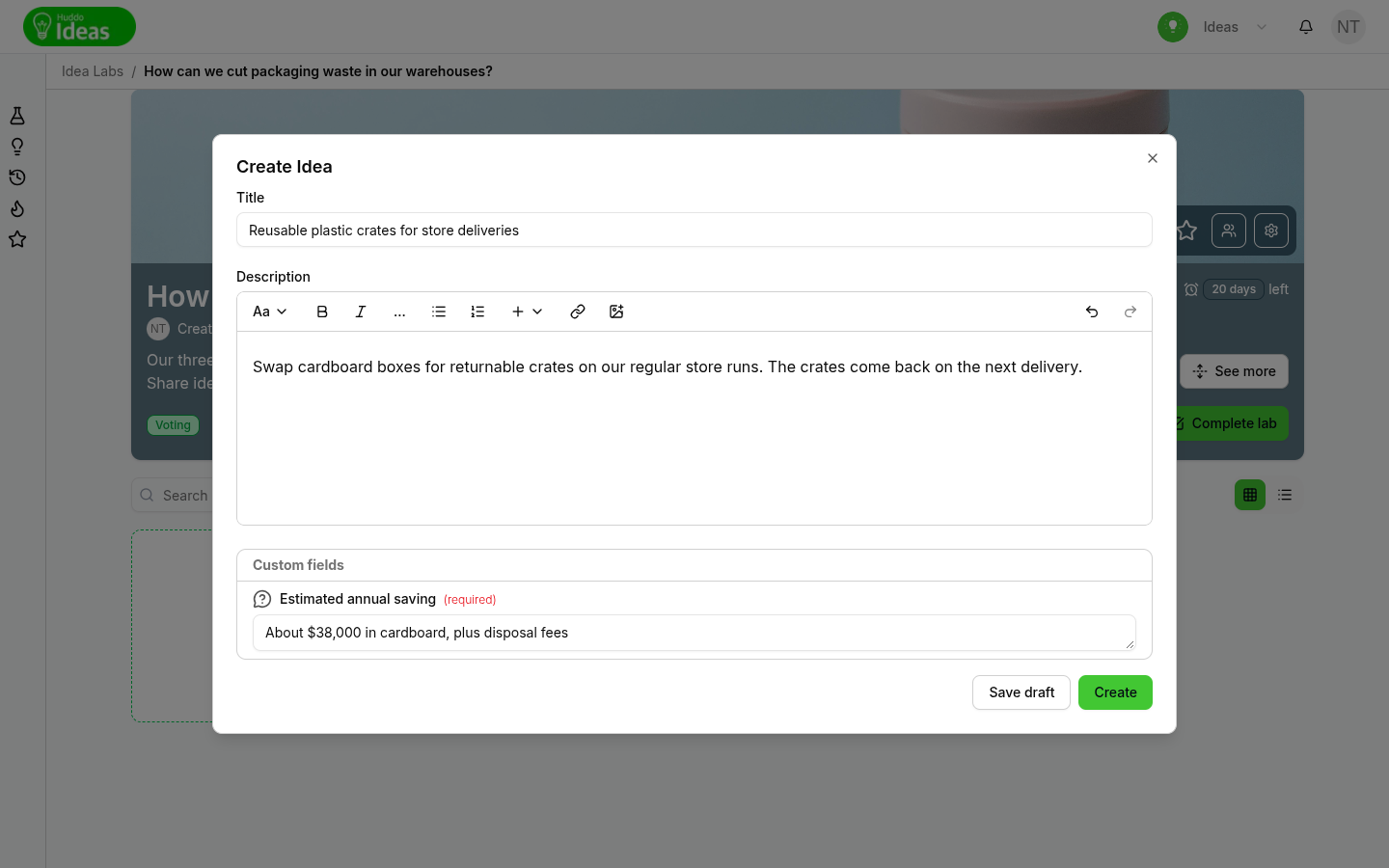
-
Click
Create
Your idea appears in the lab straight away. Huddo Ideas notifies the lab's owners about the new idea.
Your own vote
In labs that use Like or Like/Dislike voting, your new idea starts with your own like. See Voting on Ideas.
Write a Good Description
The description editor lets you:
- Format text with headings, bold, italic, strikethrough, quotes and dividers
- Add bulleted and numbered lists
- Add links
- Add images with the image button, or by pasting or dragging them in
- Mention someone by typing
@and picking their name. They get a notification that you mentioned them
Images you add to an idea are kept with it. When an idea has files, a paperclip button with a count appears on the idea page. Click it to see them.
Answer Custom Fields
Some labs ask extra questions to help voters and reviewers assess each idea, such as "Estimated annual saving". They appear under Custom fields when you create an idea. Your answers show on the idea page under Custom field responses. Questions you leave blank are not shown.
Lab owners create these questions. See Custom Fields.
Save a Draft
If you are not ready to share your idea, click Save draft. This closes the
dialog and keeps your work. After you give your idea a title, Huddo Ideas also
saves it as you type.
Your drafts appear at the start of the lab's ideas with a dashed border and a Draft label. Only you can see them.
- Click
Continueto reopen the draft, then clickCreatewhen it is ready - Click the bin icon to discard the draft
Anonymous Labs
When a lab has anonymous ideas turned on, the Create Idea dialog says: "This lab has anonymous ideas enabled. Your identity will be hidden from other users." Other people see your idea without your name or photo. You can still edit or delete your own idea.
Edit or Delete Your Idea
- Open your idea
- Click the
⋮menu next to the voting control - Choose Edit Idea or Delete Idea
When editing, change the title or description, then click Save.
To change a custom field answer, click its row under Custom field responses.
Enter your new answer in the Edit response dialog, then click Save. Custom
field answers are saved as soon as you save this dialog, even if you then
cancel your other changes.
When you delete an idea, you must confirm: "The idea will be permanently deleted, are you sure?". This can't be undone.
Lab owners can also edit and delete any idea in their lab. After a lab is Completed, nobody can edit or delete its ideas.
When You Can't Submit an Idea
If you can't see the New idea button, one of these is the likely reason:
- The lab has moved on - you can submit ideas only in the Voting stage. Check the stage badge in the lab header
- The idea limit is reached - the header shows x of y ideas submitted in red when the lab is full
- The deadline has passed - the header shows Deadline reached
- Your role - Readers and Reviewers can't submit ideas. See Members and Roles
Drafts and limits
The limit and deadline also apply to drafts. If a lab fills up or its deadline passes before you click Create, your draft can't be published.
Please contact us if you have any questions.