
Markdown
Markdown is plain text with simple symbols for formatting. You can type it as you write, paste it in, and copy any page out as Markdown to use somewhere else.
Type Markdown as You Write
Start a line with ## for a heading or - for a bullet, wrap words in **
for bold, and the formatting is applied as you type. See
Keyboard Shortcuts for
the full list.
Paste Markdown
Paste Markdown into a page while editing and it is converted to headings, lists, tables and code blocks automatically. To keep the text exactly as pasted, click Keep as plain text in the message that appears straight after.
To bring in a whole Markdown file, use Import file… - see Import Documents.
Copy or Download a Page as Markdown
- Open the page
- Click
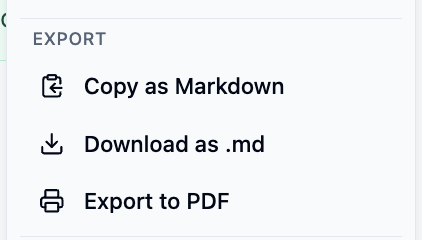
⋮(Page options) - In the Export section, choose:
- Copy as Markdown - copies the page to your clipboard
- Download as .md - saves the page as a Markdown file
Anyone who can read the page can copy or download it.
What changes in Markdown
Markdown can't express everything a wiki page can. The page title isn't included, columns and galleries become one block after another, tabs become headings, callouts become GitHub-style notes, and embeds become links. Images are included as links rather than copied into the file.
Moving a Whole Wiki
To copy a whole wiki - pages, files and whiteboards - between Huddo sites, use a wiki archive rather than Markdown:
- Open Wiki settings and click Export wiki archive. You need to be able to see every page in the wiki
- In the other wiki, click
+next to Pages and choose Import wiki archive…
Who can see the wiki isn't copied, so set up its members again after importing.
Please contact us if you have any questions.