
Links, Smart Cards and Embeds
Links tie your wiki together. Huddo Wikis can link to other pages, preview links as smart cards, and embed videos, designs and boards right in the page.
Add a Link
-
Select the text you want to link, then press
Ctrl+K(or click the link button)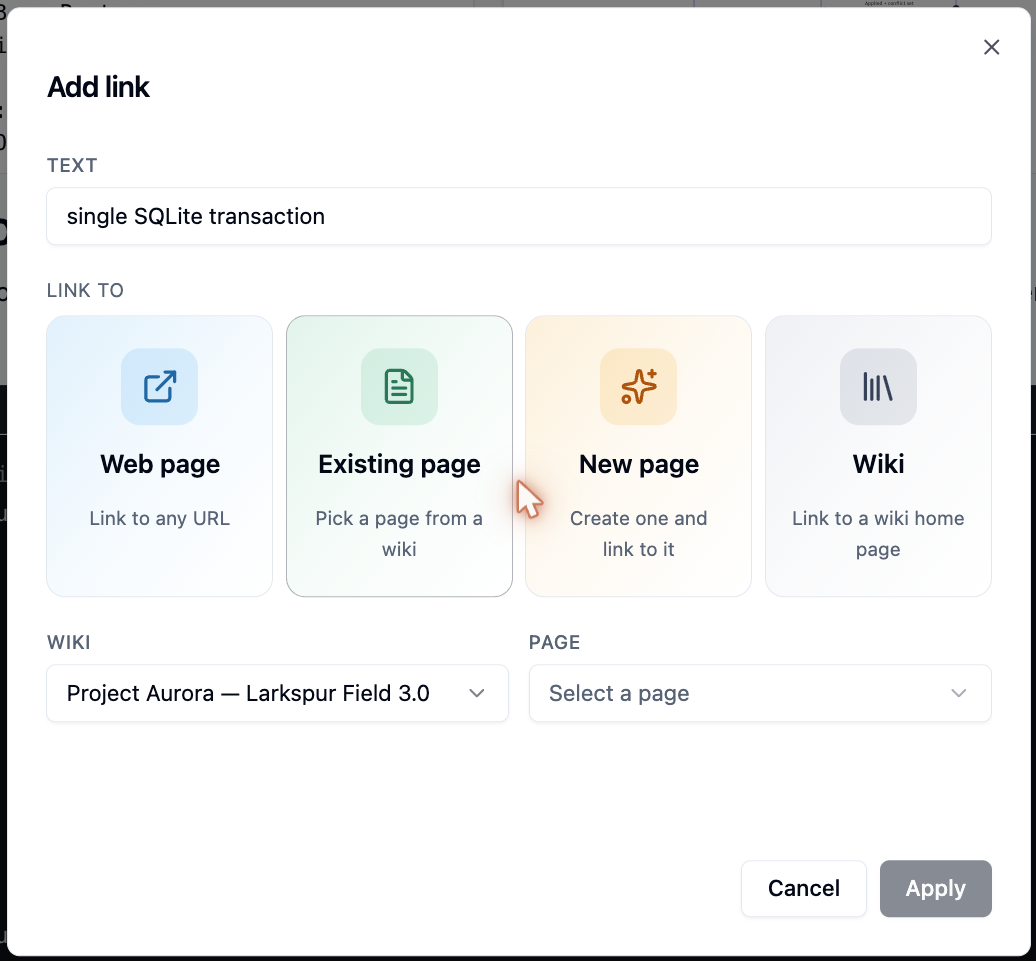
-
Choose what to link to:
Option Use it to Web page Link to any web address. You can also use mailto:andtel:linksExisting page Pick a page from any wiki you can access. Your recent pages are listed first New page Create a page and link to it in one go - as a child of this page or at the top of the wiki Wiki Link to the home page of a wiki -
Click
Apply
To change a link, click it and press Ctrl+K again. Click Clear to remove it.
Smart Cards
Paste a link on its own and Huddo Wikis turns it into a smart card that shows the title and details of what it links to.
Smart cards work for wiki pages and whiteboards, Huddo Boards and Huddo Ideas, GitHub, and many popular sites. While editing, click a card to change how it looks:
- Inline or Card
- Convert to embedded player (for links that can be embedded)
- Convert to plain URL
Restricted pages
If a reader doesn't have access to the page a card links to, they see "Restricted page" instead of its details.
Include the page instead
Right-click a card that links to a wiki page and choose Include this page here to show the whole page in place. See Excerpts and Include Page.
Embed Content
Embeds show live content from another site inside your page.
- Type
/and find the source in the Embed section - for example YouTube Video, Loom, Figma or Spotify - Paste the link and click
Insert
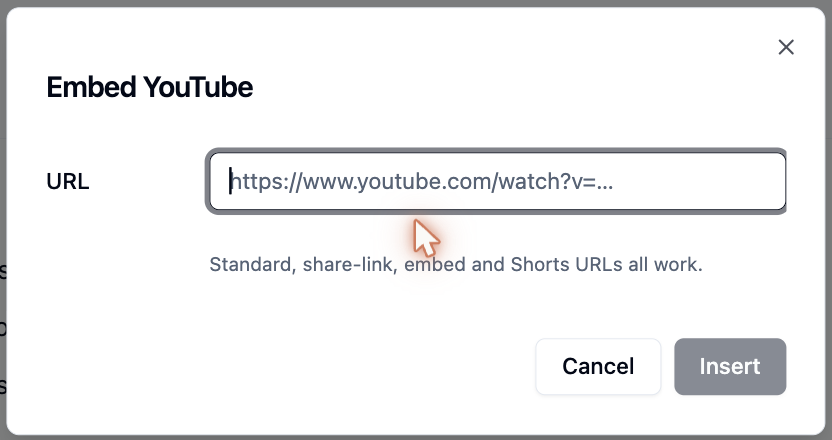
Supported sources: YouTube, X, Instagram, Facebook, Vimeo, Loom, TikTok, Spotify, SoundCloud, Figma, CodePen, CodeSandbox, Replit, StackBlitz and Huddo Boards.
Check who can see it
Embedded content is shown from the other site, so readers need permission there too. Loom recordings must be public or unlisted, and Figma files must be shared with "Anyone with the link can view".
Huddo Boards
Show a live board from Huddo Boards on your page:
- Type
/board(or/timelinefor the timeline view) - Pick a board in the Embed Board dialog
- Click
Embed
Mention People
Type @ and start typing a name to mention someone. They are notified when the
page is saved. See Dates, Status and Mentions.
Please contact us if you have any questions.