
Finding Idea Labs
The Idea Labs page lists every lab you can access. Search, sort and filter it to find the lab you want, then open the lab to browse its ideas.
The Idea Labs Page
Click Idea Labs in the sidebar. The number beside the heading shows how many labs you can see.
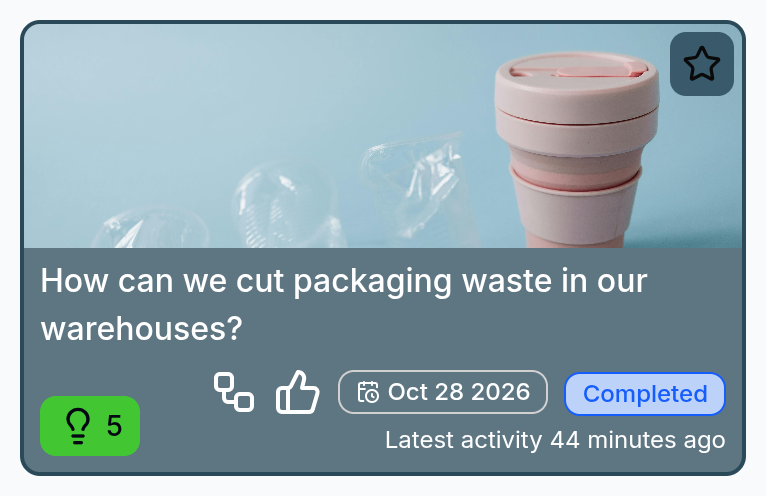
Each lab card shows:
- The lab's question and banner image
- The number of ideas, and when the lab was last active
- Icons for the lab's set-up: anonymous ideas, a workflow, and the voting type (hover over an icon to see what it means)
- The deadline, if there is one. It turns yellow in the last week and red once the deadline has passed
- The stage badge: Voting, Review or Completed
- A star to follow the lab
Search, Sort and Filter Labs
Use the bar above the labs:
- Search - type in Search labs to match words in a lab's question
- Sort - choose how the labs are ordered:
- Recent - most recent activity first
- Trending - most new ideas and votes in the last 14 days
- Popular - most votes overall
- Deadline - ordered by deadline
- Filter - narrow the list:
- No filter - every lab you can access
- My labs - labs you created
- Completed labs - labs in the Completed stage
- Active labs - labs still in the Voting stage
- Following - labs you follow
- View - switch between the card (grid) and list views
When a filter or search is active, the count beside the heading shows how many labs match, out of the total.
If your organisation uses HCL Connections, a community can show its own labs under the heading Community Idea Labs. See HCL Connections Community Widget.
Show drafts
If you started creating a lab and didn't finish, a Show drafts checkbox appears. Tick it to show your draft labs, then click Continue on a draft to pick up where you left off. Only you can see your drafts. See Create an Idea Lab.
Inside a Lab
Click a lab to open it. The header at the top tells you what the lab is about.
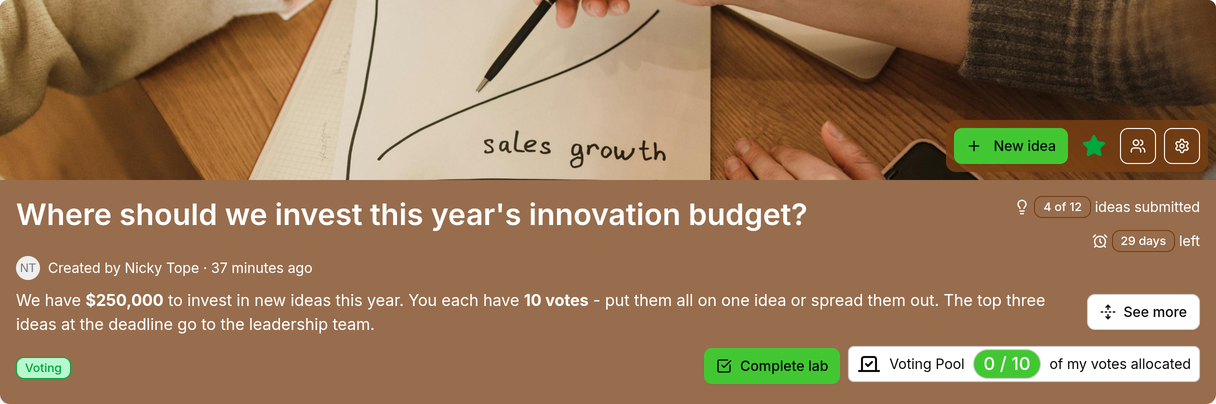
- Question - the challenge the lab is asking you to solve
- Created by - who created the lab and when, for example Created by Alex Smith · 3 days ago
- Description - the first two lines of the lab's description. Click
See moreto read it all, andCollapseto shrink it again - Workflow details - if the lab uses a workflow, the header can show:
- x of y ideas submitted when the number of ideas is limited
- Voting target and its number. Hover over it for an explanation
- The time left until the deadline, or Deadline reached once it has passed
- Stage badge - Voting, Review or Completed. A hat-and-glasses icon beside it means ideas in this lab are submitted anonymously
- Your votes - in a Voting Pool lab, a counter such as 3 / 25 of my votes allocated. See Voting on Ideas
The buttons on the banner let you add a New idea, follow the lab (star),
view the lab's attachments (paperclip, shown when the lab has files) and see
the lab's members (people icon). Owners also see a settings button.
As you scroll down through the ideas, the header shrinks to save space. Click the expand icon to expand it again.
Find Ideas in a Lab
Use the bar above the ideas:
- Search - type in Search ideas to match words in idea titles
- Sort - Newest, Trending (most votes in the last 14 days), Most votes or Latest activity (most recently voted on)
- Filter - All, Voting, Under review, Completed, Has votes or Following
- View - switch between cards and a list
The text beside the filters shows how many ideas you are looking at, for example Showing 12 of 40 ideas. On a narrow screen, click the sliders button to show or hide the sort and filter options.
Ideas load as you scroll
Large labs load their ideas in batches as you scroll down. Search looks only through the ideas loaded so far. If you can't find an older idea, scroll to the end of the lab.
Please contact us if you have any questions.