
Export to PDF
Need a copy to print, attach to an email or file away? Export a single page, a section, or a whole wiki to PDF - complete with a cover page, a table of contents and page numbers.
Export
- Open the page you want to export - or, for a section, the page at the top of it
-
Click
⋮(Page options) and choose Export to PDF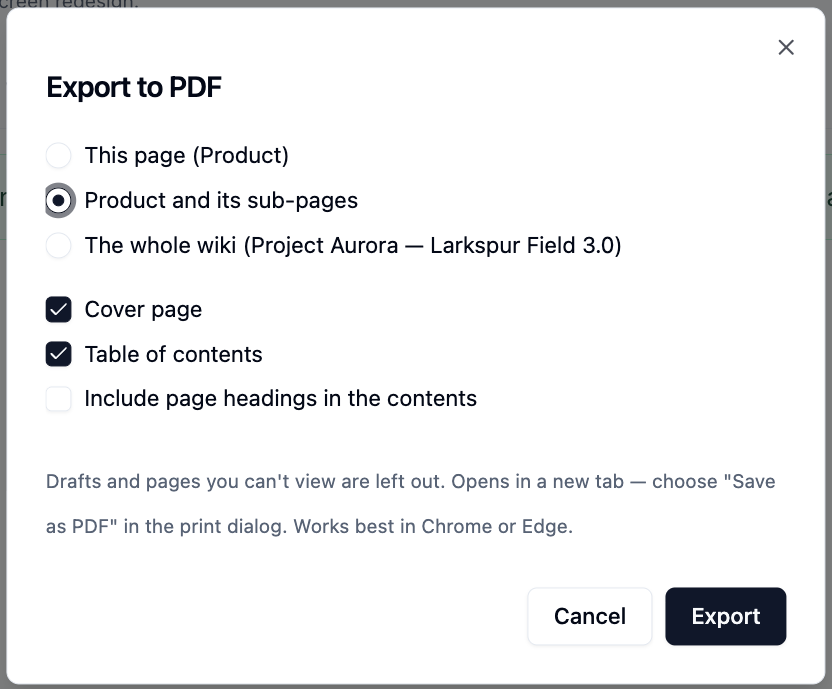
-
Choose what to export:
- This page
- This page and its sub-pages
- The whole wiki
- For a section or the whole wiki, choose what to include:
- Cover page - the wiki banner, name, description and export date
- Table of contents - every page, with page numbers
- Include page headings in the contents - adds each page's main headings
- Click
Export
A new tab opens and prepares the PDF. When the print dialog appears, choose
Save as PDF as the destination and click Save.
Anyone who can read the wiki can export it.
What's in the PDF
- Pages appear in the same order as the page list, each starting on a new sheet
- Every page has the page title at the top and the wiki name and page number at the bottom
- Links in the table of contents, and links between exported pages, are clickable in the PDF
- Embedded videos and other web content appear as a box with a link
Drafts, whiteboards, comments and any pages you don't have access to are left out.
Tips
Use Chrome or Edge
Page numbers and layout work best in Google Chrome and Microsoft Edge. In other browsers the layout may differ.
Allow pop-ups
The export opens in a new tab. If nothing happens, allow pop-ups for your Huddo site and try again.
Very large wikis
You can export up to 300 pages at a time. If a wiki is bigger, you'll be offered its sections to export one at a time.
Please contact us if you have any questions.