
Use a Template or Playbook
Templates give every new page a head start, and a consistent shape your team recognises. Playbooks go further: one click sets up a whole group of linked pages, ready to fill in.
| Template | Playbook | |
|---|---|---|
| Creates | One page | Several linked pages |
| Examples | Meeting notes, How-to article, Retrospective | Project space, Incident management kit, Knowledge base starter |
| Where you use it | From template… in the page list | Install in a wiki in Template Studio, or when you create a wiki |
Create a Page from a Template
- Click
+next to Pages (or the+beside a page to put the new page under it) - Choose From template…
-
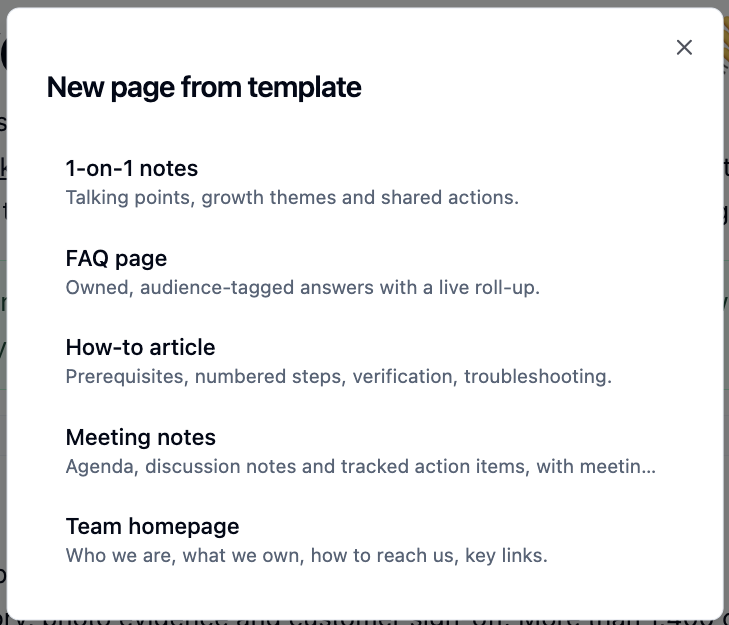
Pick a template. The wiki's default template, if it has one, is listed first with a star
-
If the template has fill-in fields, such as a project name, fill them in and click
Create page
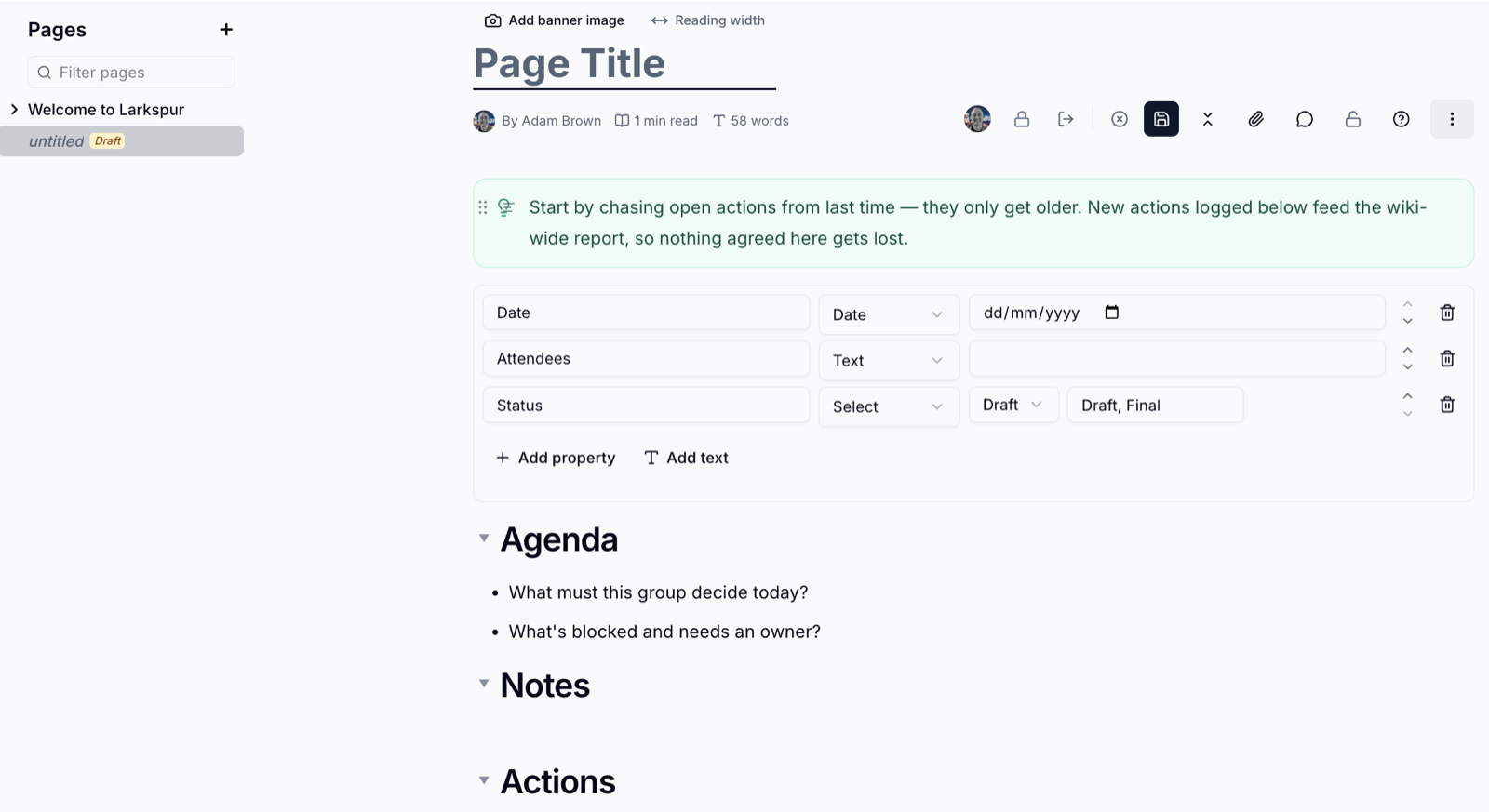
The new page opens in the editor with the template's content in place - here, the Meeting notes template with its meeting details and action items ready to fill in.
Give it a title, fill it in and save. Until you save, the page is a draft that only you can see.
Don't see From template…?
The option appears once the wiki has templates turned on. An Editor or Owner can switch them on in Wiki settings → Page templates. See Wiki Settings.
Install a Playbook
- Open Template Studio from the sidebar and choose Playbooks
- Click a playbook to see the pages it creates
- Click
Install in a wiki - Pick the wiki to install it into
The pages are created straight away, after the wiki's existing pages, and you are taken to the first one. Any property blocks the playbook uses are turned on in the wiki for you.
You need to be an Editor or Owner of the wiki you install into.
Playbook pages are published
Unlike a page from a template, playbook pages are created as published pages that everyone in the wiki can see. Tidy them up before you share the wiki.
Start a new wiki from a playbook
When you create a wiki, choose From a playbook on the Start from step to set the wiki up in one go.
Fill-in Fields
Templates can include fill-in fields, written as {{Name}}. When you use the
template, you are asked for a value for each one, and it is dropped in
everywhere the template uses it. Leave a field blank and the placeholder stays
on the page so you can fill it in later.
To make your own templates, see Create a Template.
Please contact us if you have any questions.