
Finding Your Way Around
Huddo Wikis has two main views: the home page, where you find wikis and pages, and the wiki itself, where you read and edit. This guide shows you how to move around both.
The Home Page
The Wikis home page shows every wiki you can access.
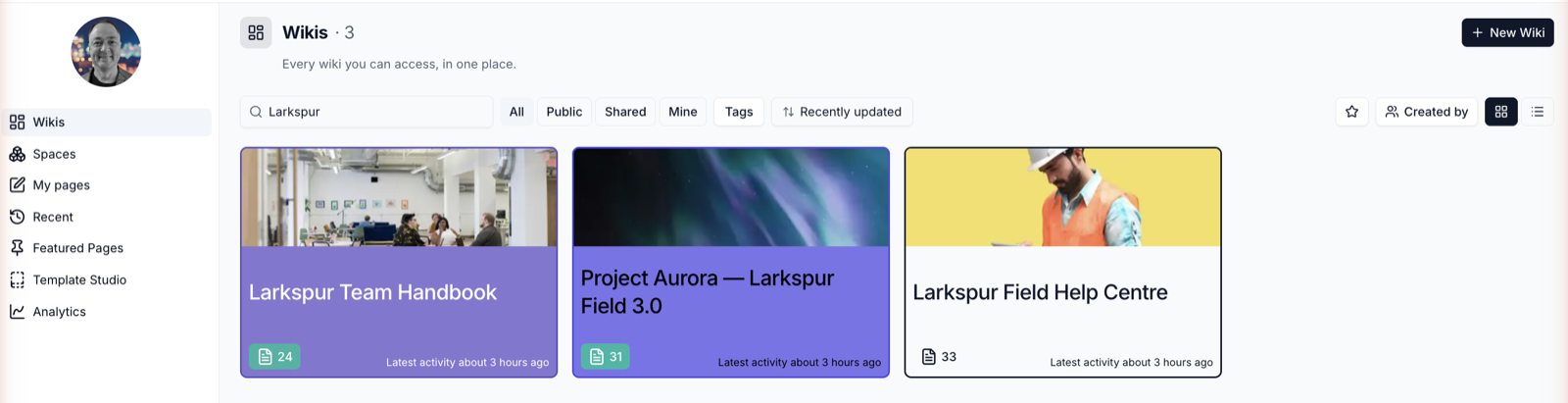
Use the bar above the wiki cards to narrow the list:
| Control | What it does |
|---|---|
| Search wikis | Finds wikis by name |
| All, Public, Shared, Mine | Public shows wikis open to your whole organisation, Shared shows wikis shared with you or your groups, and Mine shows wikis you created |
| Tags | Shows wikis with the tags you pick |
| Sort | Latest activity, Recently accessed, Recently created, Name (A–Z), Most pages or Most visits |
| Star | Shows only your favourite wikis |
| Created by | Shows wikis created by the people you pick |
| Grid / list | Switches between cards and a compact list |
Click the star on any wiki card to add it to your favourites.
The Sidebar
The sidebar on the home page takes you to the other views:
- Wikis - the home page
- Spaces - groups of related wikis (opens Huddo Spaces)
- My pages - every page you have created, across all your wikis
- Recent - pages updated in the last week and pages you opened in the last month
- Featured Pages - pages that have been featured across the wikis you can access
- Template Studio - page templates, property blocks and playbooks
- Analytics - how your wikis are being used
Inside a Wiki
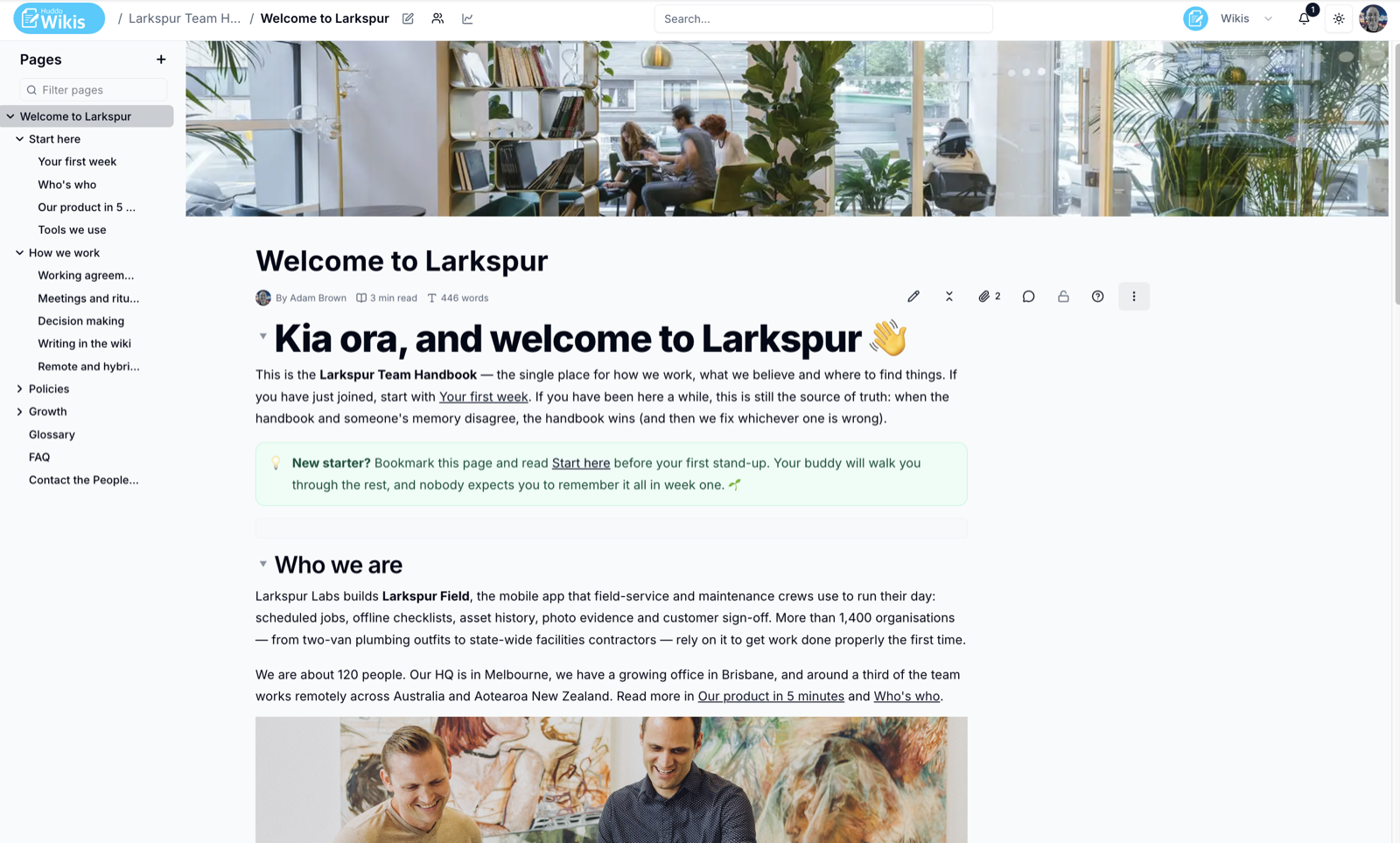
- Breadcrumbs - the top bar shows Wikis / wiki name / page name. Click a crumb to go back up
- Wiki icons - next to the wiki name, the pencil opens Wiki settings (Editors and Owners), the people icon opens the members list, and the chart opens the wiki's analytics
- Page list - the tree on the left shows every page in the wiki. Click the arrow beside a page to show or hide its sub-pages
- Filter pages - type in the box above the tree to find a page by title
Make the page list wider
Drag the right-hand edge of the page list to resize it. Double-click the edge to reset it.
On a phone or tablet
On smaller screens the page list is tucked away. Tap the Open page list icon to slide it out.
Switching Apps
Use the app switcher at the top right to jump between Huddo apps such as Boards, Ideas, Spaces and Wikis.
To find a page by its content rather than its title, see Search.