
Comments
Comments let you discuss a page without changing it. Comment on the page as a whole, or select a few words and comment on just those. Anyone who can read a page can comment on it.
Comment on Selected Text
- Select the words you want to comment on
-
Click
Commentabove the selection
-
Write your comment and click
Comment(or pressCtrl+Enter,Cmd+Enteron a Mac)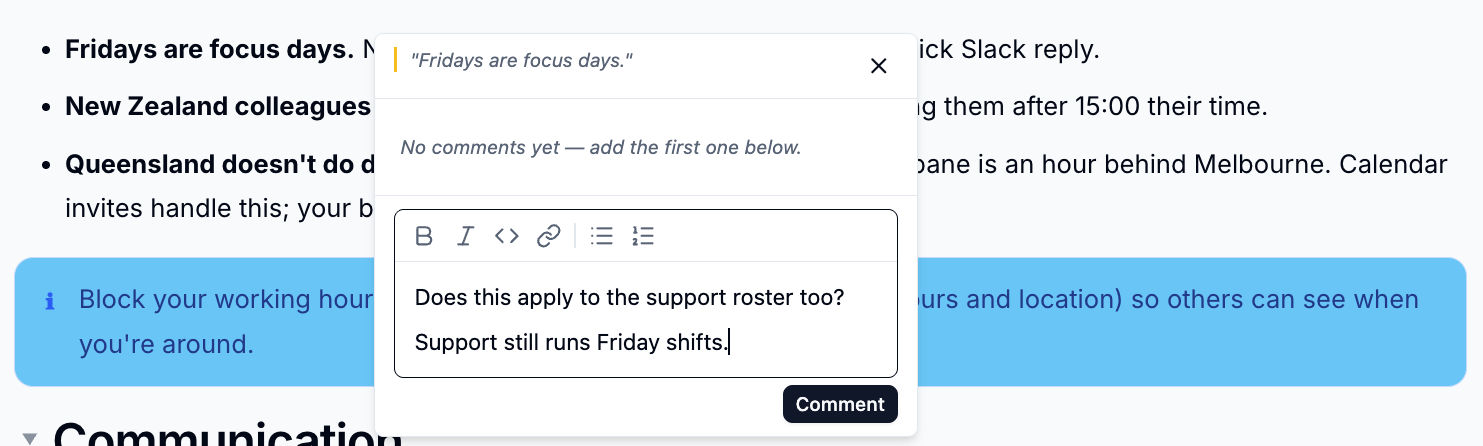
The text stays highlighted. Click it any time to open the conversation.
While you are editing a page, use Add comment in the formatting toolbar instead.
Comment on the Whole Page
- Click the comments icon in the page header to open the Comments panel
- Click Add a page comment…
- Write your comment and click
Post
Reply, React and Mention
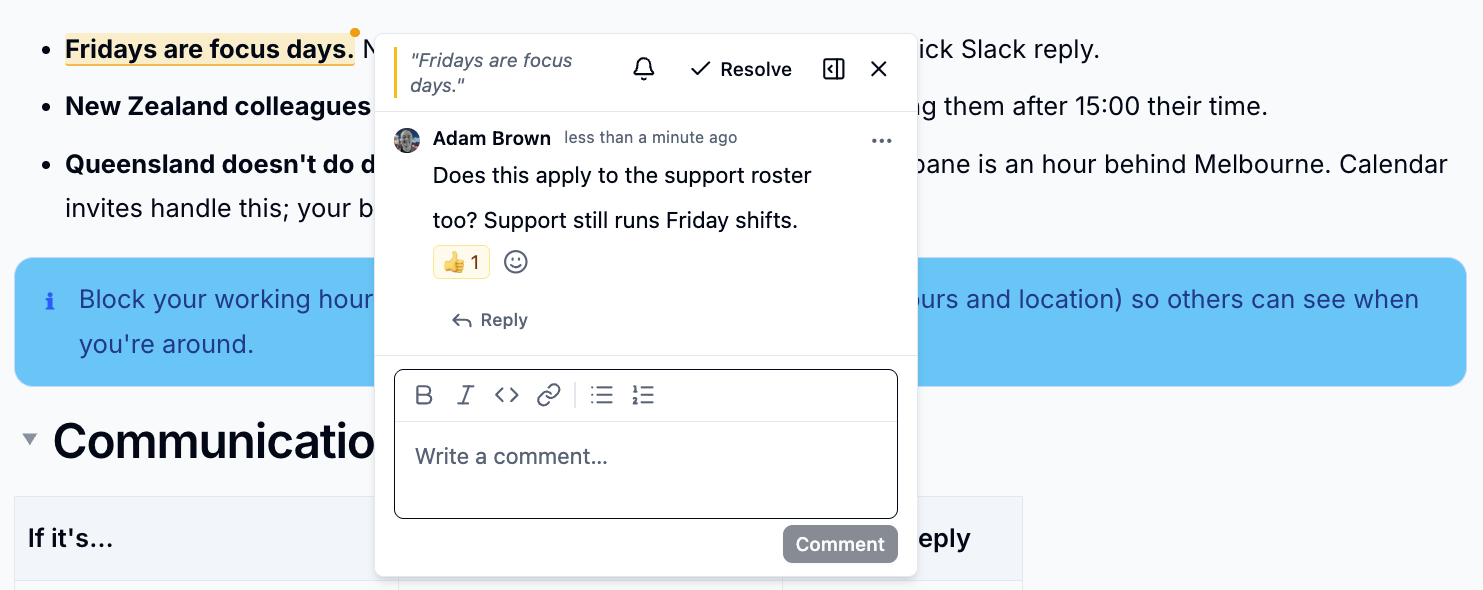
- Reply - click
Replyunder a comment - React - click the smiley to add an emoji reaction
- Mention - type
@and pick a person to notify them - More - use
⋯on a comment to copy a link to it, or to edit or delete your own comment
Resolve a Conversation
Click Resolve when a conversation is finished. It moves out of the open list
but is kept, and you can Reopen it later. The person who started the
conversation, and anyone who can edit the wiki, can resolve it.
The Comments Panel
Click the comments icon in the page header to see every conversation on the page.
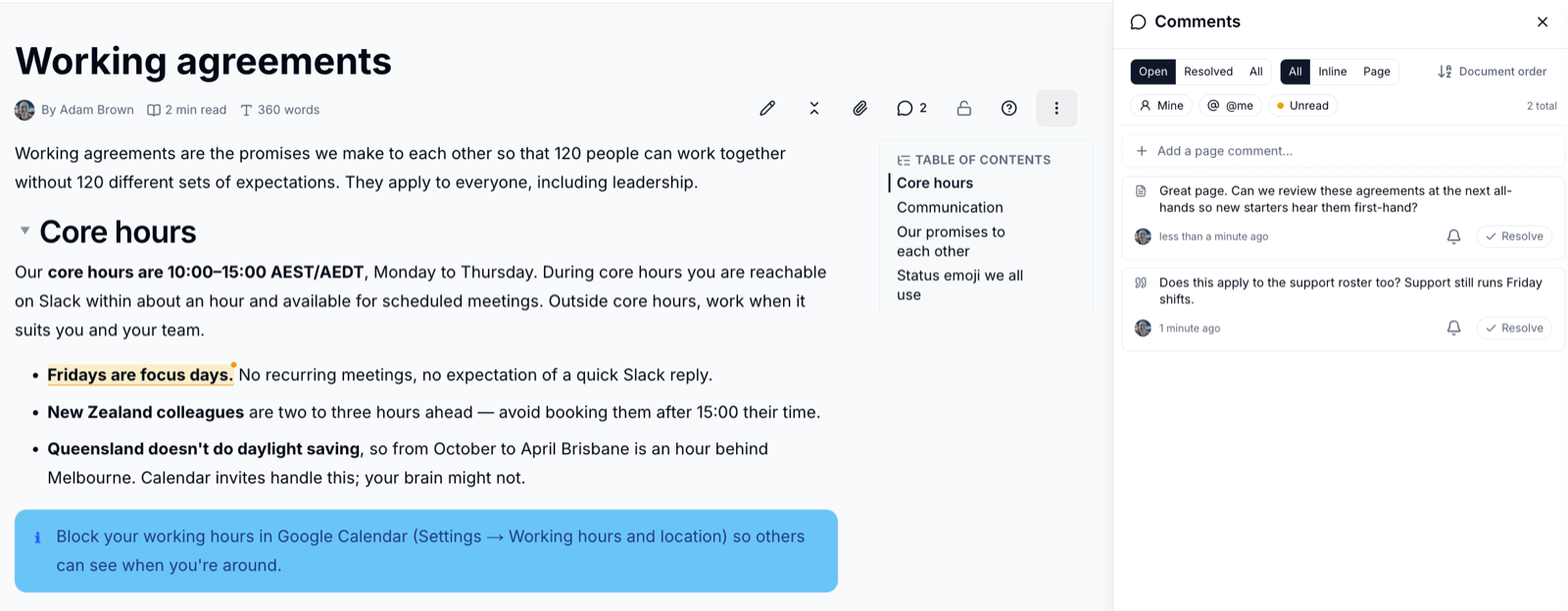
Use the filters at the top to narrow the list:
- Open, Resolved or All
- All, Inline (on selected text) or Page
- Mine, @me (conversations that mention you) and Unread
- Sort by document order, recent activity, newest or oldest
Notifications
You are notified when someone mentions you, replies to your comment, reacts to it, or resolves a conversation you started. Click the bell icon on a conversation to mute it.
Deleting the first comment
If you delete the comment that started a conversation and it is the only one, the whole conversation is removed, including its replies and reactions.
Please contact us if you have any questions.