
Space Dashboard and Widgets
Every space opens on a dashboard. It shows the space's wikis, its members, team updates and what has changed lately - and owners can add widgets for announcements, milestones, goals, countdowns and more.
The Dashboard
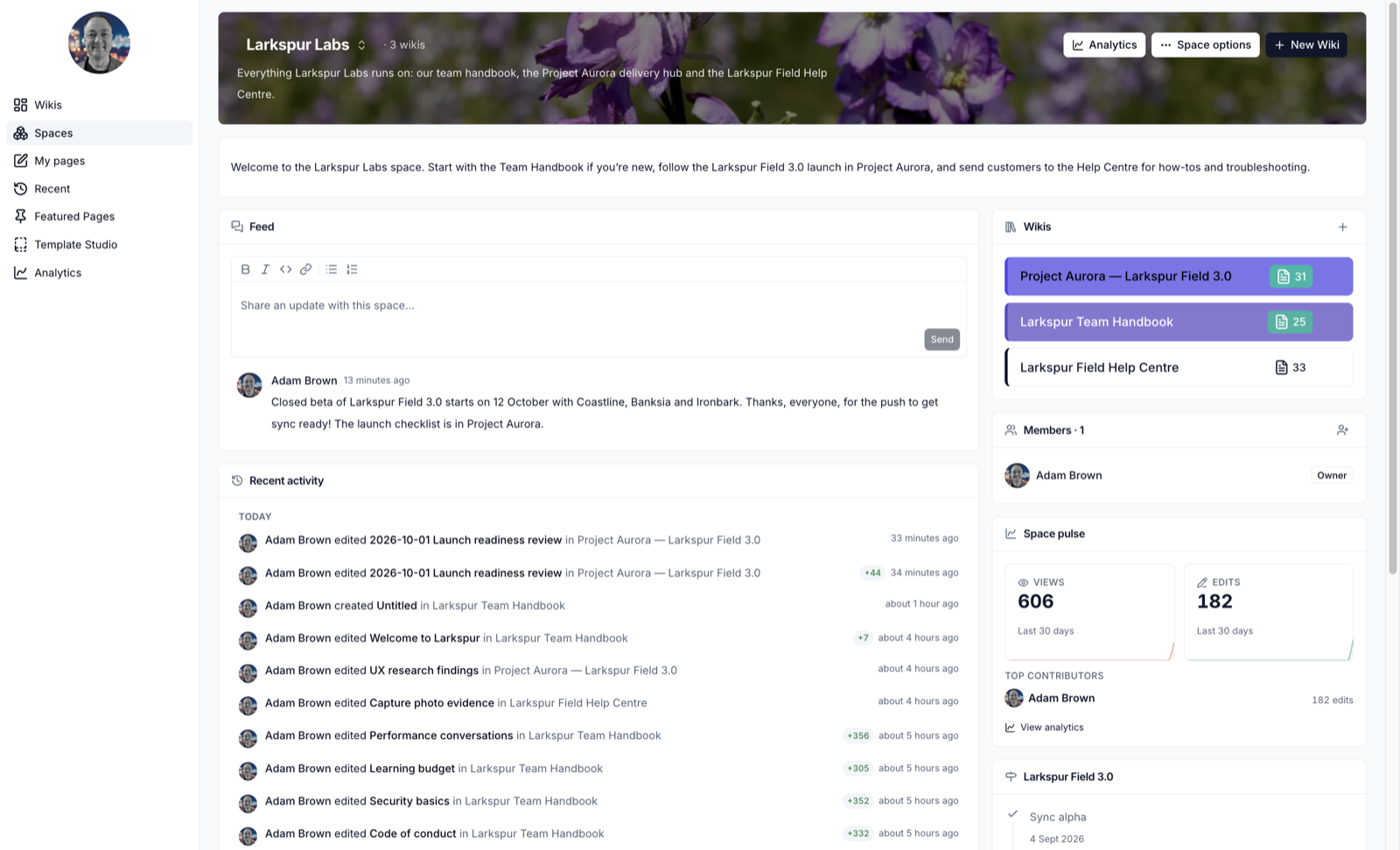
- The banner - the space name, its wikis, and the Analytics,
Space options and
New Wikibuttons - About - a short introduction to the space. Owners click Add an about or the pencil to write it
- Widgets - laid out in sections of one, two or three columns
A new space starts with Feed and Recent activity on the left, and Wikis, Members and Space pulse on the right.
The Feed
Post an update for everyone in the space: type in Share an update with this
space… and click Send. Members can reply and react to posts. People who
haven't joined the space can read the feed but can't post.
Edit the Layout
Owners set the dashboard everyone sees.
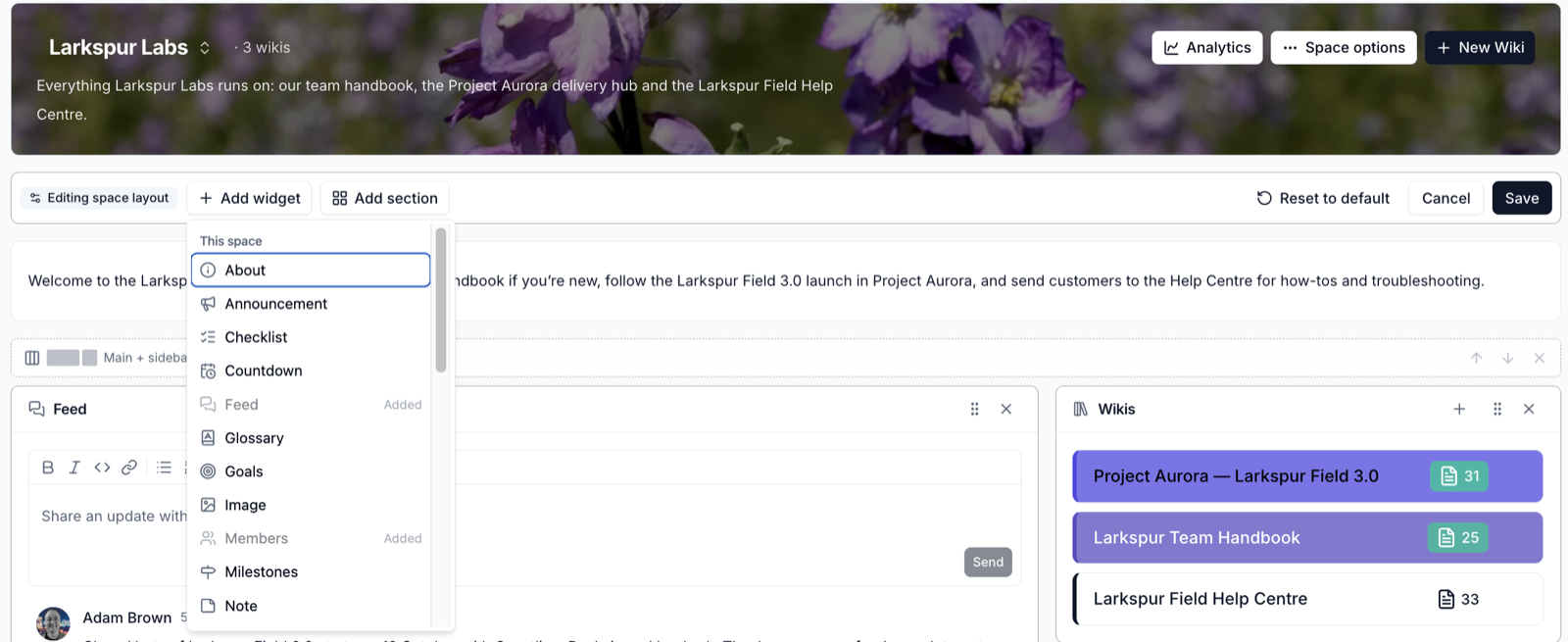
- Click Space options and choose Edit space layout
- Use the bar at the top:
Add widget- pick a widget to addAdd section- add a row with Full width, Main + sidebar, Two halves, Sidebar + main or Three columnsReset to default- go back to the standard layout
- Drag a widget by its grip to move it, or click
Xto remove it. Click the gear on a widget to set it up - Click
Save
Changing widget width
Widgets take the width of their column. To make one wider or narrower, change the section's columns from the strip above it, or move the widget to another section.
Widgets that haven't been set up yet are hidden from everyone, owners included. They only show while you are editing the layout.
Personalise for Me
Members can arrange the dashboard their own way without changing it for anyone
else. Click Space options and choose Personalise for me, make your changes
and click Save. A Personalised badge shows at the top - click Reset
beside it to go back to the space's layout.
Content the owners write, such as announcements and notes, still comes from the space.
Widgets
From the Wikis
| Widget | Shows |
|---|---|
| Wikis | The wikis in the space, with page counts |
| Recent activity | Page edits across the space's wikis |
| Space pulse | Views and edits over the last 30 days, and top contributors |
| Top pages | The five most viewed pages in the last 30 days |
| Contributors | Who has edited the most in the last 30 days |
| Needs attention | Draft and stale pages |
| New pages | How many pages were added in the last 30 days |
| Pick up where you left off | The pages you opened most recently |
| Whiteboards | The newest whiteboards |
| Topics | The wikis' tags. Click one to see its wikis |
| Featured pages | Up to 12 featured pages you choose |
| Wiki page | One page, shown in full on the dashboard |
| Page tree | One wiki's pages, to browse from the dashboard |
| Property report | A table of property blocks of one type, such as every decision or risk |
This Space
| Widget | Shows |
|---|---|
| Feed | Team updates and replies |
| Members | The people in the space |
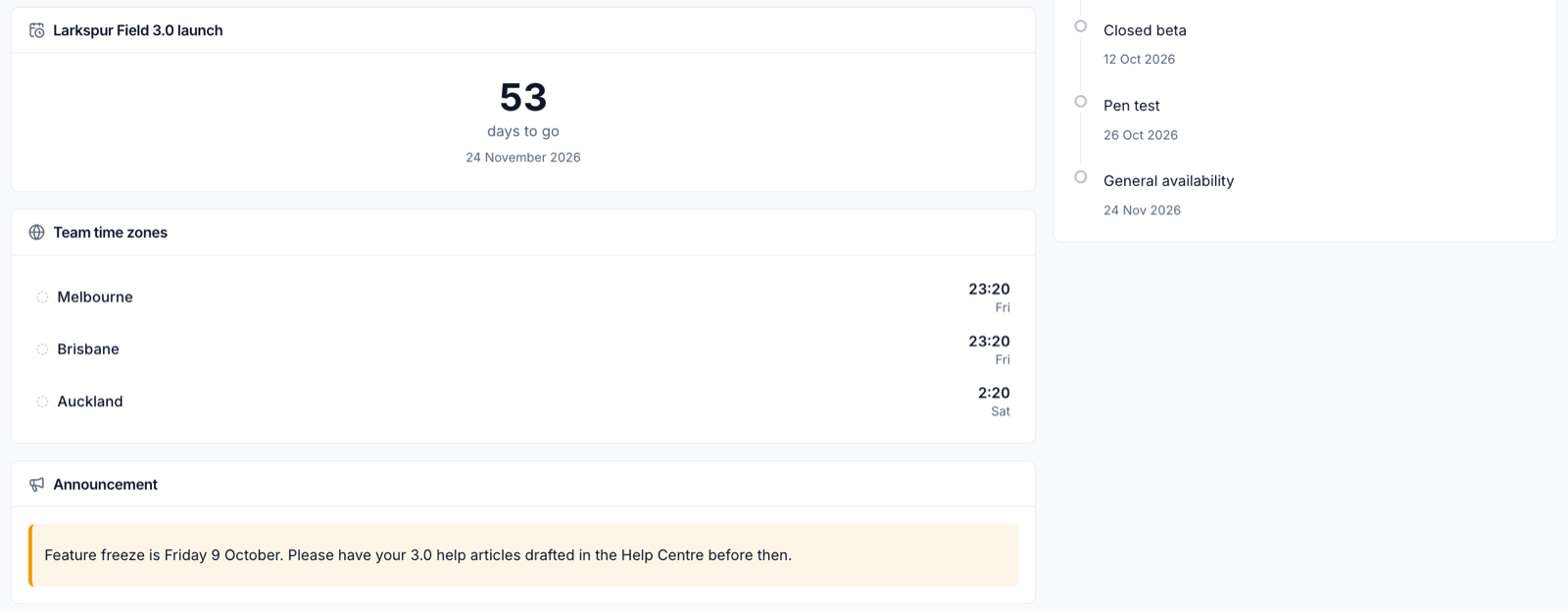
| Announcement | A message styled as Info, Success or Warning |
| Note | A titled block of rich text |
| Section heading | A heading and subtitle to break up the dashboard |
| Quick links | Up to 20 links |
| Image | An uploaded image, an Unsplash photo or one from the web |
| Checklist | Up to 30 items. Each person ticks their own |
| Countdown | Days to go until a date |
| Milestones | Dated milestones, marked Done, In progress or Upcoming |
| Sprint tracker | Which day of the sprint it is, and the sprint goal |
| Project status | Workstreams rated Green, Amber or Red |
| Goals | Progress bars from a current value towards a target |
| Glossary | Searchable terms and definitions |
| World clock | The time in up to 12 places, and whether it is working hours |
Space Analytics
Click Analytics at the top of the space to see page views, readers, edits, the most viewed pages and wikis, top contributors and pages that may need attention, for the last 30 or 90 days. See Analytics.
Please contact us if you have any questions.