
Discussing Ideas
Every idea has its own discussion, where people can ask questions, build on the idea and share their views. Anyone who can see the lab can join in.
Open the Discussion
- Open an idea
- Look below the idea. The Discussion tab is open there
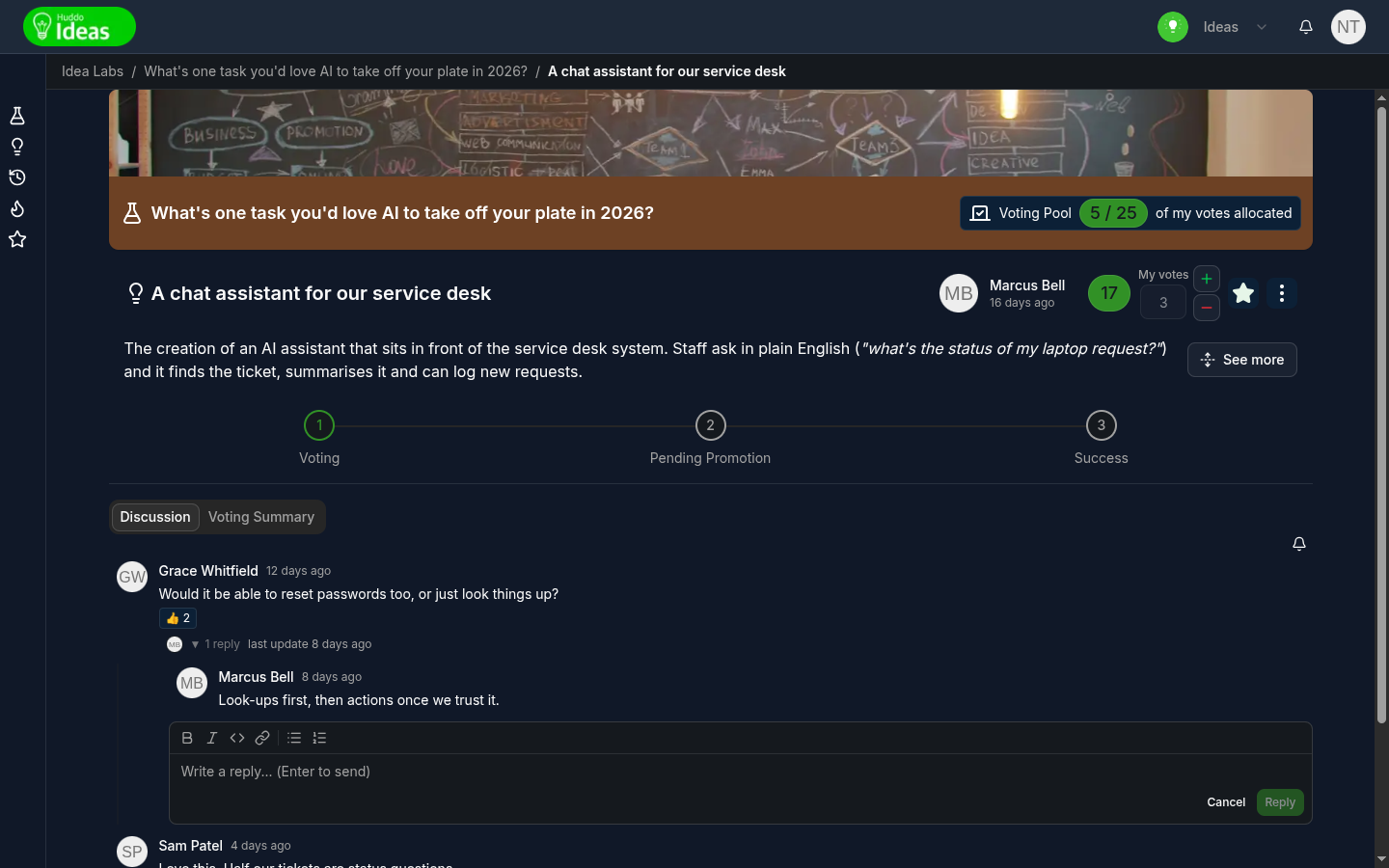
Add a Comment
- Click in the Add to discussion… box at the bottom
- Write your comment. The toolbar lets you add bold, italic, inline code, links and bulleted or numbered lists
- Click
Send, or pressCtrl+Enter(Cmd+Enteron a Mac)
Press Enter on its own to start a new line.
Reply, React and Mention
Hover over a comment to show its actions:
- Reply - click the reply arrow, write in Write a reply…, then click
Reply. Replies appear indented under the comment. Click the reply count to show or hide them - React - click the smiley, then pick an emoji. Click a reaction badge to add or remove your own reaction
- Delete - click the bin icon on your own comment. You must confirm. You can't undo this
- Mention - type
@in a comment, then pick a person. Huddo Ideas notifies that person
Vote Justifications
If a lab asks voters to justify their votes, each justification is posted to the idea's discussion as a comment from the voter. Reply to it like any other comment. See Voting on Ideas.
Comment Counts
Idea cards in a lab show a speech-bubble badge with the number of comments. Hover over it to see, for example, 3 comments. Ideas with no comments don't show the badge.
Notifications
You are notified when:
- Someone comments on your idea
- Someone replies to your comment
- Someone reacts to your comment
- Someone mentions you
To mute notifications for that idea's discussion, click the bell icon at the top right of the discussion. Click it again to unmute.
Please contact us if you have any questions.